

If you use an older Kindle, your device may have just become part of a countdown. As of May 20, 2026, Amazon will be discontinuing Kindle Store support for any of its e-reader devices released in 2012 or earlier, which means you won’t be able to purchase, download, or even borrow new books. Even Kindle Fire devices prior to 2012 are included — though you’ll still be able to access other apps and services.
Up in arms? You aren’t alone. This is a blatant move by Amazon to basically brick its own devices and force you to purchase a new e-reader, even if yours works perfectly fine. I’m the proud owner of a second-gen Kindle, and while the battery life isn’t the best, it still works surprisingly fast.
I’ve always been a fan of Amazon’s e-readers — it seemed that no matter how long I used one, it stayed in tip-top shape. The company knows that too, and that’s why it’s making this money-grab so obvious. The machine is hungry, and it’s coming for its most loyal customer base: readers.
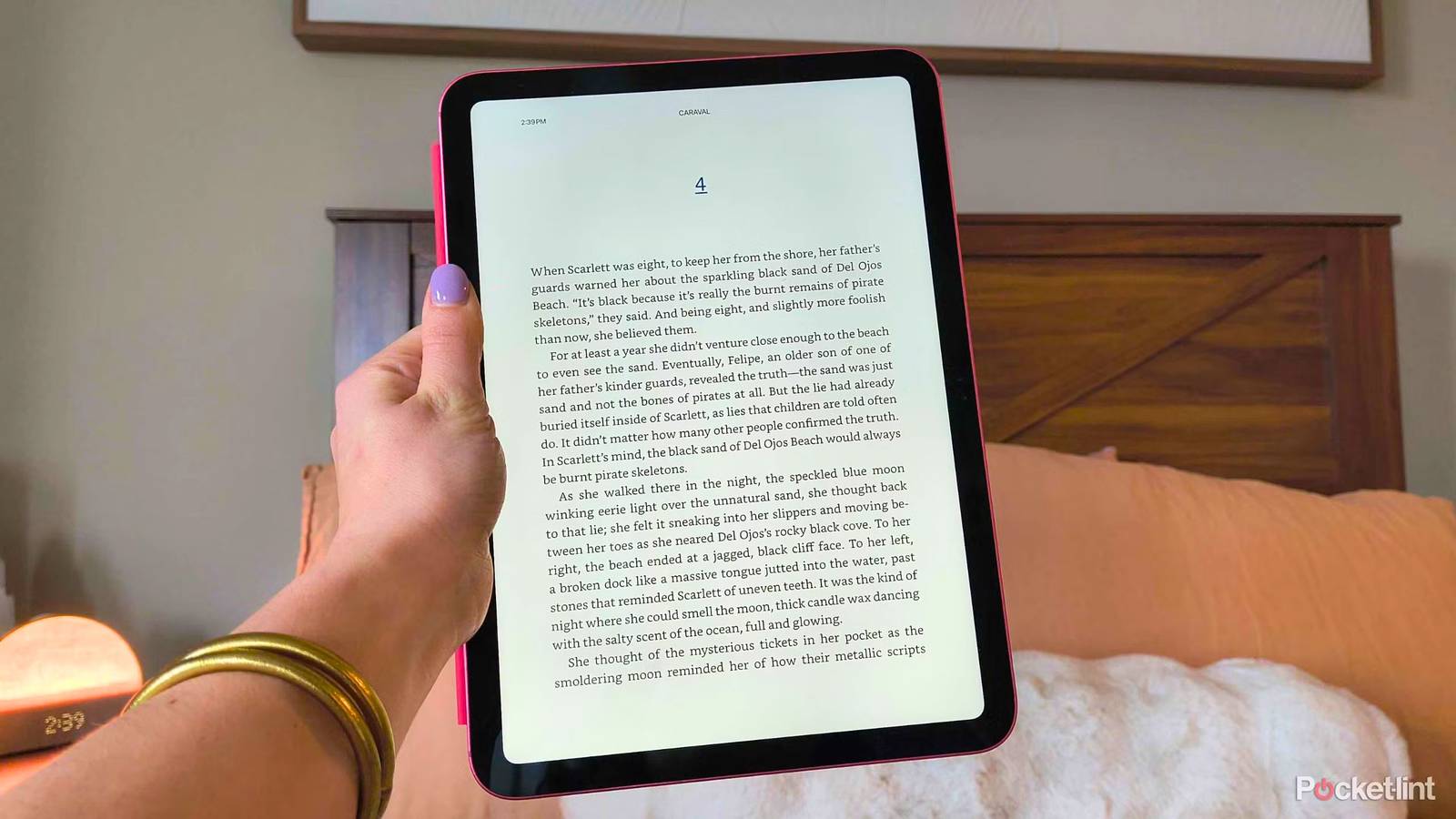
While I still have both a 2015 and 2024 Kindle Paperwhite, just the premise of this decision is infuriating enough to make me want to move away from my beloved e-reader for a little while. So, I’m ditching Amazon’s traitorous hardware in favor of a different device I already have on hand: an A16 iPad.

- Brand
-
Apple
- Storage
-
128 GB
- CPU
-
A16
- Operating System
-
iPadOS
Amazon is making you pay to keep reading
But its Kindle App lets you take your library to another device

The main appeal of Kindles is the E Ink display, distraction-free software, and small form factor, I know. iPads are bigger, heavier, and come loaded with notifications and distractions — not to mention a bright screen that easily catches glare. However, the Kindle App is completely free on the App Store, and all you need to do is log into your Amazon account to gain access to your entire library, Kindle Unlimited subscription, and more.
It’s squeezing users out of the hardware they took care of all these years just to be rewarded with a life sentence in software jail.
It’s not ideal, I know. But using the iPad I already own is a “free” way to keep reading and avoid caving to Amazon’s request — because, essentially, that’s what ending the support on the older models is. It’s squeezing users out of the hardware they took care of all these years just to be rewarded with a life sentence in software jail. You can use any Android tablet that lets you download the Kindle App, too.
Luckily, I’ve been trying to turn my iPad into an e-reader for months, and all the tricks I discovered are finally paying off.

- Developer
-
Amazon
- Offline downloads
-
Yes
- Ads
-
Yes
- Downloads and background play
-
Yes
How to turn your iPad into an e-reader
Get as close to E Ink as possible

I wrote a full guide on how to turn your iPad into an e-reader, and there are plenty of settings that let you get as close to the minimalist devices as possible. The first thing you want to do is limit notifications in some capacity — you can turn on Do Not Disturb, Airplane Mode, or Guided Access. Guided Access actually keeps the iPad in a single app and lets you control what features are available inside of it.
To enable Guided Access, open Settings > Accessibility > Guided Access (under General) > toggle on the Accessibility Shortcut option, which lets you turn it on whenever you triple-click the power button.
You can also set up “reading hours” with Downtime, which is a setting that only lets you access specific apps of your choice in a given timeframe. To set up Downtime, go to Settings > Screen Time > under Limit Usage, choose Always Allowed > choose the apps you want, including the Kindle app > go back to the Screen Time page > under Downtime, manually turn it on or create a schedule.
Now, to get as close to the E Ink look as possible, you can play with White Point settings. Adjusting the White Point controls the intensity of bright colors, which can help give your screen more of that matte e-reader look. You can find it by going to Settings > Accessibility > toggle on Reduce White Point > adjust the intensity with the slider.