


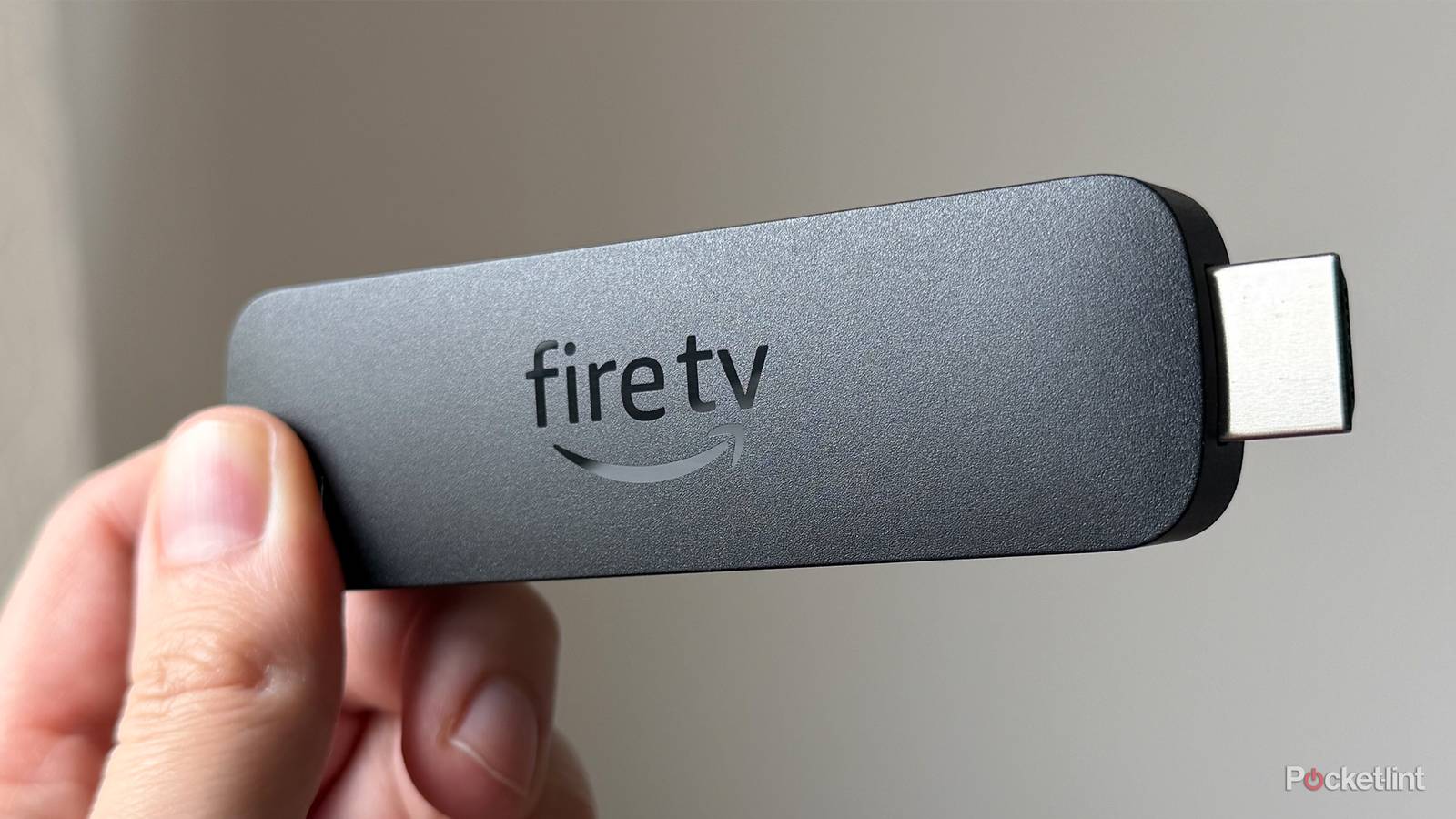
When I got my Fire TV Stick 4K Max, my priority after setting it up with my 4K LG TV was simple: streaming, streaming, streaming. I downloaded and logged in to all my favorite apps, like Netflix, Disney+, and HBO Max, and focused on watching shows and movies. But after a few months of using it, I regretted not realizing sooner that my Fire TV Stick is far more capable than I thought and is packed with features that can make streaming and using the device even better. You just need to know where to look.
Whether it’s making it easier to watch shows and movies, taking advantage of the Fire TV Stick’s ability to double as a surprisingly capable gaming device, or simply getting more out of the remote, there are plenty of useful tools hidden beneath the surface of your device. Here are five things your Fire TV Stick can do that you might not be using, and that can seriously upgrade your streaming experience. Best of all, they’re all free and easy to use.

- Brand
-
Amazon
- Resolution
-
4K
- Audio codecs
-
Dolby Atmos
- RAM/storage
-
16 GB
Connect Bluetooth audio devices
You can connect your AirPods and other devices to your Fire TV Stick

One of the first features I was genuinely excited to discover on my Fire TV Stick was its Bluetooth audio support. Most of the time, I watch shows and movies with a soundbar connected to my TV, but there are definitely nights when I’m binge-watching way too late and don’t want to disturb anyone else in the house. That’s where Bluetooth audio really comes in handy.
With Fire TV Sticks, you can connect Bluetooth audio devices such as headphones, earbuds, and speakers. So if you want to use your AirPods while watching TV, you absolutely can. I’ve been using AirPods and my Arctis Nova 7 headphones with my Fire TV Stick 4K Max for over a year, and it’s been great for late-night viewing or for a more immersive listening experience when watching alone.
Here’s how you can easily hook up a Bluetooth audio device to your Fire TV Stick:
1. Open the Settings menu on your Fire TV Stick.
2. Go to Remote & Bluetooth Devices > Other Bluetooth Devices.
3. Select Add Bluetooth Devices.
4. Put your Bluetooth headphones or earbuds into pairing mode.
5. When your headphones appear on-screen, select them to pair.
6. Once connected, you’ll see a “Device Connected” notification in the bottom-right corner of your TV screen along with the name of your headphones.
You can easily stream for free
If you’re tired of Netflix, free alternatives such as Pluto TV and Tubi are worth trying

I picked up a Fire TV Stick mainly to make it easier to watch my go-to streaming services like Disney+ and Netflix. But a lot has changed in the past few years, and with streaming costs continuing to climb, I’ve started focusing much more on free streaming apps.
If you’re looking to cut down on your monthly streaming bill — or even ditch paid monthly subscriptions altogether — there are plenty of free streaming services available right in the Amazon Appstore on your Fire TV Stick. They offer a solid mix of on-demand movies and shows, plus free live TV channels, so you can still get a full streaming experience without paying a truckload of money each month.
Some of the free streaming services I recommend checking out include The Roku Channel, Pluto TV, Tubi, Plex, and Philo.
And don’t let the fact that it’s free fool you into thinking there’s nothing good to watch. These services are packed with great content.
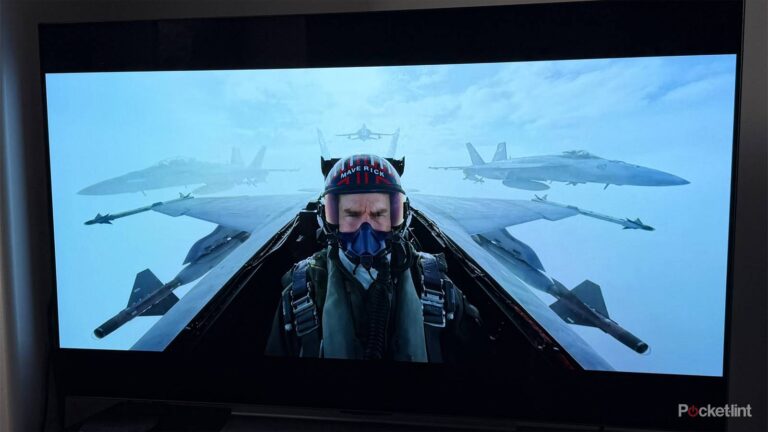
Take Pluto TV, for example. It offers hundreds of FAST (free ad-supported TV) channels, plus thousands of on-demand movies and shows you can watch anytime. And just in May alone, Pluto TV added over 100 new movies to its lineup, including Top Gun: Maverick, Saving Private Ryan, The Godfather, and a few of the Mission: Impossible movies.
Give Alexa a try
There are some surprisingly useful commands

You’ve probably noticed the blue microphone button at the top of your Fire TV Stick’s remote. When you press it, Alexa, Amazon’s AI voice assistant, activates. I’ll admit that at first I mostly ignored Alexa and barely used it. But once I realized how useful the voice commands are, it quickly became something I rely on to make diving into streaming faster.
For example, instead of digging through the home screen to open an app, you can just say “Open Netflix” or “Open Prime Video” when you press the microphone button, and the app opens instantly.
And when you’re watching something, you can use your voice to control playback too, like pause, play, fast-forward, or rewind. I use this constantly when I miss something in a show. I’ll usually say something like, “Hey Alexa, rewind two minutes,” and I’m instantly back to the spot I missed. It’s also great for movies, especially if you want to skip ahead to a specific scene without scrubbing the timeline manually.
Amazon is also beginning to roll out Alexa+ to Fire TV devices. Alexa+ is designed to make conversations with Alexa and requests to Alexa feel more natural and to unlock even more features, such as personalized movie recommendations.
Dialogue Boost
Make it easier to hear your favorite show

Amazon packs a number of accessibility features into its Fire TV Sticks, but one of my favorites is Dialogue Boost.
As the name suggests, Dialogue Boost increases the volume of spoken dialogue in what you’re watching, above sound effects and music, without raising the overall volume. It also offers a few different levels to choose from, depending on how much of a boost you need, whether it’s a subtle lift or something more noticeable.
So, if you sometimes have trouble hearing dialogue, this is the setting for you. Here’s how to enable Dialogue Boost on your Fire TV Stick:
1. Open the Settings menu on your Fire TV Stick
2. Go to Display > Audio.
3. Select Dialogue Boost.
4. Choose the Dialogue Boost level that works for you, including: Low, Medium, High, Enhanced, and Heightened.
Play games from the cloud
You can turn your Fire TV Stick into a console or gaming PC

Another really cool feature on Fire TV Sticks is cloud gaming. So if you don’t have a console like a PS5 or Xbox Series X but still want to play games occasionally, cloud gaming makes it possible without dropping over $500 on hardware. All you really need is a Bluetooth controller and, depending on the service, a subscription.
Apps like Xbox Cloud Gaming and Amazon Luna both work on Fire TV Sticks and let you stream a massive library of games straight to your TV. I’m talking titles like Indiana Jones and the Great Circle, Hogwarts Legacy, Kingdom Come: Deliverance 2, Call of Duty, and more. That said, both Luna and Xbox Game Pass require a paid subscription. But before you commit to anything, you can browse the full game library in each app first to see if there’s anything you’re interested in playing.
A free alternative to Xbox Game Pass and Amazon Luna is Nvidia GeForce Now, which lets you play PC games from the cloud. It’s available on the Fire TV Stick 4K Plus and 4K Max. Though it has paid tiers, GeForce Now also offers a free, ad-supported tier. So if you want to dabble in PC gaming on your Fire TV Stick without paying a cent, it’s a solid option.