I’ll confess up front that I’m not much of a soccer fan. My main hobbies — weightlifting and EUCs — are sports-adjacent, and I might enjoy going to an event with friends, but I couldn’t tell you which team Messi plays for, let alone his record. The main thing I know about him is that he’s so deified, there was a full-on riot in India when his appearance at a 2025 event was shorter than people paid for.
It’s hard to ignore the 2026 FIFA World Cup, though, because it’s coming to North America between June 11 and July 19. It’ll be hosted in 11 cities in the United States, as well as three in Mexico, and two in Canada. It’s seizing on the growing popularity of soccer in the US, and may be significant enough to distract audiences who would normally stick to baseball, football, or basketball.
If you’re going to hold a World Cup viewing party, there are a number of TV settings you should tweak to maximize the experience. Your set almost certainly isn’t configured for the best performance, especially if you’re unboxing a new one a day or two before the big game.
Choose a picture mode that isn’t Dynamic or Vivid
You’re not trying to sell your own TV

Many TVs default to picture modes called Dynamic or Vivid, which sound great on paper. Who doesn’t want images to look vivid? In fact, these settings are often used to showcase a TV in a store, and may be what drew you to the one you bought.
The reality is that while they may attract your attention, they do so by ramping brightness, contrast, saturation, and/or sharpening up to extreme levels. It’s eye-catching, but kills detail in the process, to the extent that they make images look more synthetic rather than less. When you’re watching the World Cup, you presumably want to feel like you’re sitting in the bleachers — not watching someone play FC 26 on their PlayStation.
Sometimes these modes include motion smoothing and noise reduction features as well. I normally hate motion smoothing — there’s more to say about that in the next section — but that can be acceptable or even preferable in the context of sports. Noise reduction almost never has any value, however, since it’s likely to further erase any detail. Consider that you’re already going to be watching a 4K image from some of the best pro cameras on the market — there should be little if any noise to speak of.
For movies or shows, I’d normally suggest Filmmaker Mode. When it comes to sports, just about any other mode will do as long as it isn’t an energy-saving option. On my Hisense U68KM, I prefer using Theater Night if I’m not in Filmmaker Mode. It’s relatively subtle, but adds a touch of warmth that might otherwise be lacking.
Scale back motion smoothing
Your TV should easily keep up

Motion smoothing inserts artificially-generated frames into video, the goal being to reduce both blur and judder. In the TV world, judder refers to the distortion you sometimes see when a camera pans or tilts across a scene.
With soccer, smoothing is usually welcome, since the camera and players are in constant motion, and the closer you get to reality’s ultra-high framerate, the better. Sometimes, however, this tech goes too far, once again making things look unnatural. It stands to reason, as your TV can only ever guess what those interstitial frames should look like.
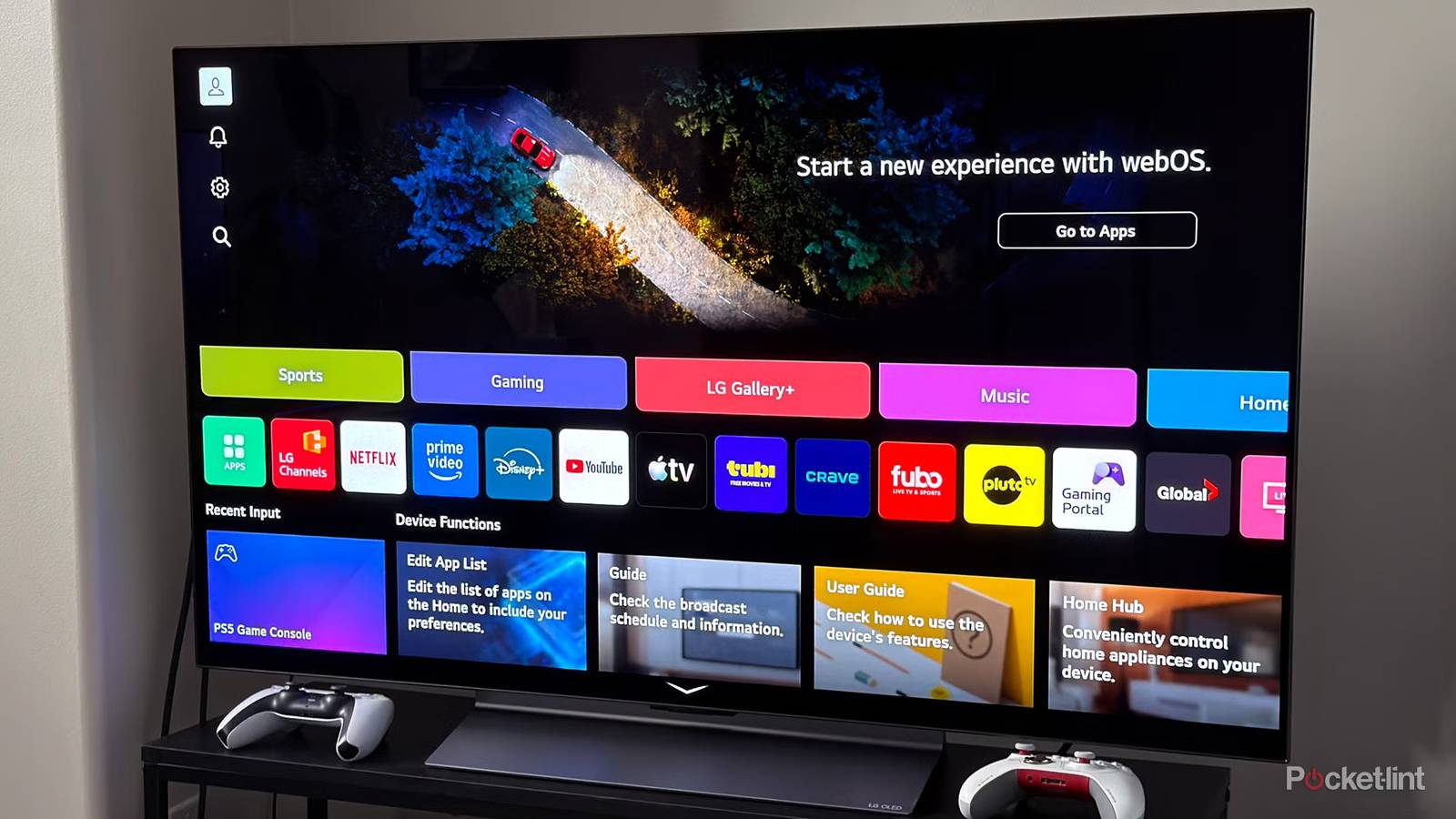
The good news is that TVs let you dial back smoothing to some degree. On the LG model above, for instance, I wouldn’t use any preset higher than Natural, and Cinematic Motion is preferable if you’re going to leave smoothing on all the time. That’s because most movies and TV shows are presented at 24 frames per second, and high smoothing can result in the dreaded “soap opera effect.” As I like to describe it, the effect makes a $200 million blockbuster look like a cheaply-shot ’90s episode of General Hospital.
You may be fine disabling smoothing completely, in fact. Most TVs are now well-equipped to deal with fast motion regardless, and you might not even notice any issues, whether you’re watching Dune or an end run on the pitch.
Turn off any energy-saving features

On a TV, energy-saving features are the enemy. That might sound harsh or ridiculous, like the AV equivalent of rolling coal. The truth, however, is that the only meaningful way to reduce power consumption on a TV is to lower brightness, which directly impacts image quality. To use a better vehicle analogy, it’s like extending the range of a car at the cost of struggling to reach highway speeds.
At a minimum, energy-saving features tend to make images dimmer and flatter than they should be. That translates into weak contrast and duller colors, which are hardly what you want when watching the news, much less the World Cup. With HDR (high dynamic range) broadcasts, highlights are kneecapped, which can make a $2,000 TV look little better than a $200 one.
The settings you need to alter are going to vary from brand to brand or platform to platform. While you might find what you’re looking for under Power or Energy menus, they’re sometimes slipped under other categories. In other situations, simply selecting the right picture mode will do the trick. Remember that as with motion smoothing, companies sometimes like to (pointlessly) rebrand these features, for example referring to them as “eco” modes.
Be sure to disable any auto-brightness options too, except perhaps Dolby Vision IQ. These sound reasonable, but err towards being too conservative in practice. You’re better off experimenting with manual brightness levels until you discover your personal preference.
Enable dialogue enhancement
More valuable than you might think

This might initially seem unimportant to sports. If you know the rules and the teams, after all, it’s often easy to follow the onscreen action, even in a crowded bar or a noisy gym. That’s arguably one of the reasons sports are so popular. It’s something that crosses cultures, and allows you to socialize without feeling like you’re missing anything.
As with any other genre, though, it’s possible to lose important info if you can’t discern voices clearly. That might be a penalty call, a game delay, or simply a smart observation. And of course, a stadium is an inherently noisier environment than most, owing to the roar of the crowd. About the only thing noisier in sports is racing, and that might actually get quieter as EVs and PEVs take over.
There are a few ways you can enable vocal/dialogue enhancement. There’s usually some sort of toggle in your TV’s Sound menus, but if you’ve got a media streamer or smart soundbar, it’s wise to use those add-ons’ native options. They’re more likely to support advanced forms of enhancement, and in the case of a media streamer, changing options on your TV might not affect anything.
It’s best to leave enhancement off if voices are already coming through loud and clear. The tech works by boosting vocal frequencies at the expense of others, which means you’re sacrificing the dynamic range your speakers are capable of.


5/5