


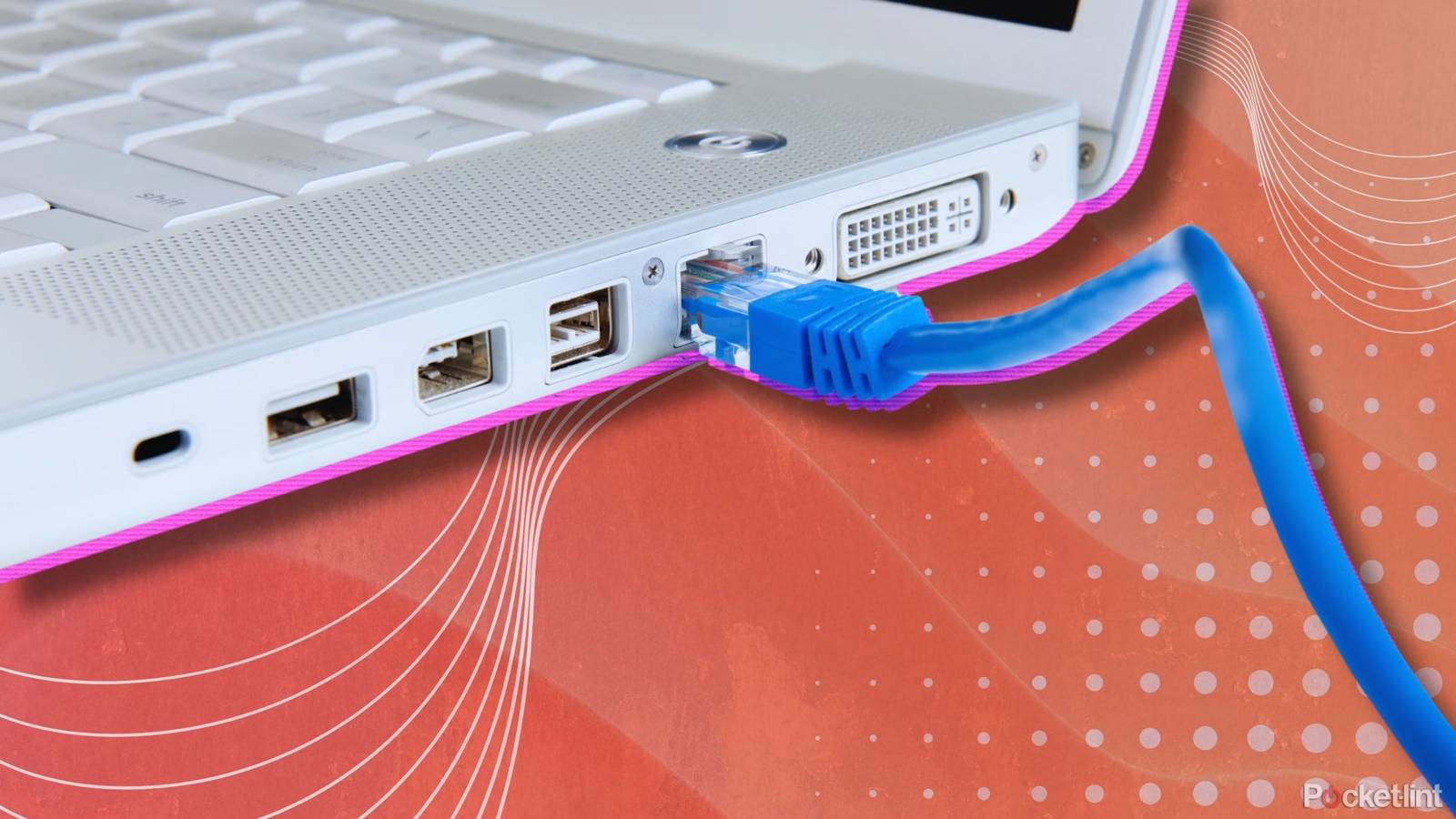
PC networking problems can be hard to diagnose, as I was reminded just the other day. Initially, my internet went down for a few hours due to a problem with my provider — but once the provider had resolved things, I was still offline, and nothing I was doing seemed to help. I tried resetting my own Wi-Fi router, the ISP’s router, and even the fiber terminal in the garage. My wife’s veteran tech support skills managed to resolve things, but I’m still mystified as to how.
The fact is that there are a lot of potential failure points in a network connection. The temptation, generally, is to blame your ISP, your router, or the cables you’re using, but if none of those are panning out, it may be time to check into some of the options below. This list isn’t meant to be comprehensive, but I will touch on some relatively common issues.
Network adapter problems
When software gets in the way

I find that while network issues are most often linked to internet outages, the next most common problem for me — in a distant second place, mind you — seems to be Windows 11’s network adapter drivers. If a driver is misconfigured in some fashion, this can kill an Ethernet connection as surely as anything else. Sometimes this seems to happen out of the blue, though hypothetically it can be triggered by things like software updates.
Frequently, fixing this issue is extremely simple — running the Windows 11 network troubleshooter. Right-click on your internet connection in the system tray (the right-hand side of the taskbar), then left-click Diagnose network problems. If a broken connection is detected and resetting the adapter makes sense, Windows will offer to do it for you.
If that doesn’t work, you can try launching Windows Update to check for updated drivers, assuming you still have some way of getting online. Alternately, if you suspect a driver update actually caused the situation, you can open Device Manager, find Network adapters, then right-click on the appropriate entry and select Properties. Under the Driver tab you’ll find a Roll Back Driver option, but be careful about using this — there’s no guarantee it will work, and if you roll back a driver that was functioning just fine, you may actually make things worse.
The nuclear option, so to speak, is performing a reset by going to Settings -> Network & internet -> Advanced network settings -> Network reset. This not only reinstalls all your network adapters, but restores other components back to their original settings. This could force you to reinstall some other software yourself, most notably any VPN clients you were using.
Damaged or dirty Ethernet ports
Don’t rule it out

One of the small things I appreciate about Ethernet is that it’s normally hard to screw up the physical connection. Unlike many formats, there’s a knob around the connector that audibly snaps into place. This not only confirms that you’re plugged in, but makes it harder for the cable to come undone.
If a cable is yanked out improperly, though, this can damage the pins inside a port, whether it’s on your computer, your router, or any other device. Use a flashlight to investigate. If a pin is bent, you may be able to nudge it back into place using something like a wooden toothpick. Be extremely careful about this however — the device should be both powered off and unplugged, and you’ll want to ground yourself electrically. Also, don’t be forceful, or you could inflict permanent damage. There’s a possibility that the port is already beyond an easy fix, in which case you’ll probably need a repair technician to help.
If you’re luckier, it could just be that there’s grime, dust, or lint preventing a clean signal. Dust or lint can be blown out using an air bulb, a compressed air can, or an electric blower. If you use compressed air, avoid sticking the nozzle directly in the port, or tilting the can too far up or down, since you might accidentally spray liquid. Grime is harder to remove, but you may be able to use a wooden toothpick, a plastic spudger, or a pointed cotton swab to gently brush it out.
IP or DNS issues
Getting into the weeds

I’m stepping out of my comfort zone with this one, but unfortunately, I’m all too aware that IP and DNS settings can wreak havoc with Ethernet. Think of these like being given a set of bad directions for a roadtrip — if the start or endpoints are wrong, they’re useless for getting where you want to go.
On the IP front, if your computer’s Ethernet port is set to a static IP address, there’s a risk of your router trying to assign the same address to a different device. If that happens, your Ethernet is going to be kicked offline, or at best run into constant conflicts. You may of course need a static IP address for some purposes, such as running a server. Usually, though, it’s best to let IP addresses be handled via DHCP (Dynamic Host Configuration Protocol). That’s the default for operating systems and your router, and for good reason.
As for DNS (Domain Name Server) issues, these can make you think there’s a problem with your Ethernet when it’s actually reaching out to the broader world that’s the trouble. A DNS translates the URLs you enter into IP addresses — so if a server is unavailable or out-of-date, you simply won’t be able to reach a website without entering its IP address, which you probably don’t know.
In Windows 11, you should be able to resolve both issues by heading over to Settings -> Network & internet -> Ethernet. If either IP assignment and DNS server assignment is set to Manual, click Edit to change it over to Automatic (DHCP). You can stick with Manual if you know exactly what you’re doing — you may even get better results from some third-party DNS options — but it’s rare that this is going to be worth bothering with.
Windows is keeping your Ethernet port asleep
Wake up, samurai

Macs and Windows PCs alike will often power down ports when you put your computer to sleep. Usually this is a good thing, since simply keeping a port active can draw extra energy. If you have a device like a phone or speaker connected via USB, some settings may allow it to continue to charge, in which case you could easily drain a laptop battery to zero.
I haven’t dealt with this myself, but a possible reverse problem is that a port will fail to wake back up with the rest of your machine. If it doesn’t, the most likely solution involves forcing the port to stay active. In Windows 11, open Device Manager, then right-click on your Ethernet device and select Properties. Under the Power Management tab, uncheck Allow the computer to turn off this device to save power. You’ll have to restart your PC to save settings and reinitialize the port.
An important note here is that Ethernet controllers aren’t necessarily named the way you’d expect in Device Manager. They might instead be labeled something like “Realtek PCIe GBE,” the GBE being short for gigabit Ethernet.