



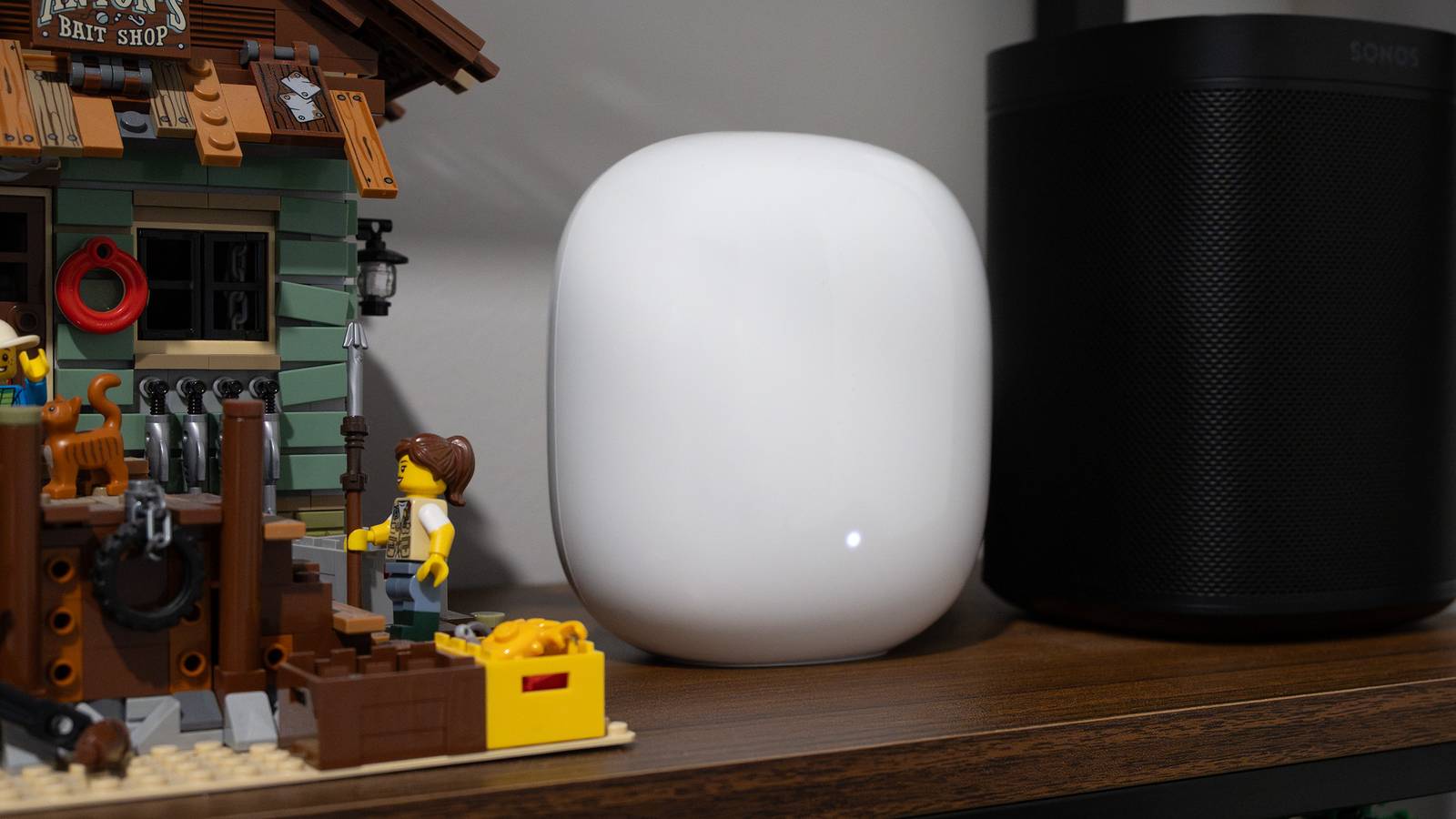
Usually these sorts of Wi-Fi guides are laser-focused on one of two things: maximizing bandwidth or improving reliability. I’ll touch on those ideas here, but there’s a topic in between that’s generally ignored: ensuring a quick handshake. Wi-Fi devices sometimes take a long time to connect, which can make them feel just as slow as if they were stuck on a slower protocol. It hardly matters if you have the fastest PEV on the block if it takes you 15 minutes just to hit the pavement.
There are several tactics you can try to improve the efficiency of your Wi-Fi. Some of these will probably be obvious, but others are more obscure, and may demand a little tech savvy. Don’t worry though — anything you can do is worth trying, particularly if you’ve got a relatively complex smart home setup where any delay will become an ongoing aggravation.
Fix positioning and line-of-sight
The simplest answers are often the best

This tip might almost seem ridiculous, but the effects of positioning really matter. A router is a radio tower, and just as you wouldn’t expect to hear NPR clearly from a station on the other side of a mountain, you shouldn’t expect to get a quick and clean Wi-Fi signal if you’ve shoved your router in a closet.
As that suggests, the first step is to make sure your router is out in the open. It shouldn’t be in a closet, drawer, or entertainment center, and it also shouldn’t be stuck behind a massive object like your TV, sound system, or bookshelf. While some materials are more Wi-Fi-friendly than others, anything you put in a router’s way is going to diminish signal quality to some degree. A router trapped in a drawer is going to have its speed and range reduced before anything can connect.
Just as you wouldn’t expect to hear NPR clearly from a station on the other side of a mountain, you shouldn’t expect to get a quick and clean Wi-Fi signal if you’ve shoved your router in a closet.
If you can, I’d also recommend keeping your router off the ground and a few feet away from any wall. In some homes, your walls and floors can prove to be major obstacles in their own right, say if they’re made with concrete or metal supports. There may not be much you can do in that scenario except invest in a mesh system, perhaps using Cat 6 Ethernet cables for a reliable backhaul.
When using your devices, you’ll always get the best results when they have line-of-sight with a router. You’re probably not willing to reposition yourself every time you want to use your phone or Steam Deck, but the LOS rule may be useful to follow with stationary devices like your TV, a desktop PC, or products like cameras and bulbs.
Disable unused bands or protocols
Proceed with extreme caution

One of the things that makes modern routers so powerful is that they’re not just backwards-compatible, but equipped to cover a wide range of frequencies — Wi-Fi 6E and 7 units cover the 2.4, 5, and 6GHz bands. A downside to this, however, is that devices can get “confused” while they decide on the best way to connect, to put it simplistically. This won’t necessarily result in a meaningful delay, but if you’ve reduced the number of options available, delays are less likely.
Depending on your router, you may have options to disable particular bands and/or older Wi-Fi standards. You probably don’t need support for 802.11b or g, for example, given that even 802.11n dates back to 2009. Maintaining compatibility with outdated standards imposes unnecessary overhead, considering that most everything in your home probably supports 802.11ac (Wi-Fi 5) or better.
Be very careful when it comes to disabling bands. Some devices work best or exclusively with a particular band, and Wi-Fi 7 devices can potentially exploit multiple bands simultaneously when connecting to a compatible router. Turn off a band’s radio only if you’re positive you won’t use it.
Force devices to connect to band-exclusive SSIDs
Put up your own detour signs

Often, a better way of addressing confusion is creating separate network IDs (SSIDs) for each band, and assigning devices to them as appropriate. Many smart home accessories, such as lights, should probably be forced onto a 2.4GHz SSID, since that band offers the most range. Anything with higher bandwidth requirements — like your laptop or a security camera — should probably be forced onto 5GHz. Pushing devices onto 6GHz is usually a bad idea, if it’s even an option, since the band’s range is so small that it might not extend past the room your router is in.
There’s less need for caution with this tip, but hardly zero. For one, the Wi-Fi 7 problem remains, as you don’t want to deprive devices that support Mult-Link Operation (MLO). Second, devices connected to one band may sometimes be unable to see others on another, which will wreak havoc if they need to talk to each other. If your smartphone is on 5GHz, but your smart home hub is on 2.4GHz, you may have to switch SSIDs before you can see and control those accessories.
A final hurdle is that if you have a mesh system, separating bands may not be possible. Mesh routers often count on unified SSIDs for seamless roaming.
Remove or pause unused devices
No sense clogging up the airwaves

Anything connected to Wi-Fi not only eats into a router’s total bandwidth, but occupies a specific channel. Routers direct devices to the best available channels, typically meaning the least crowded — so by extension, the more devices you have online, the more likely you are to cause problems. Moreover, all routers have a ceiling on the number of simultaneous connections they support. If you hit that limit, your router is going to automatically kick older connections offline to make room for new ones. I encountered this exact issue when I was first building out a smart home. The Wi-Fi 5 router I had at the time couldn’t handle the load of so many accessories, so products like smart bulbs would drop for no apparent reason.
All routers have a ceiling on the number of simultaneous connections they support. If you hit that limit, your router is going to automatically kick older connections offline.
With Wi-Fi 6 or later, you should mostly be fine as long as you disable any devices you’re no longer using. There’s not much to it, but you might be surprised at what you still have active. It could be a tablet that’s charging in the corner, or an air purifier that you can’t be bothered to clean. If it’s in standby, it may still be pinging your network, or even fetching software updates.
More likely is that you have devices you still want, but only use periodically. If you’re really worried about channel congestion, your router app may offer the ability to temporarily pause them. Don’t forget about this, of course, since the last thing you want is an inexplicable connection barrier.


3.5/5
- Coverage
-
2500 sq ft
- Number of Devices Supported
-
200+
- Speed
-
9.4 Gbps (wired), 4.3 Gbps (wireless)
- Wi-Fi Protocols
-
Wi-Fi 7