



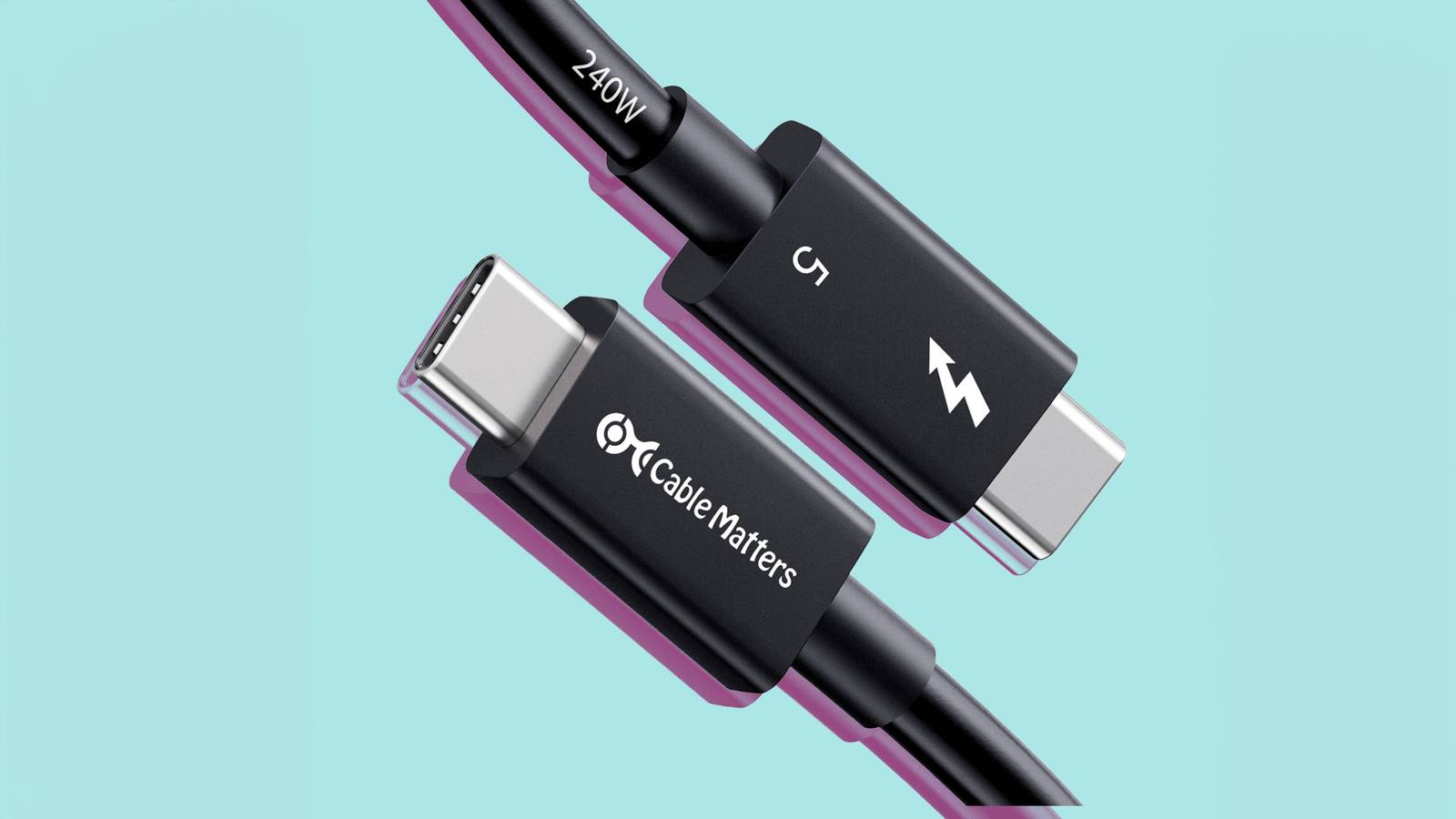
Let me get this out of the way: on its own, there’s no such thing as a miracle cable. What any cable can produce is dependent on the ports it’s plugged into, and of course the internal specs of the devices you’re using. The fastest USB cable on the market hardly matters if you’re using an adapter to bridge it with a USB 2.0 peripheral from 2005.
What I’m really talking about is eliminating those bottlenecks. Often, people keep recycling the same cables they’ve had for ages, unaware that it’s seriously impacting the performance of their TVs, smartphones, and other gear. You might be surprised by what 2026 products are capable of once you stop using cables from 2016.
USB 4 and Thunderbolt
Why isn’t this the default already?

As much as people joke about the “universal” part of the acronym being a lie, USB is indeed everywhere, almost unavoidable with modern devices. It’s how people charge everything from cameras to smartwatches, and how most local data transfer happens if it’s not over Wi-Fi. Wi-Fi is slower than you might think — while 600Mbps (megabits per second) might be fast relative to your internet connection, even 2008’s USB 3.0 is going to blow it out of the water.
If you’ve got a USB 4 port on your hardware, using a matching cable can unlock massive speed boosts. Whereas USB 3.0 is capped at 5Mbps, the base version of USB 4 is rated at 40Mbps. That’s enough to copy a 10GB file in just 2 seconds. Often, it’s not your ports or cables that are the bottleneck, but device performance.
That’s not even as fast as USB 4 gets. USB 4 v2 doubles bandwidth to 80Gbps, and can deliver asymmetrical speeds up to 120Gbps. It’s pretty much a must-have if you work in professional 4K or 8K video editing, given that you could be transferring terabytes of data at a time for some projects.
Riding along with USB 4 are Thunderbolt 4 and 5, the second limited to USB 4 v2. Functionally there usually isn’t much difference between USB 4 and Thunderbolt, but Thunderbolt accessories are guaranteed to have the best specs, and there are whole categories of products designed to exploit that — mostly docks, monitors, and high-end external SSDs. A Thunderbolt dock is practically a requirement if you want a laptop-based workstation.
Cat 6 Ethernet
Paving the way for multi-gig internet

You probably have at least one Ethernet cable in your home: the one connecting your modem to your Wi-Fi router, assuming those things aren’t merged. If you’re reading this site, there’s a good chance you have multiple Ethernet hookups connecting your router to devices like your PC or game console.
Cat 5e Ethernet cables are sufficient in most circumstances, since they support speeds up to 1Gbps. In fact you’ll stumble into 100Mbps ports occasionally, like the ones used on some TVs and media streamers. Increasingly, however, router makers are raising Ethernet speeds up to 2.5Gbps or higher, one reason being that the best internet plans are moving into multi-gig territory. If you’re paying for 5Gbps internet, you’re wasting your money if you don’t upgrade as many cables as possible to Cat 6, which supports speeds up to 10Gbps.
There are reasons to use Cat 6 beyond faster internet. Some network-attached storage (NAS) systems support Ethernet, and if you have mesh routers, Cat 6 can be used to establish a faster, more reliable backhaul. Typically mesh products rely on Wi-Fi backhauls, which are of course prone to range and interference issues, no matter if they have dedicated wireless frequencies for them.
HDMI 2.1 or 2.2
Don’t sabotage your home theater

This was the topic that inspired this piece to begin with. Traditionally, there’s never been an aggressive push to get people to upgrade their home theater cables. And that had some logic in the ’90s and early 2000s — a component cable was a component cable. Some products would deliver improved picture or sound, but you could recycle old cables with impunity.
In the all-digital era, that’s changed dramatically. Basic technologies like 4K resolution not only won’t work over component — which tops out at 1080p, for the record — but even the earliest versions of HDMI. In 2026, an HDMI 1.0 cable is effectively useless.
The tricky part is that a lot of TV makers are stingy, and continue to include 2.0 ports despite 2.1 having arrived in 2017.
HDMI 2.0 tops out at 4K at 60Hz, which is actually fine if you’re connecting a cable box or Blu-ray player. It even supports HDR and Dolby Atmos. But it’s not ideal for dynamic HDR standards like Dolby Vision or HDR10+, and it can’t handle any kind of lossless audio. I do feel that lossless is overrated, but you’re going to be upset if you just bought an expensive soundbar for your Blu-ray collection and the audio isn’t any different.
Beyond lossless, upgrading to HDMI 2.1 can unlock things like 120Hz refresh rates, and VRR, which keeps refresh in sync with framerates to avoid artifacts like screen tearing. Both of those features are pretty much non-negotiable for PCs and game consoles, since their framerates can vary wildly. On top of that 2.1 includes ALLM, which automatically detects computers and consoles in order to switch to Game Mode, which disables post-processing for improved input lag. You can switch to Game Mode with HDMI 2.0, but only manually.
The tricky part is that a lot of TV makers are stingy, and continue to include 2.0 ports despite 2.1 having arrived in 2017. I wouldn’t worry about HDMI 2.2 just yet — you might as well buy a 2.2 cable if it’s convenient, but there aren’t any TVs that can exploit its colossal 96Gbps of bandwidth. No one is running an 8K TV at 240Hz.
DisplayPort 2.1
For the cutting-edge gamers in the crowd

This one gets a minor mention, just because DisplayPort 1.4 is actually more than adequate for a lot of purposes. It supports 4K up to 120Hz or even higher, and you’ll be hard-pressed to find a monitor, game, and GPU combo that can sustain that fidelity with photorealistic models and textures. At maximum detail and without frame generation, a game like Cyberpunk 2077 can still drop to as low as 30 frames per second on a PC with Nvidia’s top-end RTX 5090 GPU.
DisplayPort 2.1 can be carried over USB and Thunderbolt via a feature called DisplayPort Alt Mode.
DisplayPort 2.1 simply takes the gloves off if you’ve got the right monitor and GPU combo. With Display Stream Compression active, it can handle 4K at 240Hz or more, which may be of interest if you’re into e-sports. More practically, there’s enough bandwidth for two 4K144 monitors with zero compression. If you need or want a multi-monitor workstation, a setup with 2.1 compatibility is always preferable.
I use the term “setup” because DisplayPort 2.1 can be carried over USB and Thunderbolt via a feature called DisplayPort Alt Mode. This makes it all the more important to shop for the right cables and docks.

- Brand
-
Dell
- Screen Size
-
52-inch
- Display Technology
-
IPS
- Resolution
-
6K