


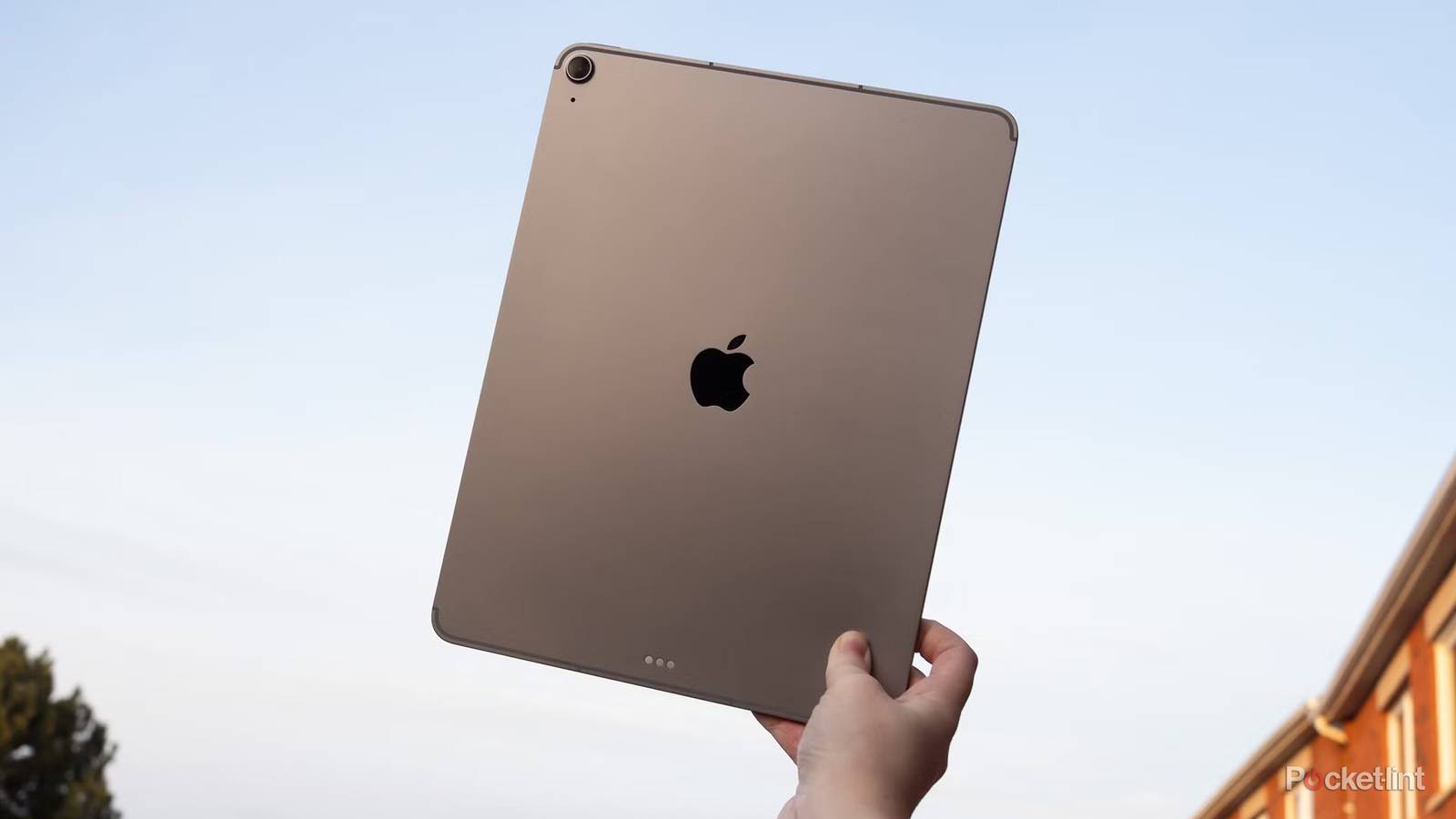
Ironically, though it might be one of the best devices for that purpose, I don’t use my iPad for couch entertainment. In the living room, I’d much rather be watching my TV or playing on my Steam Deck. It normally operates as a second screen for my laptop instead, letting me keep tabs on music, chat, and other items without having to repeatedly switch away from my writing.
The only time my iPad truly switches over to entertainment duties is travel. One of my favorite things in life, in fact, is catching up on movies and shows during a long flight, since I’m guaranteed hours of uninterrupted viewing. The apps below are the ones I usually prefer — I will, of course, deviate if I want to watch something specific and there’s no alternative.

- Brand
-
Apple
- Storage
-
128GB, 256GB, 512GB, 1TB
Plex
You don’t need a lifetime subscription

In case you’re not familiar, the main purpose of Plex is actually streaming video from a media server — usually, your computer — to other devices on the same network, like your TV. The server software imports and sorts your video library, then transcodes it as necessary into a format other devices can play. You even get poster art and show jingles.
Lesser known is that if you have a Plex Pass subscription, you can cache your own videos to an iPad (or other mobile device) as easily as you would from a conventional streaming service. All you need to do is locate the movie or episode(s) you want, tap the down arrow icon, then wait while your server processes things. You’ll want to do this at home, of course, and be sure to go to User profile -> Downloads not just to watch your collection, but to adjust quality settings. There’s no sense downloading a 4K movie to your iPad in its original quality, since a single file will consume many gigabytes of storage, and even a 13-inch iPad Pro operates at 2752 x 2064 resolution.
If this is the only thing you want a Plex Pass for, don’t bother paying for a lifetime pass, which now costs a colossal $750. You’re better off paying the $7 monthly fee as needed.
Netflix
The most obvious choice

How could I not include Netflix? It might be a cliché, but Netflix remains dominant in streaming for a reason. It often has the biggest catalog, mixing both originals and licensed content. Chances are, if you want something to watch on a trip, Netflix will have at least a handful of new and old titles worth downloading.
There are a few catches here, the first being limits based on your subscription tier. While ad-free customers can have up to 100 downloads per device, people on the ad-supported plan are capped at 15. If you’re the sort of person who likes to binge entire show seasons, you’ll either need to pay extra or be more selective.
Also, not everything on Netflix is actually eligible for downloading, owing to arcane (and frankly ridiculous) rights issues. To filter for what’s allowed, you’ll have to tap the Downloads button, then See What You Can Download.
As with most subscription streaming services, there’s also an expiry date for downloads. These tend to be generous for travelers, venturing into multiple weeks. If, however, you want a permanent video library on your iPad, there may be better options.
VLC
The Swiss Army knife of media

I don’t use VLC nearly as much as I used to, but I keep the app on all my devices for one reason: it can play anything. Effectively, there’s no (digital) audio or video format it can’t handle, even if you might have to make some tweaks to get Blu-ray or Dolby Atmos to work properly.
If you’ve got an offline video library on your computer, VLC makes it very easy to sync files to your iPad. This is preferable to paying for a Plex Pass, in fact, unless you’re already subscribed.
To get started, make sure your iPad is on the same Wi-Fi network as your computer. Next, open VLC on your iPad, then tap Browse or Network. Once you toggle Sharing via Wi-Fi, you’ll be able to point your computer’s web browser to one of the given URLs, then simply drag videos into that webpage. Be patient while the transfer completes, and remember that SRT subtitle files need to share the same name and folder as their parent video.


