



Say what you will about Apple’s arguably botched initial foray into the world of AI, but it’s clear that the company is continuing to take its Apple Intelligence initiative seriously. While we’re still waiting for the revamped large language model (LLM)-powered Siri reboot to hit our iDevices, Apple’s AI suite does offer utilities in the form of Writing Tools, Genmoji, Image Playground, Clean Up in Photos, notification summaries, and even native ChatGPT integration.
Of course, not everyone wants to make use of AI-powered feature sets, especially considering the fact that they consume internal storage capacity via their reliance on local models. Thankfully, in the same vein as removing Gemini models from your Google Pixel phone, it’s entirely possible to purge your iPhone of its downloaded Apple Intelligence models, too.
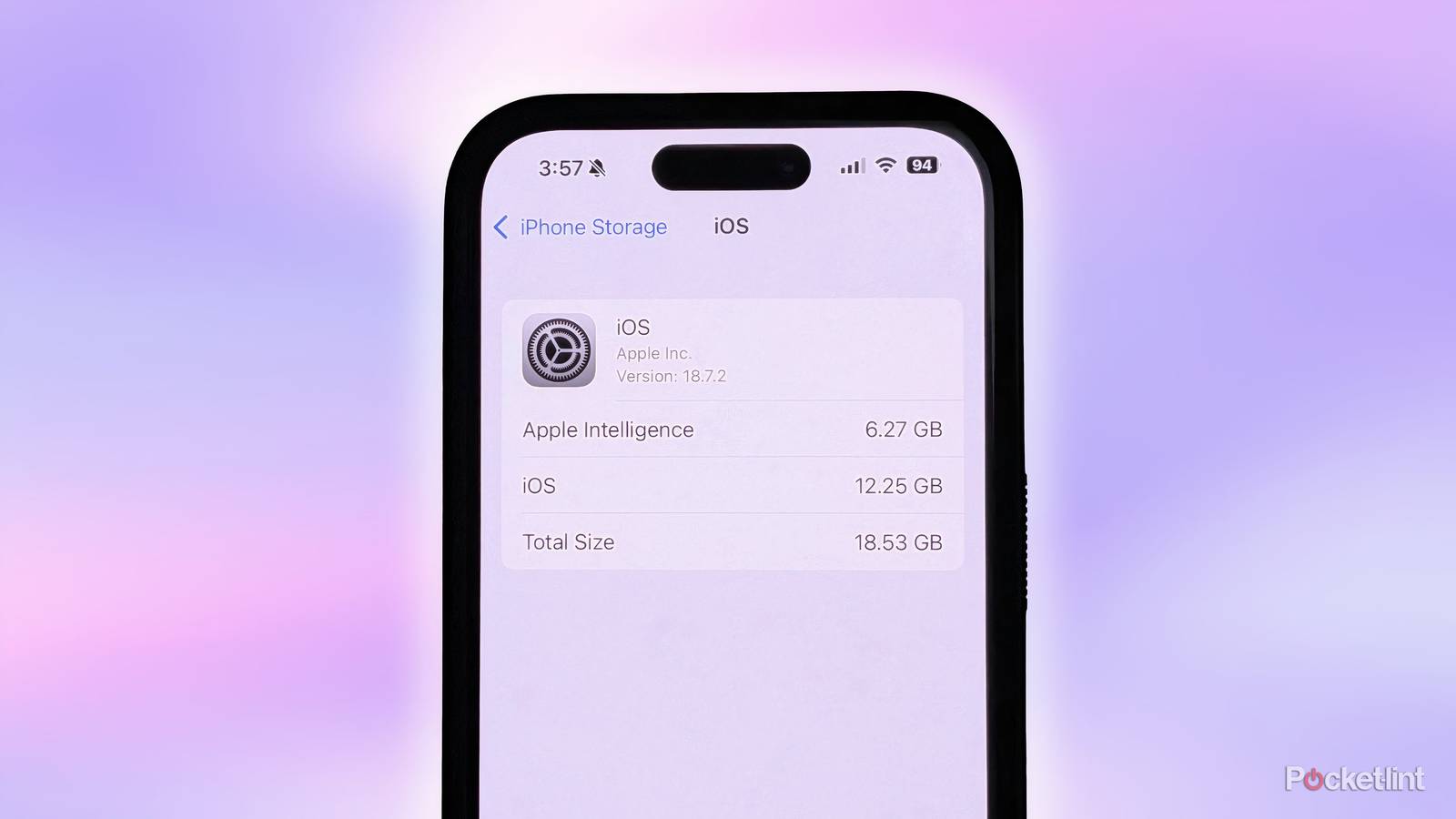
In deleting these on-device AI models, you stand to gain well over 5GB of storage space on your iPhone. As time marches on, I expect on-device models to only increase in size and scope, meaning that Apple Intelligence could eventually consume even more of your capacity. At the time of writing, I was able to reclaim a total of 6.27GB of space — that’s quite a return on investment, though it does mean waving goodbye to the grab bag of AI features mentioned above.
By deleting the local AI models that Apple Intelligence relies on, you’ll be cutting off access to AI features across the iPhone experience as a whole. If you decide to re-enable Apple Intelligence at a later date, the system will have to fetch and re-download these models again from the internet.
How to reclaim storage space by disabling Apple Intelligence on iPhone
A straightforward process with limited transparency from Apple

To delete Apple Intelligence’s on-device AI models that take up internal storage space on your iPhone, follow these steps:
- Launch Settings.
- Navigate to Apple Intelligence & Siri.
- From here, toggle off Apple Intelligence.
Once you’ve disabled Apple Intelligence from within Settings, the local AI models downloaded onto your iPhone will eventually be deleted, freeing up overall storage capacity. Of course, this being Apple, the process lacks some transparency, and so there’s no way to force the deletion of these various AI models in question– you simply have to wait for the system to decide to do so of its own volition.

To check whether Apple Intelligence’s AI models have been deleted from your local storage drive, or to otherwise keep tabs on the amount of storage capacity that is being used up by the feature, follow these steps:
- Launch Settings.
- Navigate to General > iPhone Storage > iOS.
- From within this dedicated submenu, Apple Intelligence will be listed alongside an estimation of its current storage footprint.
While it’s great that Apple offers a universal toggle to switch Apple Intelligence on and off across the operating system (something I wish a certain other platform would take note of), I do wish Apple allowed you to clear on-device AI models manually and on the spot. Nevertheless, at least it’s possible to wrestle back some of your iPhone’s internal capacity if AI features aren’t your jam.