


Windows 11 is a telemetry-hungry operating system. Following in the footsteps of its Windows 10 predecessor, Microsoft’s current-generation PC platform has a habit of phoning home with analytic data relating to hardware specifications, web browser information, app usage, error reports, memory states, system health, and more.
While some data collection is user-configurable right out of the box and even during the setup process, other elements are buried deeper within the system on the standard Home version of Windows 11. Thankfully, even without the use of third-party tools, it’s possible to dive deep into the OS and cut the cord on many of these data-collecting services.
Telemetry refers to the automatic, anonymized collection of user data for purposes of analysis, market research, monitoring, or optimizations. All operating systems feature some form of telemetry, but the aggressiveness of data collection varies based on platform.
Even though telemetry is anonymized, it can still feel like a breach of privacy and security, and it tends to rub me the wrong way when data harvesting is facilitated on a product I paid money for. Windows licenses aren’t free, and yet Microsoft treats Windows users as if they’re using a free, ad-supported platform.
This semi-frequent analysis and data transfer process can also lead to small performance dips, with RAM memory usage spikes occurring whenever Windows 11 decides it’s time to send data back to HQ. With this in mind, I always go ahead and delete the most egregious background service of them all on every new PC I set up.
How to disable Connected User Experiences and Telemetry on Windows 11
The service can be turned off without so much as a reboot needed
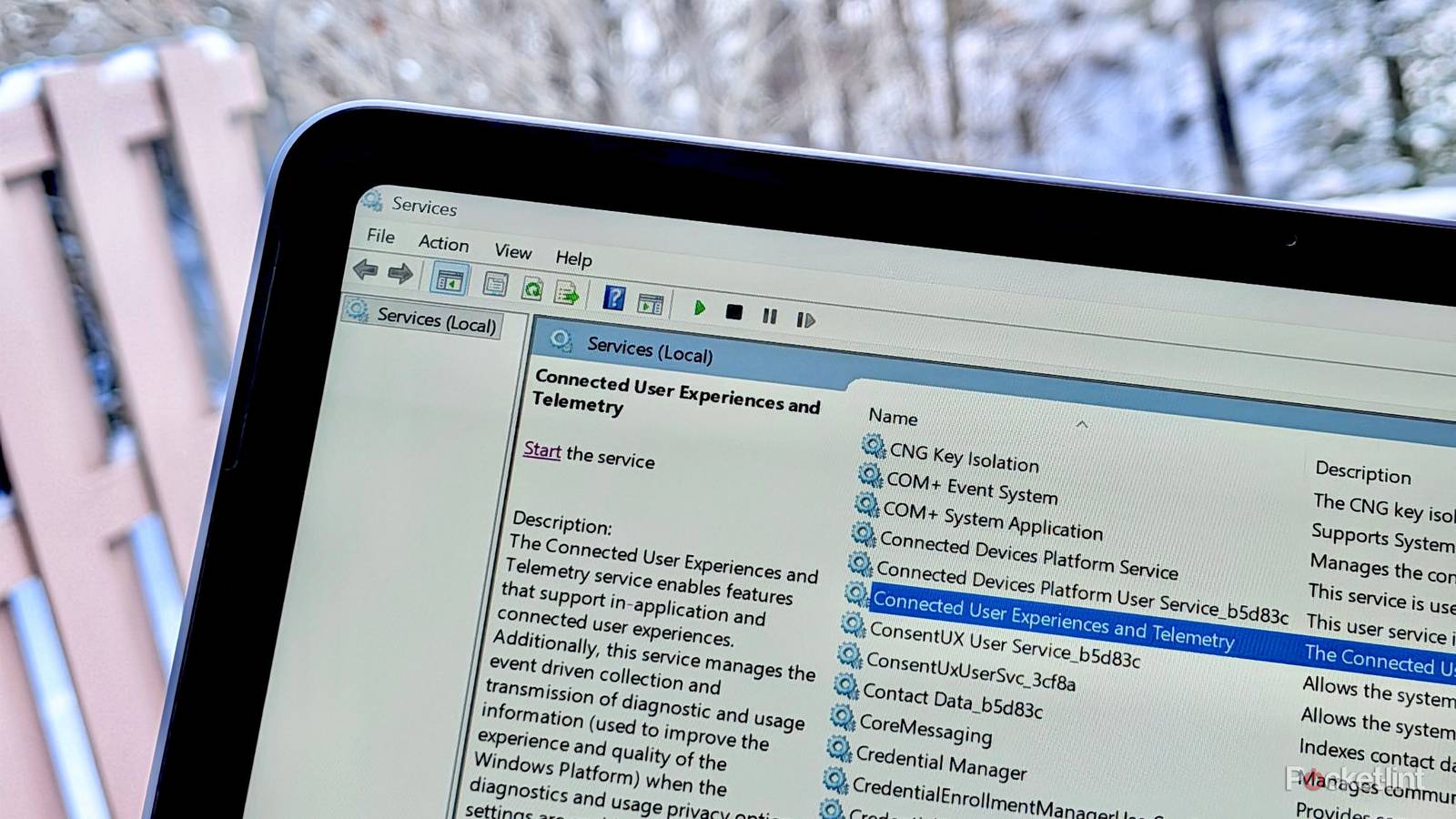
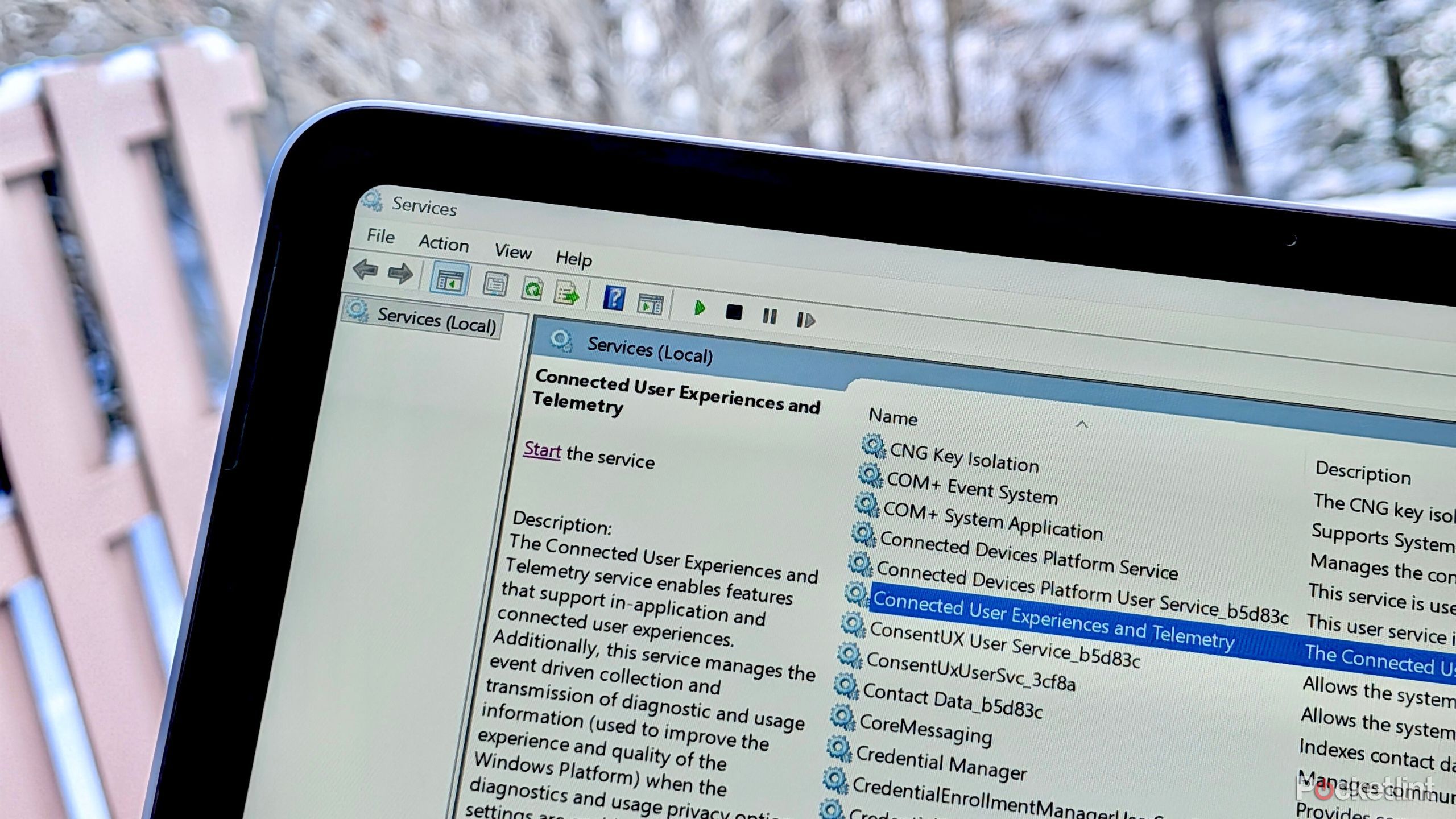
To disable the Connected User Experiences and Telemetry service on your Windows 11 PC, and to stop it from running automatically at login, follow these steps:
- Launch the Services program on your computer.
- Next, scroll through the alphabetized list of services until you find the Connected User Experiences and Telemetry entry.
- Right-click or long-press on the entry, and then tap or click on Properties.
- From here, press the Stop button to stop the service from running, and select Disabled within the Startup type drop-down menu.
- Lastly, hit the Apply button, followed by the OK button.
Once these steps are completed, your tablet, laptop, or desktop computer’s telemetric data footprint will be significantly lowered, which is a net positive for both privacy and, to a lesser degree, system performance. The process doesn’t require a reboot, and it can be undone by simply following the same steps in reverse.
For a full breakdown on how to opt out of all diagnostic and feedback data on Windows 11, check out my dedicated article on the subject right here on Pocket-lint.
It’s worth noting that even with Connected User Experiences and Telemetry disabled on your device, some telemetry-related information might still be making its way over to Microsoft. There are other background services that can be optionally turned off, including Inventory and Compatibility Appraisal, as well as steps you can take from within Settings and Registry Editor to further fortify your defenses. That being said, the removal of the former service gets you much of the way there without requiring too much work.