


Any new iPad owner knows the overwhelming feeling of getting used to iPadOS. Apple’s intuitive interface is designed to be picked up as you go, but that doesn’t eliminate the lingering feeling that you must be missing a sneaky shortcut or two.
iPadOS is a unique, multi-layered operating system that’s made for multitasking, entertaining, and the most tedious workdays that require every ounce of your concentration. As a proud new iPad owner, I’ve dedicated the last few months to uncovering the best ways to work and play on Apple’s basic tablet, and one of the most delightful features I’ve found doesn’t even require opening an app to take advantage of it: Spotlight Search.
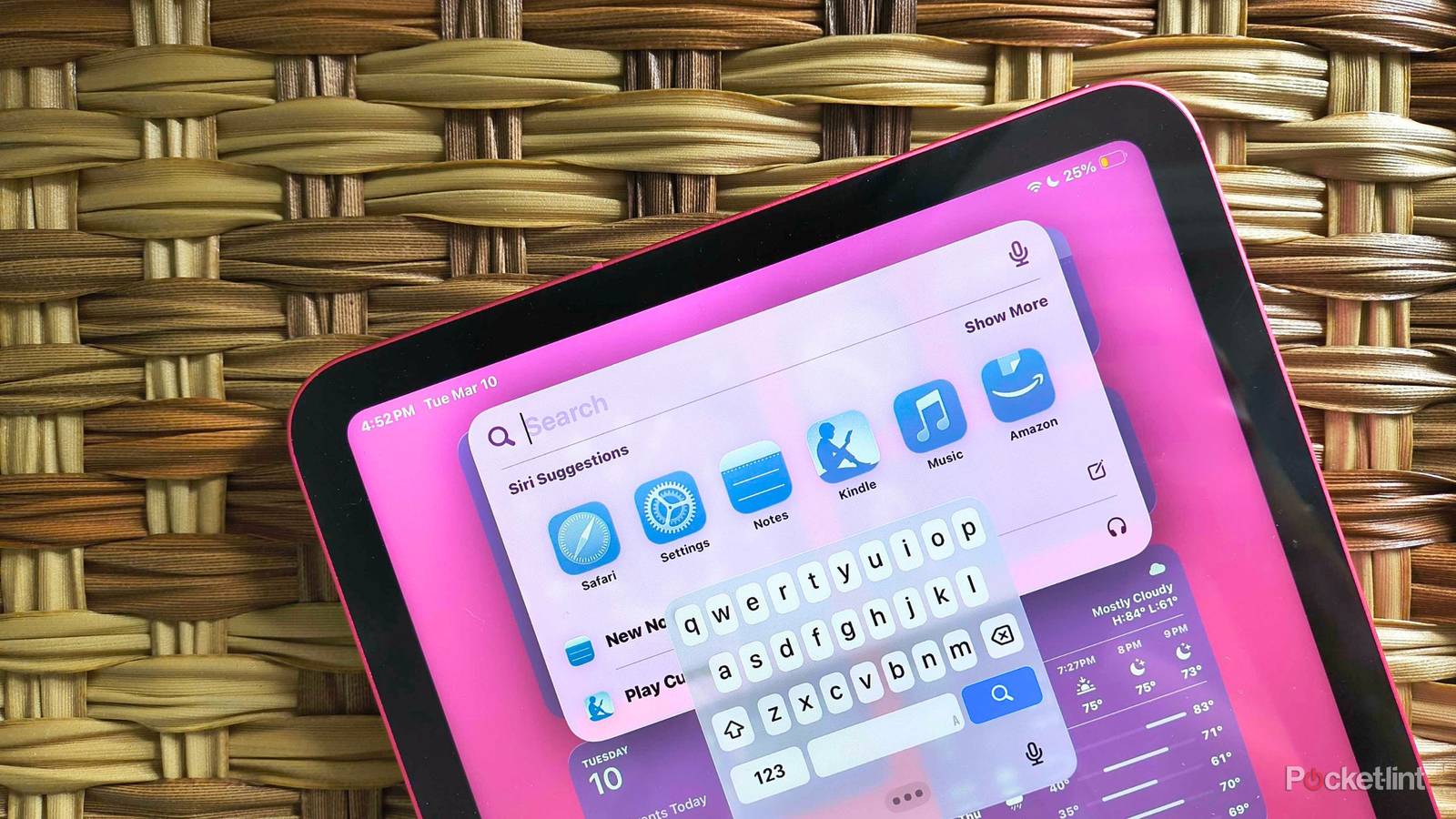
If you have a Mac or iPhone, you’re familiar with Spotlight Search. On Macs, it’s the search bar you access with Command-Space, and on iPads and iPhones, it appears with a simple swipe down from the middle of the screen. You can use it to search for apps you can’t find, specific contacts, buried files, and more. But it’s much more than a locator.
Since my iPad is my productivity machine, here are five particularly useful things you can do with Spotlight Search (that aren’t all just opening other apps).

- Brand
-
Apple
- Storage
-
128 GB
- CPU
-
A16
- Operating System
-
iPadOS
Quick calculations
When basic math is hard

Math used to be my strong suit — but it’s been at least eight years since I’ve sat in a classroom and been given a worksheet to complete. While I’m not solving derivatives every day (there’s no calculus in journalism as far as I’ve seen), my early math teachers were right: you will use math in your life. Whether it’s for personal finance or baking, the numbers are here to stay.
And while you hopefully don’t need a calculator to know that 2 + 2 = 4, sometimes it’s just easier to let the tech do basic math for you — especially if the numbers start looking like 125,685 + 1,375,689. Those aren’t my personal financials, unfortunately.
But you don’t even have to open up the calculator app on your iPad — a basic calculator is built right into Spotlight Search. You can write basic equations, ask for percentages, perform powers, and even get the square root of numbers without having to even hit enter to see the result. Here’s how to write them:
- Basic equations (+, -, /, x): type it in like normal (e.g., 2 + 5 – 4)
- Percentages (%): type the percent you’re looking for followed by the total number (e.g., 5% 32)
- Powers (X^n): type the base number followed by a carrot symbol and the nth number (e.g., 5^6)
- Square roots: type sqrt followed by the number (e.g., sqrt25)
This is really handy when you already have tons of windows open and don’t want to add the calculator to your screen.
Convert currencies
Useful when abroad

If only I had known about this while backpacking across Europe a few years ago. Conversions are incredibly important when you’re traveling, especially on a budget when you don’t want to treat your bank account like Monopoly money.
Instead of constantly opening a browser window or app for up-to-date conversions, Spotlight Search lets you type in a number followed by the kind of currency (USD, CAD, EUR, etc.) and gives you an immediate conversion. You can use simple phrases like “100 usd to eur” or “1000 yen” to see immediate results (my iPad tends to default to converting USD to EUR). If you want to convert to a specific currency, you can add that to your command (e.g., “1000 yen to eur” yields an instant conversion at the current rate).
Search for photos with context
For quick finds before the conversation moves on

There’s nothing more frustrating than trying to find a photo in your camera roll you referenced in conversation before the topic moves on. That, or trying to find a specific picture you’re thinking of in general. Fortunately, Spotlight Search solves this too.
I prefer searching for photos on my iPad’s Spotlight Search because the previews are larger, so it makes finding the photos that don’t want to be found easier. When you open the search bar, type in keywords related to the pictures you want to find — it can be dates, places, people, objects, or animals. For example, when I type in “dog,” a myriad of canine photos appear right there without having to open up the Photos app. Pretty neat.
Launch websites without opening a browser
Saves a few taps

This trick eventually gets you to your iPad’s default browser, but if you want to skip a few taps in Safari or Chrome and jump straight into a website, you can type the website name right into Spotlight Search. Your iPad will suggest a “Top Hit,” which is usually the website you want to go to.
For example, I typed one of my favorite skincare companies (Cocokind) into the search bar and was met with a Safari shortcut right to the website itself. This trick saves you a few extra moments and taps that you’d normally spend if you opened your browser app, typed in the URL, or typed it into Google itself just to choose from the search results.
Check stock prices
Finances on demand

If you aren’t the kind of person who immediately removes Stocks from your Apple device, you’ll find this trick very handy. You can check a company’s stock information using the Spotlight Search bar when you type in a company name or ticker symbol, like “Nvidia” or “NVDA.”
Spotlight Search will give you a concise summary of the stock information, but you can always click the stock box to jump right into the Stocks app itself for a more detailed look.