


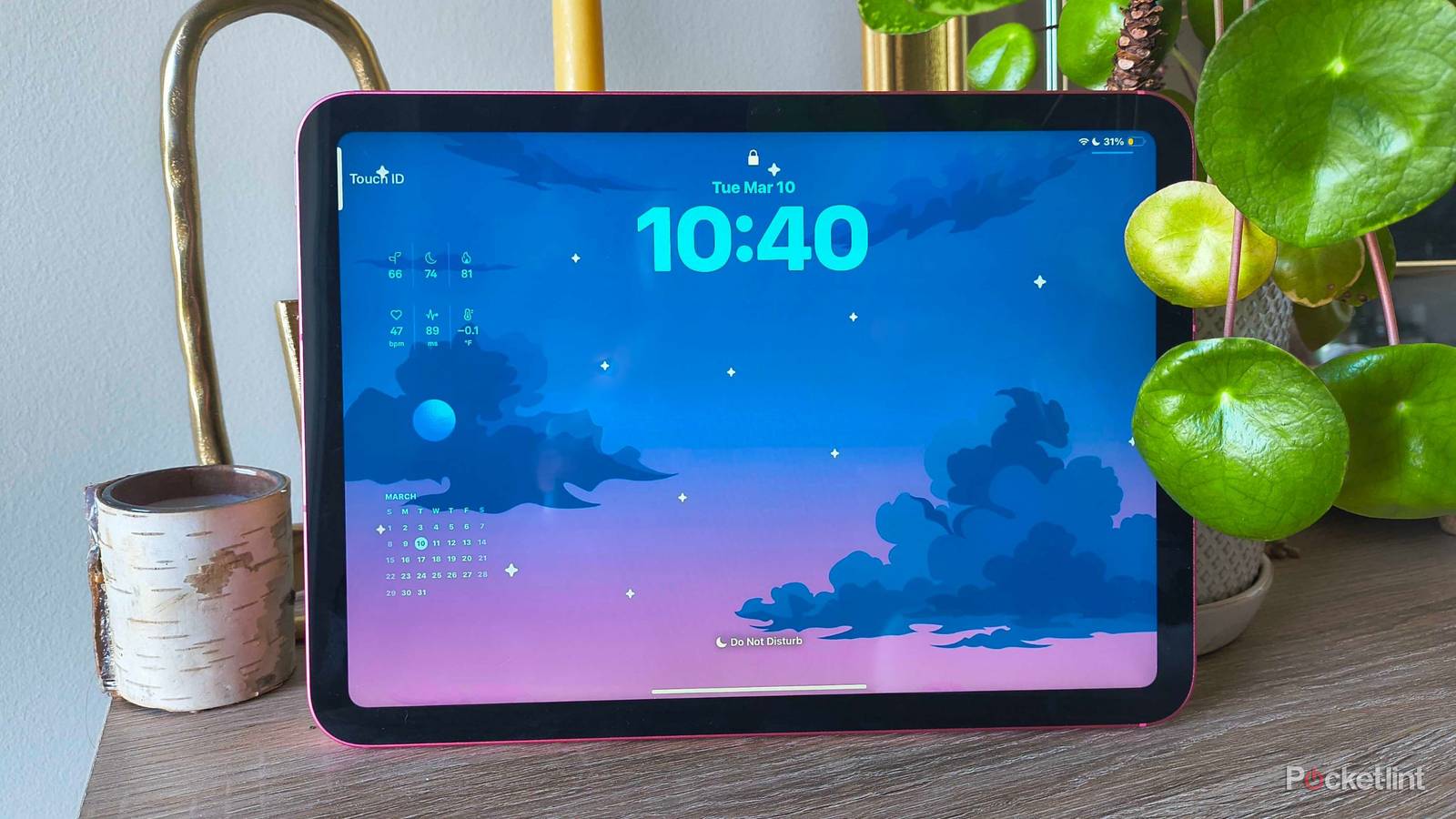
If personalization is an option, you can rest assured that I’ll go as deeply into customization menus as the device will allow. My new iPad A16 is no exception, and I decided that aesthetics would be my number one priority from day one. One of the first things I did was grapple with backgrounds — unlike my iPhone, iPads were built to switch between landscape and portrait mode constantly, and that new functionality was proving disastrous for my typical photo choices.
Sure, I could crop my favorite images so they looked slightly better in one orientation over another, but I’m not used to making even slight sacrifices when Apple is usually so good at eliminating the need to do so. Luckily, I discovered a trick that lets me get two wallpapers out of one image — one for my iPad’s landscape mode, and the other for portrait. It’s called a stacked wallpaper, and here’s how to make one yourself.

- Brand
-
Apple
- Storage
-
128 GB
- CPU
-
A16
- Operating System
-
iPadOS
How to make a stacked wallpaper for your iPad
Two backgrounds in one
A “stacked“ background is essentially taking two images, editing them together so they’re stacked on top of each other in one file, and cropping the file in your background customization menu so the images fit how you want them to in both landscape and portrait mode.
You’ll need Canva (the free version works) or another editing app you’re comfortable with. For the sake of this tutorial, I’ll be using Canva but will include exact dimensions so you know what to use in your preferred editing app:
- Go to Canva.com, and log in or make an account.
- Create a new design by clicking the + icon in the menu bar on the right, and select Custom size.
- In the Width box, enter 3000. In the Height box, enter 5610. Make sure to select pixels (px) for the Units. When you’re ready, click Create new design.
-
This generates a long, skinny portrait page. From here, add the photo you want for your landscape background to the top and the one you want for your portrait background to the bottom.
- The landscape photo should take up less space than the portrait one, but make sure to leave no white space on any of the sides.
- If you don’t know exactly which pictures to use, Canva has a variety of free options to choose from under Elements on the left-side menu.
- Time to export your design. When you’re ready, tap Share in the top-right corner.
- Select a file type (I opted for PNG) and click Download.
- If you created this image on a computer, you’ll have to AirDrop or send the image to your iPad and save it to your camera roll.
Now, it’s time to add the stacked wallpaper to your collection of backgrounds. Here’s how to properly set it up:
- Unlock your iPad, but stay on the lock screen.
-
Tap and hold to reveal the screen options. Click the Customize box below whichever screen you’d like to add the stacked wallpaper to.
- You can also create a completely new one by tapping the + icon in the bottom-right corner.
- In the bottom-right corner, tap the box with the photo preview on it. Tap Choose Photo from the pop-up.
- Tap Recently Saved, and select your stacked wallpaper. It will look wonky at first, but bear with me.
- Hold your iPad in portrait orientation, and use two fingers to pinch, crop, and move the image around until it appears as you desire in portrait mode.
- Flip your iPad into landscape mode and do the same. You’ll have to pinch and drag here to get to the other image you chose.
-
When your iPad’s lock screen appears exactly how you want it both ways, tap Done in the top-right corner.
- You can also add widgets before closing out the customization menu.
Now, lock your iPad and wake it up to test the different orientations. It’s a clever way to customize the two different orientations and add a little extra spice to your tablet’s appearance.