


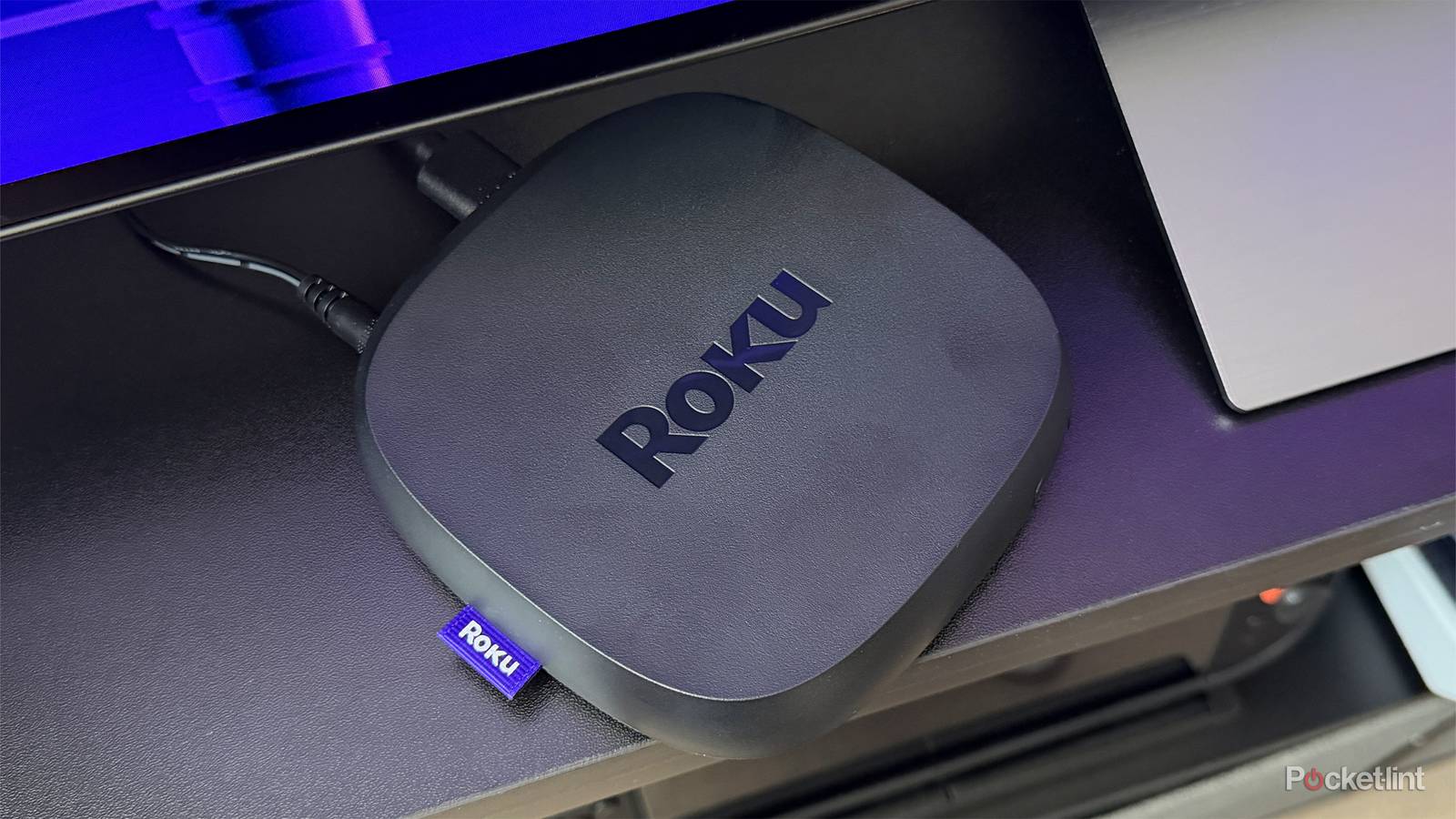
I have to admit, one of my favorite things about using my Roku Ultra instead of my Fire TV Stick 4K Max is how easy it is to access The Roku Channel and its live TV guide. With streaming costs on the rise, it’s a huge bonus that The Roku Channel offers hundreds of FAST (free ad-supported TV) channels, letting you watch tons of content for free without ever opening your wallet, which I quite like.
However, with over 500 channels, Roku’s live TV guide can be a lot to scroll through. To make it easier to find what you want to watch, Roku announced last year that it was working on adding a search bar to its live TV guide, and now, it’s finally arrived.
Recently, Roku has begun rolling out its new search feature in the Live TV channel guide across its devices (via Cord Cutter News). With the new search feature, you can search for specific channels, or if you’re not sure what you want to watch, search by genre, such as news, sports, entertainment, and more.
“With Search, you can quickly track down your go-to channels, explore new genres, or jump straight to shows and movies whether they’re live, trending, or on-demand. It’s a simpler way to search and just a click away,” Roku explained.

- Dimensions
-
4.9 x 5.0 x 1.0 inches
- Connective Technology
-
Bluetooth® streaming, 802.11ax dual-band MIMO Wi-Fi 6 (2.4 GHz / 5 GHz), 10/100 Base-T Ethernet
- Brand
-
Roku
How to use Roku’s new live TV guide search feature
You’ll need to make sure your Roku is up-to-date

Before you jump into the live TV guide, I recommend checking that your Roku has the latest software update so the feature appears. To do this, go to Settings > System > Software update. From there, you can check for updates, and if one is available, it will download and install automatically. On my Roku Ultra, the search bar appeared with software version 15.1.4.
Once your Roku is up-to-date, open up the live TV guide, which you can find in the Live TV section on the home screen. When the guide opens, you’ll see the new search option listed in the categories on the left side of the screen (as you can see in the image above). On my Roku Ultra, search was listed under Recommended, Favorites, and Recents.
When you select search, navigate to Search for live channels in the Guide. Press that, and a search window will pop up where you can type in what you want or even use your voice.
For example, I searched specifically for Top Gear, and within seconds, it immediately found the Top Gear FAST channel. I also tried searching for genres like action, news, and sports, and it provided channel recommendations based on those searches.

Overall, I was impressed by how well Roku’s new live TV guide search works. Based on my experience so far, it’s really quick at returning results, and I can see it being very helpful for easily finding something to watch for free. Additionally, it will be very handy when Roku adds new FAST channels to The Roku Channel, since you can just use the search feature to quickly find them rather than endlessly scrolling through the guide.
In addition to the search feature, you can quickly find channels you like in Roku’s live TV guide again by favoriting them. Press the star (*) icon on your remote when hovering over the channel, then select “Favorite this channel” from the list of options that pops up.