


Summary
- Google has a new hub called “Your Devices” on the Google Store website which provides warranty info, device details, and tracking options for your Pixel smartphones and Nest home devices.
- You can add or remove any Made by Google devices on your account, start a repair, track its location, and contact support if needed.
- Easily organize Google devices by type: Phones, Earbuds, Tablets, Watches, and Smart Home.
If you’re looking for a quick way to verify information or get help for your Pixel smartphone, a new page on the Google Store is designed to assist you with just that. The “Your Devices” page was mentioned recently in a hub update from Google, but it is now officially available for users.
The Your Devices page provides information about the Made by Google devices linked to your account, including Pixel smartphones and Nest home devices. It features a thumbnail image of each device, details on its current warranty status, its serial number or IMEI, and a “View more” button that directs you to a comprehensive page about the device. This page is intended solely for tracking Google devices specifically, not all Android devices.
If you have a lot of Google devices, you can easily organize them by device type, including Phones, Earbuds, Tablets, Watches and Trackers, and Smart Home.

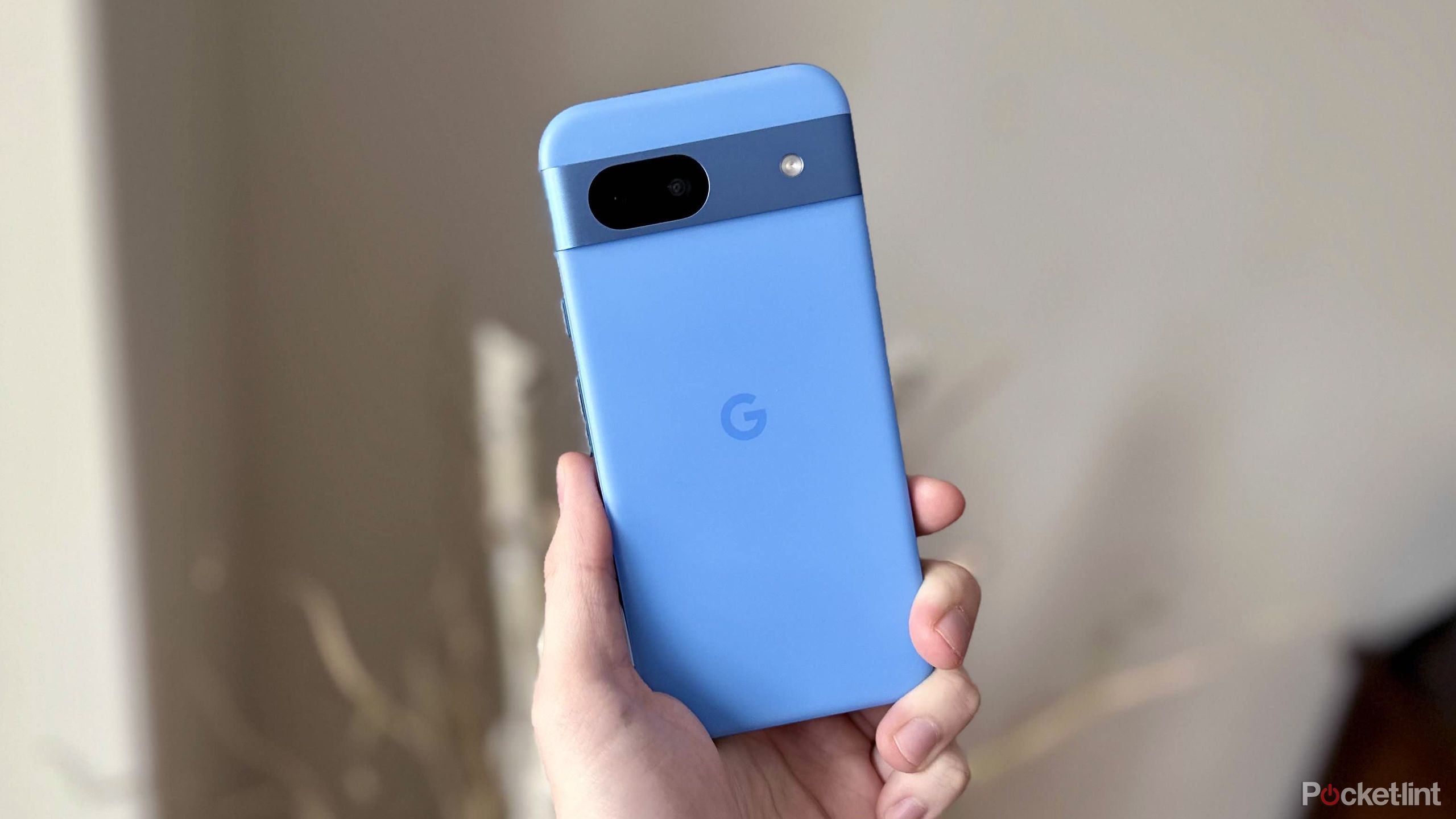
Pixel 9
Pixel 9 features a 6.3-inch display and a familiar design. It supports the addition of a 48-megapixel ultrawide lens to its rear camera array alongside Google Gemini and AI features.
- Brand
- Display
- 6.3-inch 120HZ OLED, 1080 x 2424 pixel resolution, HDR10+
- RAM
- 12GB
- Storage
- 128GB, 256GB
- Battery
- Up to 24 hours
- Ports
- USB-C

Related
Remember when Google’s Nexus 5 turned the Android world on its head?
Back in 2013, Google teamed up with LG to release the Nexus 5 — the phone would briefly go on to set the Android world ablaze.
How to use Google’s Your Devices page
You can add or remove devices to your account

When you click the view more button on one of your devices, you’ll be redirected to a page giving you more information about it and options for managing it. The first option is to start a repair if your device is broken, and if you have a Preferred Care plan for your Google device, you can view your coverage details and file a claim if needed.
There’s also an option to find your device, which will take you to Google’s Find My Device page to track its location and ping it. Finally, there’s also an option to contact Google support about the device if you need help with an issue.
If you have a Made by Google device that doesn’t appear on the Your Devices page, it might be because you didn’t purchase it directly from the Google Store. Don’t worry; it’s easy to add it. Here’s how.
1. Go to Your Devices on the Google Store.
2. At the top of the page, click Add Device.
3. Enter your device’s IMEI or serial number, which is located in the About section of its Settings.
4. Click Next, double-check if the information is accurate, and then select Yes, add device.
If you no longer have a device listed on Your Devices, you can remove it from your account. Here’s how.
1. Go to Your Devices on the Google Store.
2. Find the device you want to remove and click View more.
3. Click Remove Device.
4. Make sure it’s the right device, then select Yes, remove device.
Google’s Your Devices page only appears to be available in the US right now. On further investigation, the page was unavailable on the Google Store website in Canada, the UK, and many other European countries, such as France and Germany.
2:31

Related
Amazon Alexa+ finally has me interested in AI
Amazon Alexa+ aims to be more conversational, intuitive, and overall more useful.