


You’ll have to forgive me, but it’s a little difficult to talk about important TV features without dropping a lot of acronyms. It’s almost worse than when I’m explaining gaming PCs. Just off the top of my head, there are terms like HDR, VRR, eARC, and the needlessly cryptic YCbCr. At least most people understand the significance of USB or SSD.
When it comes to checking a TV’s HDMI inputs, an important acronym that needs to go with them is support for ALLM. It’s actually relatively easy to explain what ALLM does, but somewhat more complicated is explaining why the thing it does should be an essential requirement going forward, especially if you haven’t bought a new TV in the last five years or so. To set the tone, let’s just say that things have come a long way since people were wowed by popping The Matrix into their DVD player.
What is ALLM, and why does it matter so much?
When a helping hand doesn’t help

With most picture modes except Filmmaker Mode, your TV tries to do as much as possible to clean up and enhance the images it receives. This might include things like anti-aliasing pixels to smooth out jagged edges, or upscaling if an image is at a lower resolution than what your TV natively offers. More controversially, some TVs default to applying sharpening, noise reduction, and/or motion smoothing, despite the fact that these more often sabotage the intended appearance of movies and shows. There may also be more subtle algorithms at work that vary from brand to brand, making almost unnoticeable spot fixes to elements like contrast and saturation.
Apart from accidentally wrecking some content, another problem with all of this is that the more processing you do, the more lag is introduced between input and output. That’s largely irrelevant if you’re watching Netflix or YouTube, or playing a DVD or Blu-ray disc. But with anything interactive, there can be a slight but noticeable delay between when you press a button and when something happens onscreen.
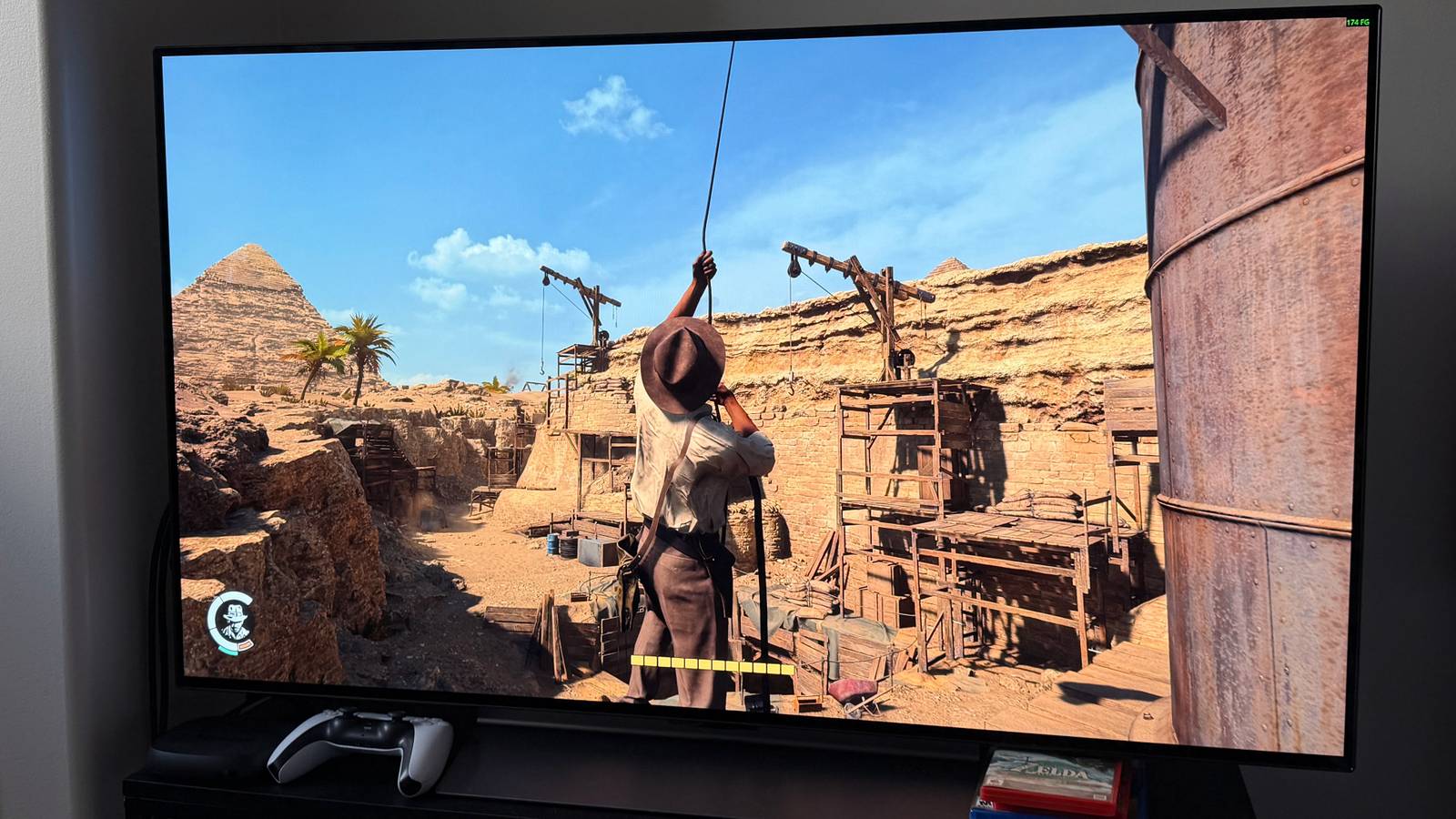
That may still be tolerable if you’re just navigating through menus. With game consoles, Macs, and Windows PCs, however, this input lag is irritating at best, and serious interference at worst. For an example of the latter, imagine an action game like Elden Ring. 15 to 50 (milliseconds) of delay might sound trivial — but when a split second can mean the difference between parrying an attack and taking a hit, an already difficult game can become nigh-on impossible. With online games, input lag just compounds the lag created by talking to remote servers.
Although you can turn Game Mode on manually, ALLM saves you the hassle and prevents you from leaving the mode off by accident when you hook up a new device.
This is where ALLM enters the picture. That acronym stands for Auto Low-Latency Mode, which automatically triggers Game Mode whenever something like a console or PC is detected on an HDMI input. Game Mode, in turn, disables all the image processing your TV would normally perform. Although you can turn Game Mode on manually, ALLM saves you the hassle and prevents you from leaving the mode off by accident when you hook up a new device.
Isn’t disabling image processing going to hurt quality? No, actually. The reality is a console or computer doesn’t really need any additional image processing, since it’s performing most of the same tasks on its own, and sometimes far more. A device with a modern AMD or Nvidia graphics processor is powerful enough to render hundreds of millions of polygons, as well as handled ray tracing — simulated light physics for realistic reflections and shadows. Anti-aliasing and upscaling are utterly trivial operations, by comparison.
To take advantage of ALLM, you need a TV with one or more HDMI 2.1 or 2.2 inputs. In fact, you need to be very careful about which input you plug a device into — an HDMI 2.0 port will not only force you to set Game Mode manually, but potentially hamper graphics performance in other ways.
Okay, so how else does HDMI 2.1 matter?
Keeping up with modern tech

When you’re watching a movie or TV show, there’s usually not much value in a screen refresh rate over 60Hz. The standard cinematic framerate is 24 frames per second, and even shows that aren’t going for a cinematic look are unlikely to top 30fps. 60Hz is more than fast enough to accommodate that content, with or without motion smoothing slapped on top.
On consoles and PCs, though, 30fps is now considered subpar. The ideal target is at least 60fps, for the simple reason that the goal isn’t just smooth motion — it’s to get as close to reality as possible, and maximize responsiveness. Games and productivity apps tend to feel easier to control when graphics respond as quickly as our brains are used to.
There’s nothing stopping you from running a game or operating system on HDMI 2.0, which at 4K resolution is capped at 60Hz. But if framerates exceed 60fps, you’re liable to run into visual artifacts such as screen tearing, the result of your TV trying to display multiple frames simultaneously. There can also be stuttering, wrecking the (apparent) smoothness of motion, particularly in camera pans during in-game cutscenes.
Variable Refresh Rate keeps refresh rates in constant sync with framerates, which is the best defense against visual artifacts.
As if that weren’t bad enough, these artifacts can manifest when framerates drop below 60fps too, which is a relatively common occurrence with game consoles. The PlayStation 5, Switch 2, and Xbox Series X struggle to maintain 4K60 in many games, if they hit at all, and the result is fluctuating performance between 20 and 60fps on average, depending on how demanding onscreen detail is. It’s the price of pushing graphics as far as technology allows.
HDMI 2.1 bumps video bandwidth up to 48Gbps, which is enough to handle uncompressed 4K at 120Hz. In fact, sufficient compression isn’t even possible with 2.0, so if you want support for 60-plus framerates at 4K, there’s no choice but to use a 2.1 connection. Additionally, 2.1 introduces a feature called VRR, short for Variable Refresh Rate. This keeps refresh rates in constant sync with framerates, which is the best defense against visual artifacts. You’ve seen something similar if you have AMD FreeSync or Nvidia G-Sync active on your PC.
There are also more subtle enhancements over HDMI 2.0. Quick Frame Transport further reduces latency, while Quick Media Switching prevents the blackouts that sometimes happen when transitioning between different framerates and resolutions. Source-Based Tone Mapping allows compatible devices to take over HDR (high dynamic range) tone mapping when that makes more sense.
Viewed in this light, you might reasonably consider ALLM one of the lesser features of HDMI 2.1. But ultimately, a reliable Game Mode matters more. I can put up with black frames and visual artifacts if I have to — what’s unforgivable is being unable to play a game properly just because my TV is busy deciding how it should look. I’m not expecting this issue to go away until TV processors catch up with the ones in our other devices.