

I’m glad my academic career ended before lecture halls were filled with iPad Pros and the constant clacking of keyboards. Granted, the classes I took (as an English major) were filled with like-minded students: those who bought into the belief that physically writing things down with pen and paper somehow also etched them better into our big brains.
But I recently talked to some current students, who all seem to swear by one paid app or another. After wrapping my paper-oriented mind around the concept of paying for a digital sheet to take notes on, I took a long, hard look at the note-taking apps I use in my working day. Between my phone, iPad, laptop, and exploring all the paid-app options, I determined that putting any money into a note-taking app was a waste. Here are the free alternatives I use and why I’ll never spend a cent on note-taking apps.
You don’t need fancy apps if you take notes like this
Simple is better

Paid apps are just lighting money on fire if your note-taking habits are as simple as mine:
Title
Subtitle
(repeat as needed)
This classic note-taking strategy is called “outlining,” and I learned to do it in sixth grade. While some color coding can totally spruce it up, you don’t need fancy illustrations, sparkly highlighters, or even insane fonts — the important thing is absorbing information, which can be achieved with the most basic of pen strokes or keystrokes. Standard formatting like headings, subheadings, bullet points, numbers, and letters is more than enough to organize the information you’re collecting in any capacity.
At its core, any note-taking app should have those elements available. Unless you need more or crave a little extra artistic freedom, that’s all you need. While I have many artistically inclined friends who love Goodnotes on their iPads and take frame-worthy notes, I also notice how much extra time and energy they pour into their notes. Some claim that it helps them remember the information even more, but to me, speed and efficiency take priority. After using a fancy notes app once, I missed two or three vital points in a meeting because I couldn’t decide which serif font and dark blue to use for the top heading.
There is no room in my busy day for aesthetic choice paralysis. As a full-time editor, social media marketer, freelancer, and social butterfly, I’ll find vibrancy and color outside of my notes — in there, it’s strictly business. Because basic apps get the job done beautifully, here are the ones I use, plus a couple of other reliable mediums.
Apple Notes
For everyday thoughts and easy access

As someone fairly locked into the Apple ecosystem, I treat my Notes app like a personal diary. I have a memorable piece of poetry written at 3AM in 2017 sitting beside a packing list for spring break, plus novel ideas that I have yet to write. Because my phone is always on me, any quick thought, to-do list, plan, or idea has a quick place to go no matter what.
Like most of the company’s native applications, Apple Notes is intuitive and simple, but also loaded with just enough extra features to make the try-hards happy. If you want to quickly jot down a grocery or to-do list, you can choose a checklist format. If you’re taking notes during a meeting or class, you have the classic bullet points, dashes, numbers, and all the standard formatting you’d find on any note-taking app or document software.
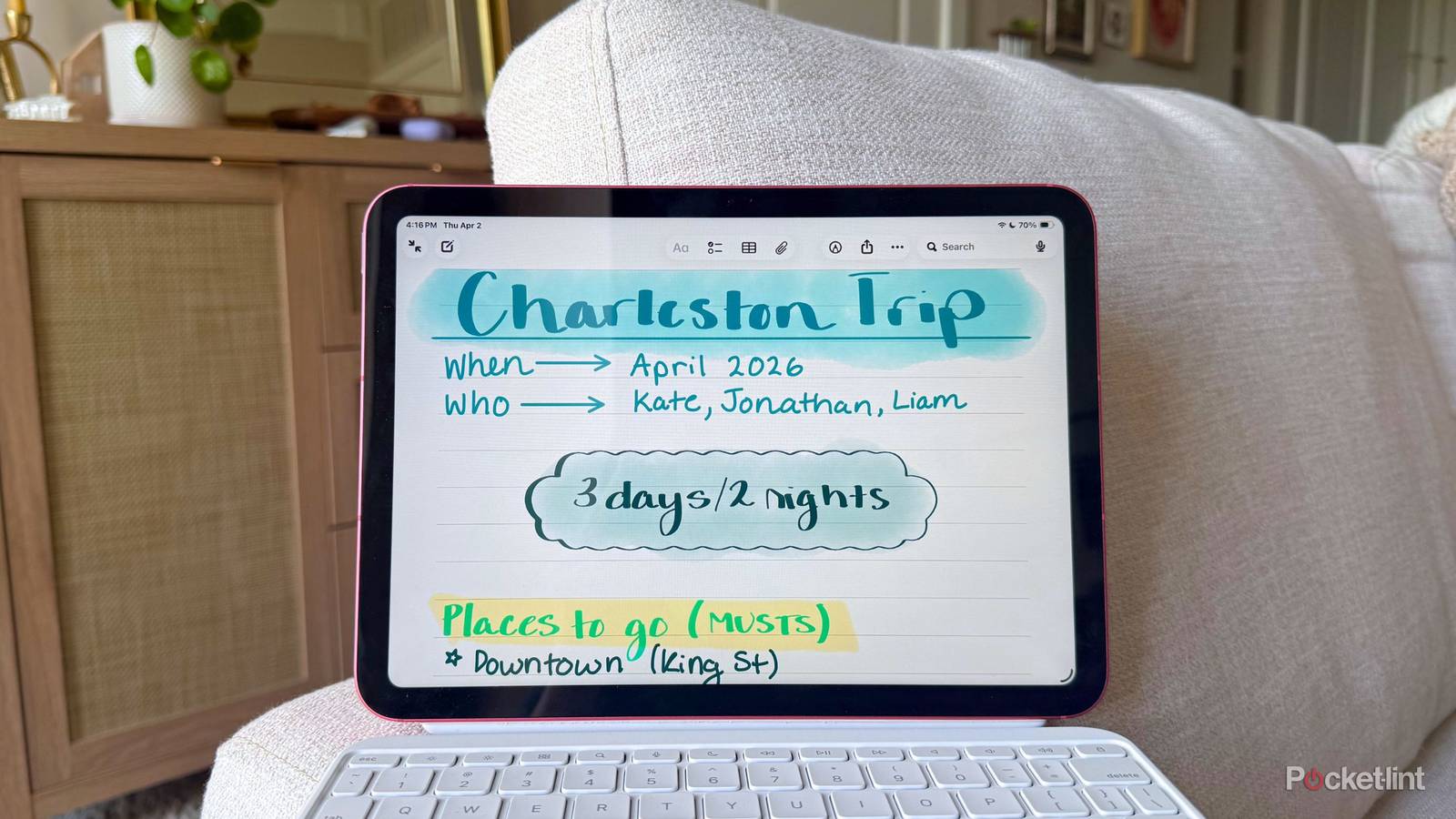
If you have an iPad and Apple Pencil, the special capabilities inside the Notes app can rival most paid apps. I wrote about several iPad note-taking tricks here.
Since I have a variety of Apple devices, I love that my Notes app syncs up across all my tech. If I’m on my phone and want to reference a note I made on my iPad the day before, it’s right there. Cloud-syncing is pretty much standard across most apps nowadays, but constant accessibility on both my portable and not-so-portable devices is a game-changer. All my thoughts are always available to me.
But the Notes app feels quick and fleeting. It feels like a “thought drive-thru” you pop in and out of rather than a “thought café” where you can settle down in all day to work on a project. For that reason, I needed another platform to supplement it with.
Google Docs
For work notes and long-form writing

Google Docs is a free, browser-based application I’ve used to write every school paper, freelance article, and even manuscript in my personal life and professional career. While it has the same classic elements as the Apple Notes app — and plenty more — it’s primarily a text-based application that looks like a great big, never-ending pad of paper. Because it’s browser-based, I can also access it anywhere I can log into my Google account, so I’m never without my notes.
I prefer Google Docs for long-form content, especially when I’m writing more structured or official documents that require more than 15 minutes of my attention. Those kinds of documents also tend to need several sets of eyes on them, and Google makes it incredibly easy to share them with others so they can directly edit, suggest edits, or comment. Sharing on Apple Notes isn’t as seamless — especially if whoever you want to share it with doesn’t have an Apple ID.
Opening Docs feels like more of a commitment than just popping into an OS-native app, which effectively makes me lock in on whatever I’m working on instead of treating it like a fleeting thought. It gets the job done, and between that and Apple Notes, these two free apps scratch every basic note-taking itch I have.
Different devices (and formats) work for different people
iPads, Kindle Scribes, and the classic pen and paper

I’ve been talking about note-taking apps for this entire article, but there are still so many other methods that might work for you instead of an app. Admittedly, iPads aren’t my favorite note-taking tools — I prefer to use mine for streaming, gaming, and reading, but some people swear by the notes they take with their Apple Pencils. These users usually include students sporting a Goodnotes subscription, but I know plenty of Notes App wizards, too. I just dislike the feeling of the Pencil tip on the glass screen.

- Brand
-
Apple
- Storage
-
128 GB
- CPU
-
A16
- Operating System
-
iPadOS

However, there’s another tablet I swear by: the Kindle Scribe Colorsoft. With even fewer formatting options than Google Docs or the Notes app, taking notes on a Kindle Scribe is calming, intuitive, and actually feels like real paper, which my iPad could never achieve without an expensive third-party screen cover. I can also share my handwritten notes with my Alexa Echo device, which I can reference and ask questions about through the Alexa app on my phone. Amazon baked in some AI that I actually find pretty useful for summarization, too.

- Resolution
-
150ppi
- Storage
-
32GB, 64GB
- Brand
-
Amazon
- Screen Size
-
11-inch glare-free display
But when it all boils down to it, pen and paper isn’t broken. No matter how convenient or necessary digital writing and note-taking are, writing something by hand on a piece of paper still feels fine, satisfying, and innately human.