


After debuting on the iPhone all the way back in 2013’s iOS 7, it took Apple quite some time to bring its Control Center interface over to the Mac. The company finally did so in 2020 with the release of macOS 11 Big Sur, but, at least in my eyes, the feature never felt quite as at home on macOS as it did on iOS or even iPadOS.
Then, everything changed with last year’s macOS 26 Tahoe release, which revamped the Mac’s Control Center interface in a big way. Suddenly, what had previously been a simple panel for accessing quick shortcuts and toggles evolved into a customizable and extensible part of the platform, complete with far better Mac Menu Bar integration.
Out of the box, fresh installations of macOS 26 feature a pragmatically organized Control Center pane, with a logical assortment of options ranging from brightness and volume sliders, to wireless connectivity toggles, and controls for media playback, AirDrop, and Focus modes. Of course, this arrangement is only just a default one — there’s a fair bit you can do here to make the interface truly stand out as your own, and all it takes is a few simple mouse clicks.
The macOS 26 Control Center is (mostly) great
Plenty of controls to choose from, but still room for improvement
Some of macOS 26’s Control Center upgrades are nice-to-have additions, like the ability to rearrange shortcuts and modules, and the option to resize each toggle into a Small, a Medium, or a Large tile. Many toggles offer additional functionalities when expanded, and it’s super easy to, say, connect to a new Bluetooth device without having to jump into the main System Settings application in order to do so.
The real benefit of Control Center in its macOS 26 incarnation is the wider array of quick settings available to choose from. All the usual suspects are present and accounted for, of course, but Apple has gone ahead and introduced a selection of tailor-made toggles that feel right at home on macOS, and that only make sense within the context of the desktop operating system itself.
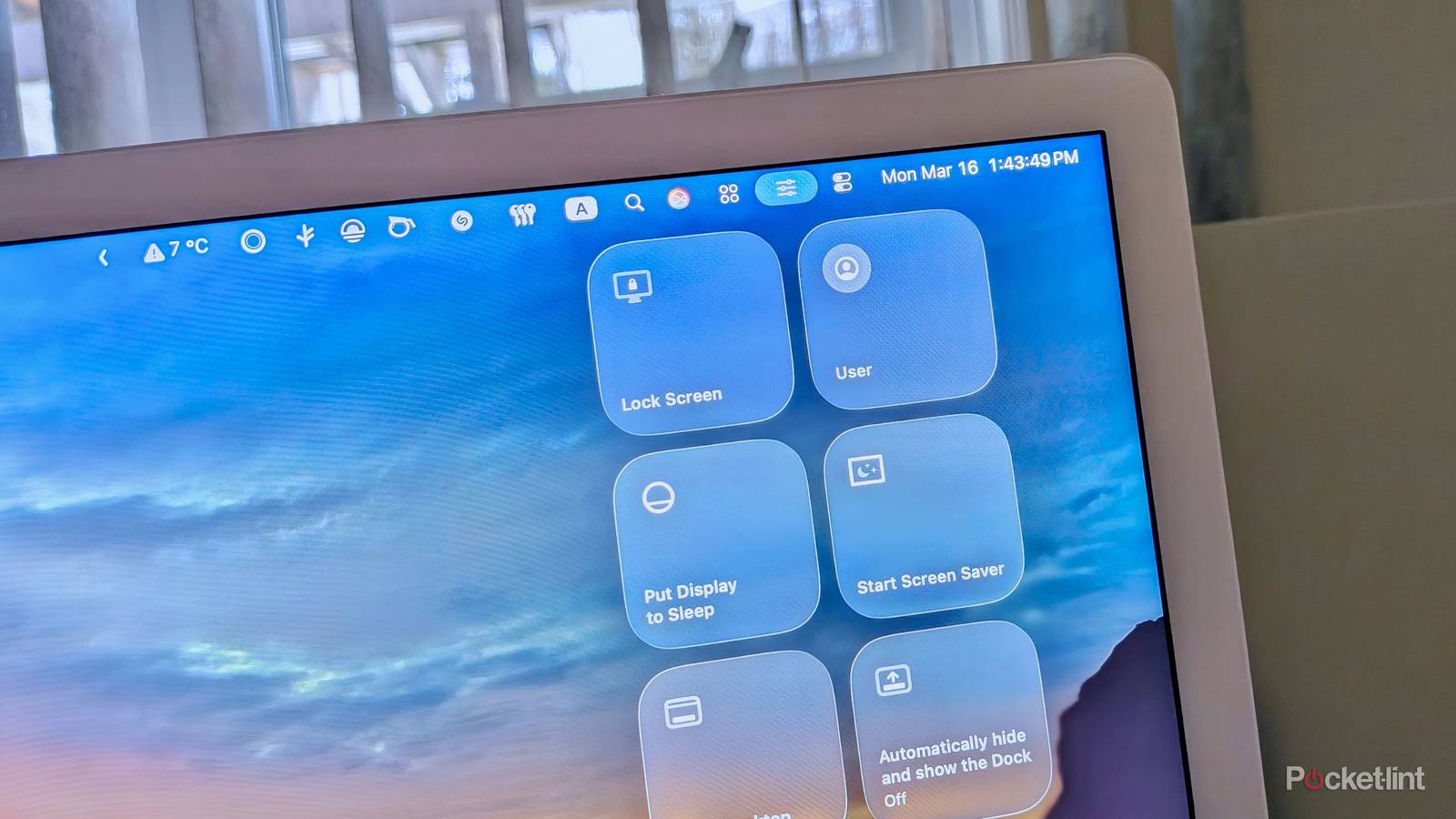
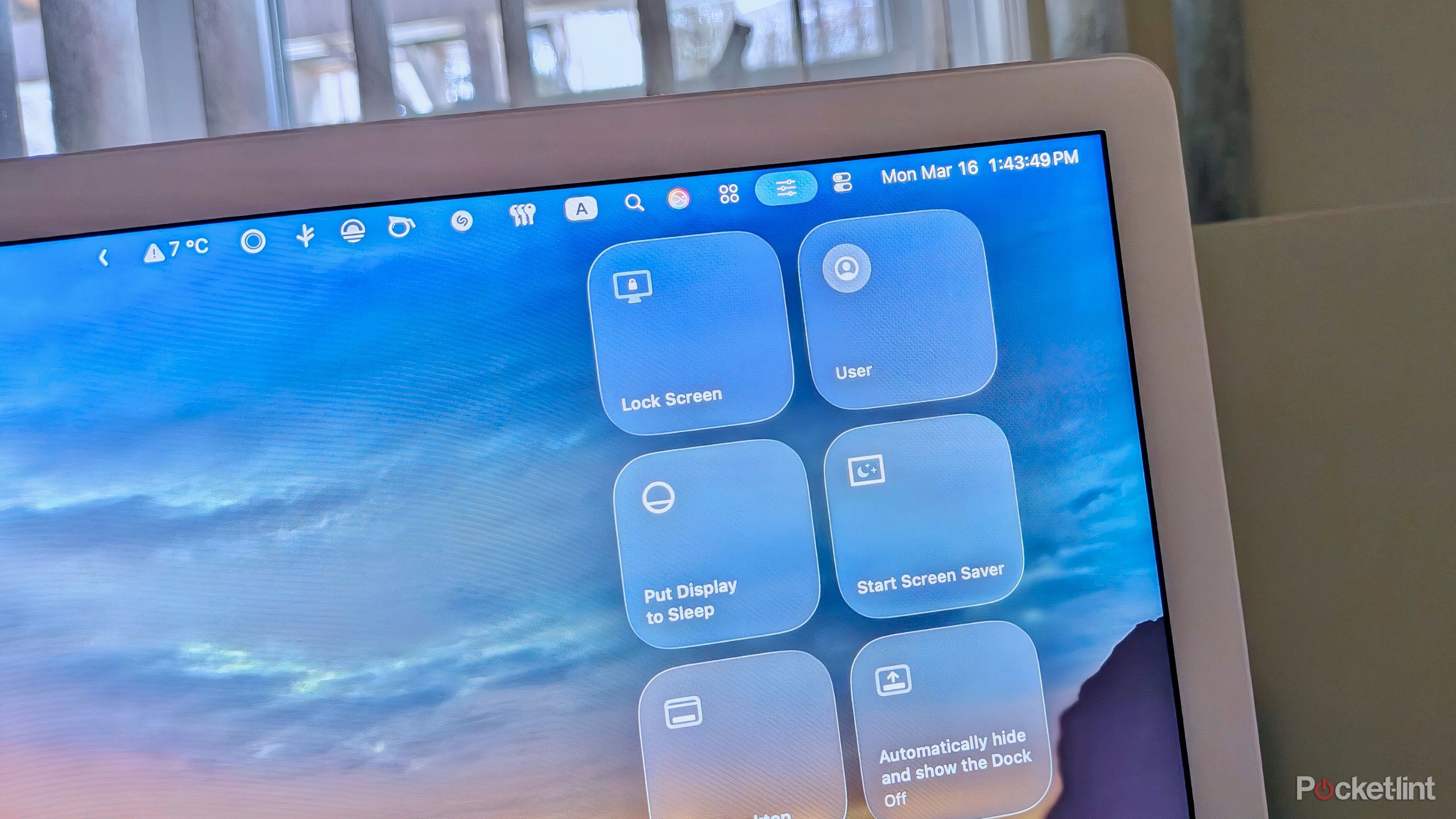
Some of my personal favorite macOS-specific Control Center tiles include Lock Screen, User, Put Display to Sleep, Start Screen Saver, Show Desktop, Automatically hide and show the Dock, Stage Manager, Mission Control, and Application Windows. There are also dedicated window management tiles on deck, including Tile Windows Left & Right, Tile Windows Left & Corners, as well as Tile WIndows to Corners — all highly useful additions for navigating the OS and for getting work done more efficiently.
…just like on the iPhone or the iPad, you can create custom panels for controlling smart home devices or for any other group of thematically similar shortcuts.
There are a variety of powerful screenshot-adjacent quick setting toggles also available in Control Center, including Capture Screen, Capture Selection, Custom Capture, Custom Recording, Record Screen, and Record Selection. These may come in handy for those unaccustomed to the cmd + shift + 5 keyboard shortcut (which opens up the macOS screen capture panel).
The other two aspects of the post-macOS 26 Control Center that make it such a powerful tool are the ability to create multiple, independent panels with customizable header icons, and the ability for third-party developers to tap into the system through their own apps. In other words, just like on the iPhone or the iPad, you can create custom panels for controlling smart home devices or for any other group of thematically similar shortcuts. And, likewise, you can add toggles from any app that supports the feature natively.
Of course, as with any software functionality, there’s always room for improvement here. Number one on my wish list for macOS 27’s Control Center is a quick-access toggle for turning on and off desktop items and widgets, which is something I have to constantly hop into System Settings to configure. Even still, macOS 26’s Control Center is a far more useful addition to the OS than meets the eye, and I’m always surprised to see how few Mac users have taken the time to customize it with their favorite array of quick shortcuts and utilities.