


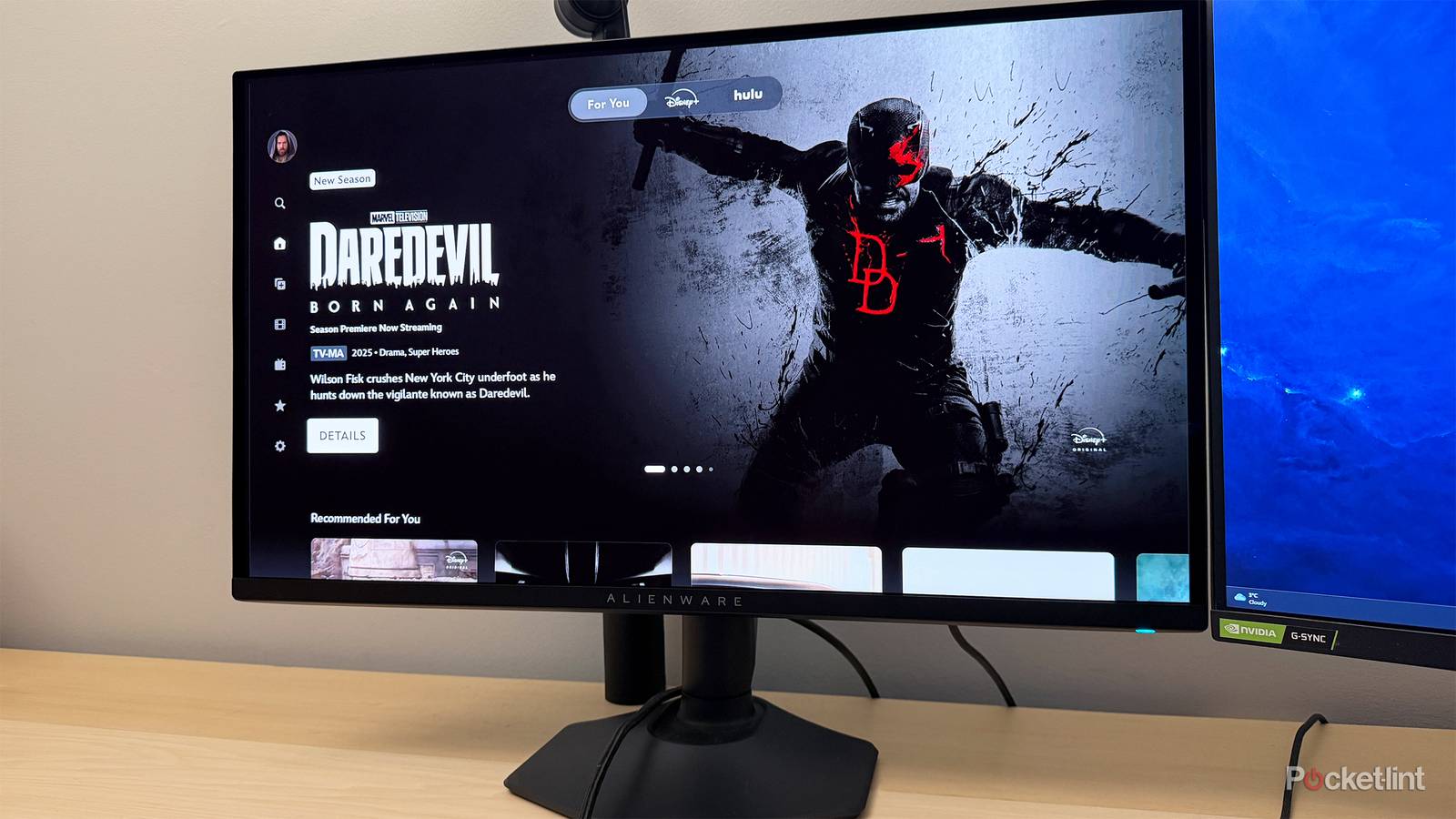
I’ll admit, while I enjoy watching shows and movies on my living room TV, I like watching them just as much on my monitor. Why? It’s connected to my gaming PC, so once you factor in streaming, my desk basically becomes an all-in-one entertainment hub. Plus, it’s a cozy, laid-back setup that’s perfect for unwinding after a long day.
That said, one drawback of streaming on a desktop PC or laptop connected to a monitor, compared to a TV, is the quality. To be clear, I’m not talking about the monitor’s quality. 4K monitors are now just as common as 4K TVs, so that’s not the issue.
The real issue is the resolution that most streaming services deliver via web browsers. More often than not, you’re limited to 1080p, sometimes even 720p, when streaming. So even if you’re using a 4K monitor connected to a PC, you’re not getting the best possible quality, which can make streaming on a monitor feel like a downgrade compared to a smart TV.
Fortunately, although this issue is frustrating, there’s an easy solution. I’ve been using it for almost a year, and it has completely transformed my monitor into a smart TV for 4K streaming. And the best part? It cost me almost nothing.
How to turn your monitor into a smart TV
Streaming sticks aren’t only for TVs

To turn your monitor into a smart TV for 4K streaming, the main thing you need is a streaming stick. Why? Because streaming sticks run their own operating system and support features you just don’t get when you’re using a monitor hooked up to a Windows or macOS computer for streaming.
The biggest benefit is proper 4K streaming, which you typically can’t get from streaming services through a web browser. You also get extras like HDR10 and HDR10+ — assuming your monitor can take advantage of them. There’s a convenience factor, too. Being able to kick back, use a remote, and stream on your monitor like it’s a TV is a big part of the appeal.
All streaming sticks use HDMI, so you just plug it into your monitor’s HDMI port, connect it to power, and you’re good to go.
As for the setup, it’s exactly what you’d expect, since it’s no different from using a streaming stick on a TV. All streaming sticks use HDMI, so you just plug it into your monitor’s HDMI port, connect it to power, and you’re good to go. In my case, I moved my Fire TV Stick 4K Max over from my TV to my monitor’s HDMI 2.1 port, and it worked instantly.
One issue I did run into, however, is audio. Some monitors have built-in speakers, while others don’t. My monitor does not, so I couldn’t actually hear anything from my Fire TV Stick 4K Max. Luckily, this fix was extremely easy, since Fire Sticks support Bluetooth audio. All I had to do was pair my headphones to them, and I had audio back just like that.
Other than having to sort out the audio, streaming on my monitor with the 4K Max has been incredibly smooth. All my apps are right there on the home screen, so jumping between them is easy, and 4K streaming has worked flawlessly. Plus, being able to sit back and use a remote to control everything — just like a smart TV — really pulls the whole experience together.
What is the best streaming stick to use?
The Fire TV Stick 4K Max is just one option

While I used a Fire TV Stick 4K Max to turn my monitor into a smart TV, there are plenty of other streaming devices that’ll get the job done just as well.
Starting with Amazon’s lineup, you have options like the Fire TV Stick 4K Select and 4K Plus. The 4K Select is the basic model with 8GB of storage, 1GB of RAM, and Wi-Fi 5. It’s currently on sale for just $18 during Amazon’s Big Spring Sale, making it the most affordable choice. The 4K Plus offers improvements with 2GB of RAM, Wi-Fi 6, and support for Dolby Vision and Dolby Atmos, and it is priced at $25 right now.
Then there’s the Fire TV Stick 4K Max, which is at the top of Amazon’s lineup. It supports Wi-Fi 6E and has 16GB of storage — double the amount of the Select and 4K Plus models. That’s the one I chose because the extra storage is great for downloading lots of apps, and Wi-Fi 6E provides the smoothest 4K streaming experience. It usually costs $60, but at the time of writing, it’s on sale for $35.
It has transformed my desk into a secondary streaming space when I don’t want to use my TV, which is exactly what I was aiming for.
If you prefer Roku over Fire TV, options like the Roku Streaming Stick Plus and Roku Streaming Stick 4K are both worth considering, and they’re currently on sale for $30 and $36, respectively.
Additionally, if you have a larger budget, there are other devices worth considering, such as a Roku Ultra, Google TV Streamer, Nvidia Shield, or an Apple TV 4K.
All in all, if you want to upgrade your monitor into a smart TV for streaming, a streaming stick is the best choice. It’s affordable, simple to set up, and allows you to easily stream all your favorite shows and movies in 4K. Besides dealing with the audio, since my monitor lacks built-in speakers, I haven’t encountered any major problems. It has transformed my desk into a secondary streaming space when I don’t want to use my TV, which is exactly what I was aiming for.

- Brand
-
Amazon
- Resolution
-
4K
- Audio codecs
-
Dolby Atmos