



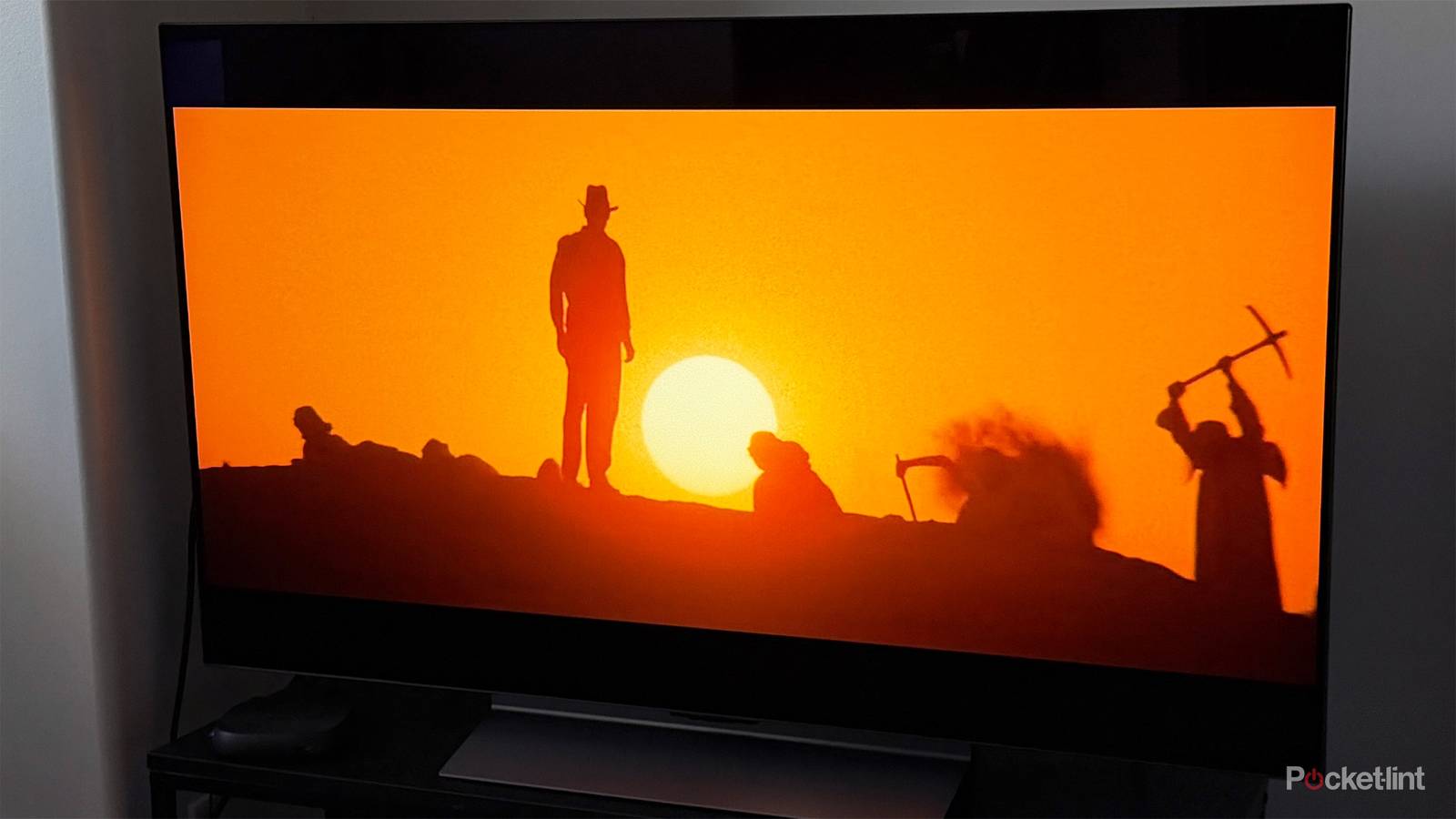
When I first unboxed my LG C5 TV, I was truly amazed by the picture quality. Since it’s my first OLED TV, experiencing those deeper blacks and richer colors compared to my old LCD Samsung TV felt like a major upgrade.
But after a few minutes of testing it, something felt slightly off, as the screen just didn’t look as bright as I expected. Then I discovered why.
Like most smart TVs today, LG automatically turns on energy-saving features by default on its TVs. While this lowers your TV’s energy use, it can also make the picture look noticeably dimmer and prevent your TV from performing at its best.
The good news? LG makes it incredibly easy to tweak these energy-saving options. Once adjusted, the difference in brightness is immediately noticeable. Yes, turning them off means your TV will use a bit more power — but for me, the trade-off is absolutely worth it for a brighter, clearer image, whether I’m watching movies or playing games.
How to turn off energy-savings on your LG TV
Make the image stand out more

There are two specific energy-saving settings you’ll want to change on your LG TV to make it brighter and improve the picture quality.
The first is one you may have seen before, as it’s found right in the Picture Mode settings, where you choose different modes that adjust your TV’s brightness, contrast, and color.
By default, on LG TVs, the picture mode is set to Auto Power Save. By switching it to Standard, you’ll immediately notice your TV’s brightness increase. Here’s how to do this.
1. Open the Settings menu on your LG TV.
2. Navigate to Picture.
3. Select Picture Mode.
4. By default, you’ll see Auto Power Save selected. Simply choose another mode, such as Standard or Sports, to increase your TV’s brightness.
Once you’ve turned off Auto Power Save mode, there’s still one more energy-saving setting hidden in the settings menu that limits your TV’s maximum brightness, called Energy Saving Step.

Energy Saving Step automatically adjusts your TV’s brightness based on the lighting in your room, using sensors built into the TV. While that might sound useful, I found that even in a dark room, my TV never got much brighter. By turning it off completely, my TV’s brightness stays consistently bright no matter how dark or light the room is, which I much prefer. Here’s how you can turn off Energy Saving Step, too:
1. Open the Settings menu on your LG TV.
2. Navigate to General.
3. Scroll down to Energy Saving.
4. Select Energy Saving Step.
5. Choose Off instead of Auto.
I adjusted these settings on my LG C5 TV while playing Zelda on my Switch 2, and I immediately saw in real time how switching the Picture Mode from Auto Power Save to Standard and turning off Energy Saving Step instantly improved the brightness on my TV, making the game stand out much more. While turning these settings off will cause your TV to use more energy, which could raise your energy bill, I think it’s worth it to get the clearest, most vibrant picture possible.