


TVs have come a long way over the past 20 years. We’ve gone from HD to 4K, and even 8K, and technologies like OLED, QLED, and mini-LED have completely changed what modern TVs can do. But despite differences in resolution or panel type, one thing every TV still has in common, whether it’s from 2010, 2016, or 2026, is HDMI ports. They let you connect just about any device you want to your TV, whether it’s a streaming stick, a PS5, a Switch 2, a Blu-ray player, or a PC.
Of course, HDMI has evolved right alongside TVs, too. Standards like HDMI 2.1 and 2.0 are now common on many modern TVs, enabling higher resolutions and faster refresh rates. And while people often worry about using the right HDMI port, they tend to stress about using the right HDMI cable, too. After all, even if your TV and device both support HDMI 2.1, the cable connecting them must support it as well to take full advantage of its capabilities.
The tricky part is that it’s not always clear whether you’re using the right HDMI cable. However, over the years, I’ve followed one simple rule for HDMI cables that has completely eliminated my stress about whether I’m using the right one, and I recommend you follow it too.
My rule: use the HDMI cable that came in the box
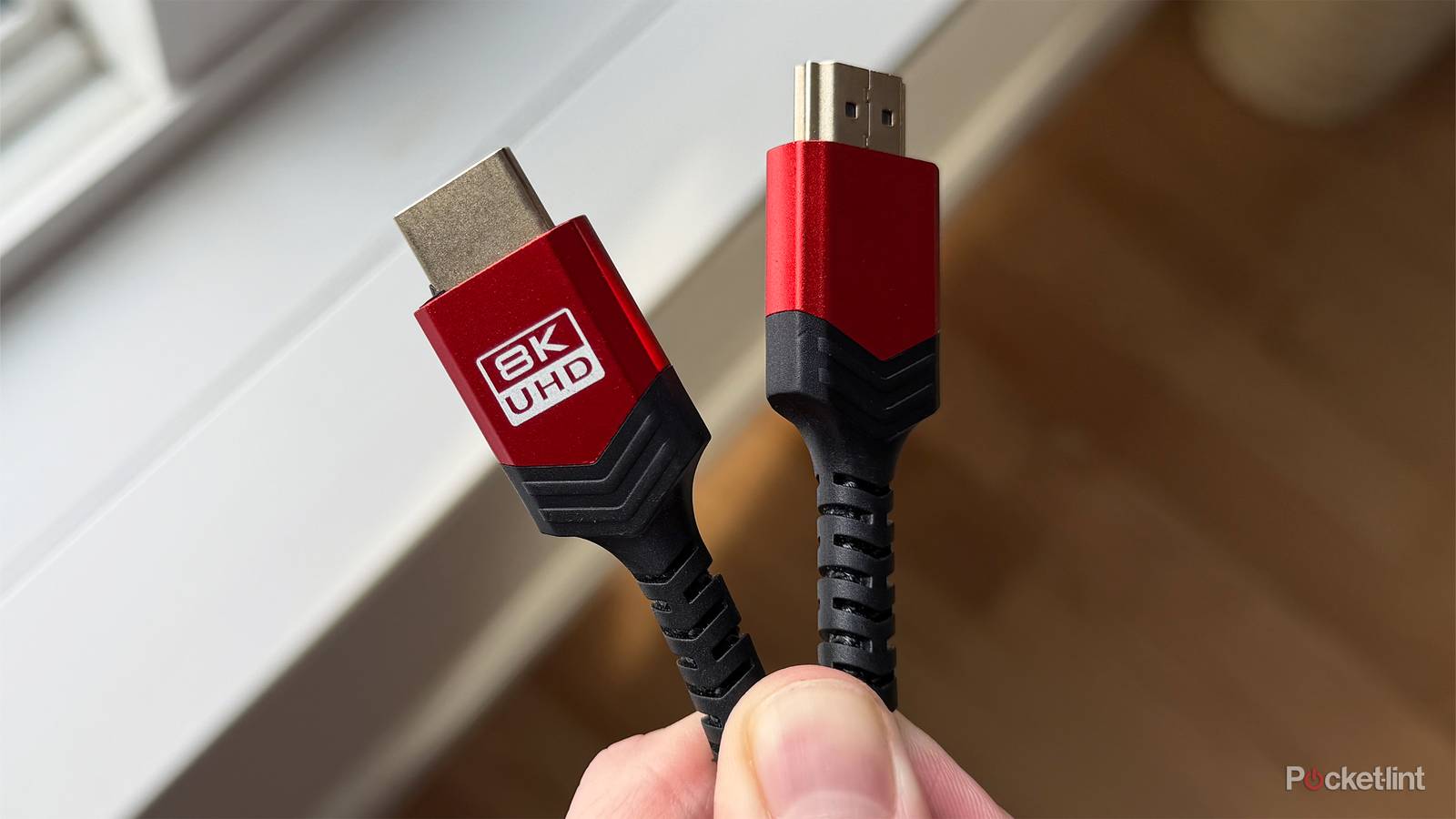
You don’t need a gold-plated HDMI cable

I’ll admit this is a simple thought process and not revolutionary, but it’s one that has prevented me from running into frustrations with HDMI: just using the HDMI cable that came included in the box with the device I’m using.
Every device I’ve hooked up to my LG TV, whether it’s my Roku Ultra, PS5, or Switch 2, comes with an HDMI cable in the box that matches the device’s capabilities.
Take the PS5, for example. It ships with an HDMI 2.1 cable in the box, ensuring you get all the features you want from your PS5, like VRR (Variable Refresh Rate) and ALLM (Auto Low Latency Mode). So there’s no reason to worry about whether you need to buy an HDMI 2.1 cable to be able to use those features with your PS5.
There’s also a common marketing myth that you need an expensive HDMI cable with a fancy gold-plated connector to get the best picture quality from your devices. In reality, there’s no difference between the HDMI 2.1 cable that comes with your device and a fancy $30 HDMI 2.1 cable you might buy online. As long as the HDMI specification is the same, both will deliver the same picture quality and features.
So, in short, here’s my rule: if you buy a new device that includes an HDMI cable in the box, and you get the correct resolution, refresh rate, and features you want with that cable on your device, then it’s perfectly fine. There’s no need to stress about the quality magically improving by buying a fancier HDMI cable, because it won’t.
There are exceptions to the rule
Sometimes you do need to buy a new HDMI cable

Now, of course, there are situations where you might actually need a different HDMI cable than the one included with your device. For example, if you need a longer cable, or if your cat decides to chew through it and destroy it — both situations I’ve personally run into on more than one occasion. There’s also a chance that the device you bought didn’t include an HDMI cable in the first place.
Take my PC setup as an example. When I wanted to connect my PC to my TV, I couldn’t rely on the HDMI cable that came in the box since I built the PC myself, and it didn’t include one. So I had to buy an HDMI cable. My approach was simple, though: I chose an affordable option from a reputable brand and made sure it was advertised as HDMI 2.1. In the end, I picked up a 16-foot HDMI 2.1 cable from UGREEN, and it worked perfectly for my setup.
I recommend only buying HDMI 2.1 cables. To easily identify whether an HDMI cable supports the 2.1 specification, look for identifiers on the store page or on the box, such as “HDMI Ultra High Speed” or 48 Gbps bandwidth support.
There’s also another common issue: cable length. Sometimes manufacturers include relatively short HDMI cables with their devices, so if it’s going to sit farther from your TV, you might need to buy a longer cable to make the setup work.
Overall, my way of avoiding HDMI cable stress is pretty simple: just use the one that came with the device you’re using. If it didn’t include one, or the cable is too short for your setup, don’t worry about buying an expensive replacement. Just make sure it supports HDMI 2.1, and you’ll be good to go.
HDMI 2.2 is a new HDMI standard that just came out and supports up to 16K, but don’t bother buying a cable that supports it right now, as there aren’t even consoles or TVs with HDMI 2.2 on them yet. HDMI 2.1 will likely remain the go-to HDMI specification and cable type for years to come.