


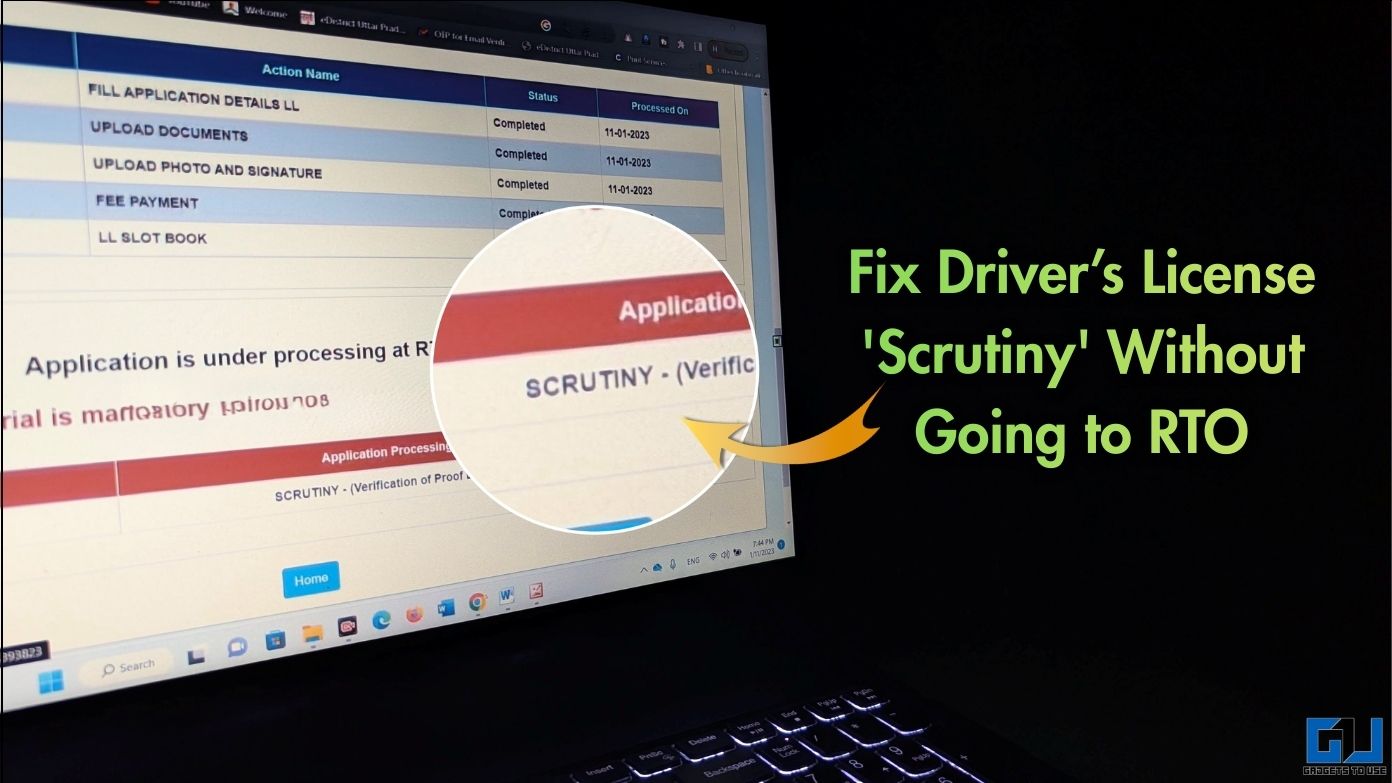
- In addition to granting you permission to operate a vehicle, a driver’s license is used to verify your identity in many places.
- After this, you would have to check a checkbox here, which would be a declaration stating, “I declare that the details provided are true and correct to the best of my knowledge”.
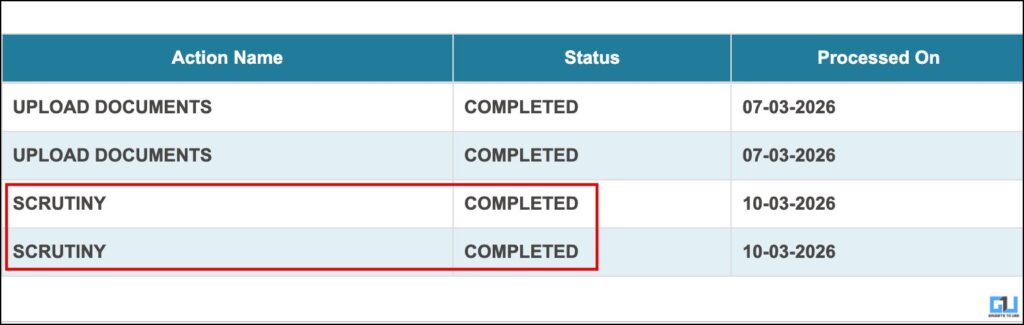
- Thereafter, you would see the application status, and if the document is verified and scrutiny completed, you can proceed further.
In addition to granting you permission to operate a vehicle, a driver’s license is used to verify your identity in many places. You can obtain one through the Parivahan Portal, a government-run website. The process of getting the can feel lengthy because it requires many documents for verification. Occasionally, an inadequacy might get your application stuck . In such a situation, one might feel helpless because the website may lack clear communication about the issue. Let’s see how we can fix this or ensure that issues like this do not arise.
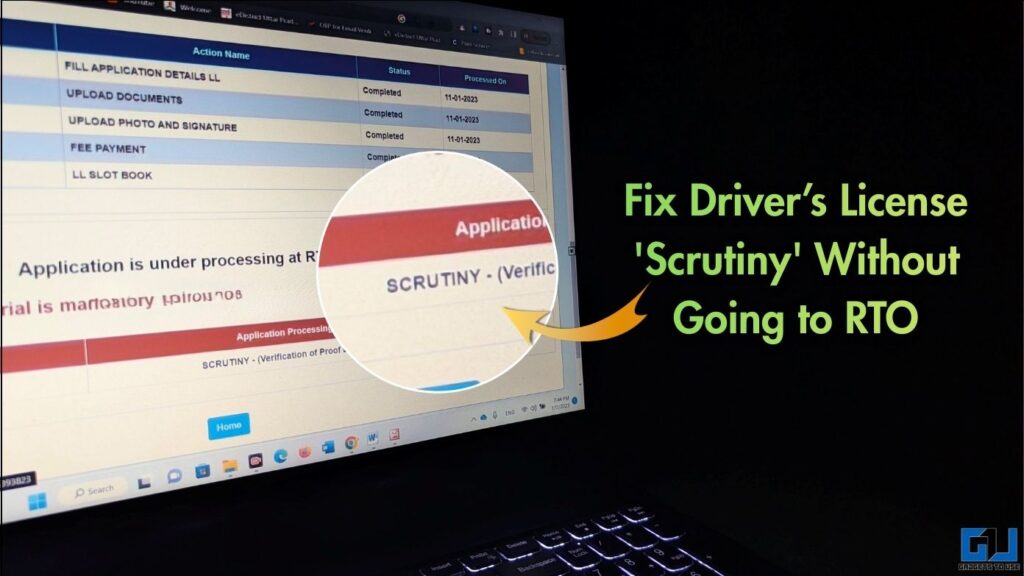
Fix Documents Stuck in Scrutiny
Since the process is online, you must upload the documents required for verification. If the documents have any issues, they might get stuck in ‘scrutiny’. You might see the phrase “Application is under processing at the RTO level“. In this case, you might be prompted to visit your nearest RTO.
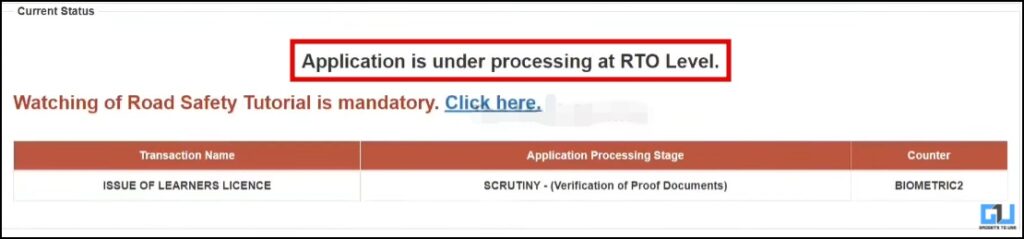
You can wait for the processing to take its due course. Once you submit the application, RTO may take 8-10 days to process the documents. After this, you might be able to proceed further in your application. If the portal still shows the same message and your documents are under scrutiny, you’ll be required to visit the RTO to physically verify them. However, if you have the right documents, you might resolve the issue via the online portal using workarounds.
Fix ‘Scrutiny’ Without Going to RTO
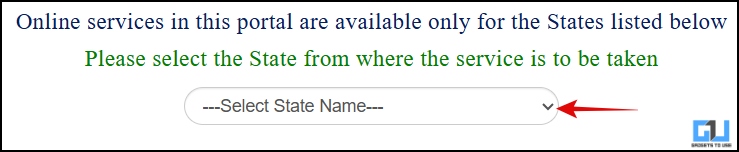
1. Open the Sarathi Parivahan Portal and select your State through which you are applying for the license.
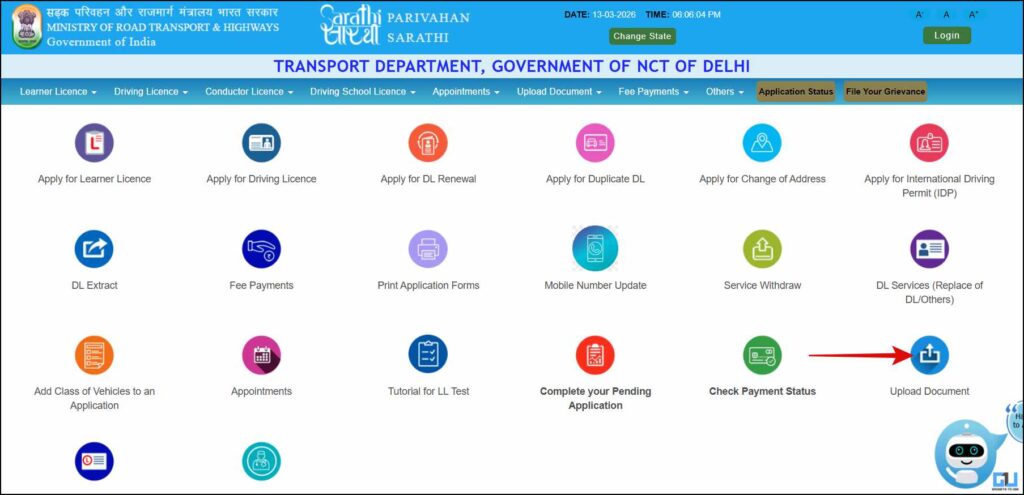
2. Now you will see many service icons and tabs. Here, click “Upload Document”.
3. Now, enter your Application Number, Date of Birth, and the captcha, and hit ‘Send’ to proceed further. You will need to verify using an OTP sent to your registered mobile number. After this, you would have to check a checkbox here, which would be a declaration stating, “I declare that the details provided are true and correct to the best of my knowledge”.

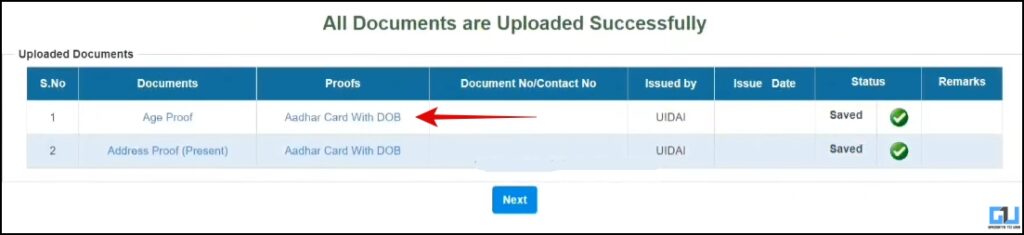
4. Since you have already uploaded the documents, it should state, “All Documents are uploaded Successfully.” You would need to re-upload the document. For that, click on the document that was under scrutiny.
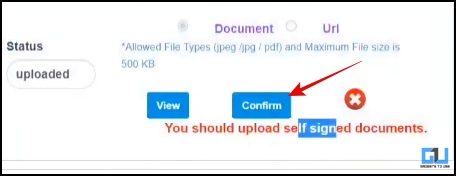
5. Now, make sure to follow the instructions on the screen for how your document should be before uploading the file. Don’t forget to self-attest the documents; they should bear your registered signature in black ink, and the document should be in coloured form. Once the document is uploaded, click ‘update’ and then ‘confirm’. Now you would be taken back to the list of uploaded documents, where you can view them.
6. Wait for 1-2 days, then click ‘Complete your Pending Application’ on the Portal homepage.
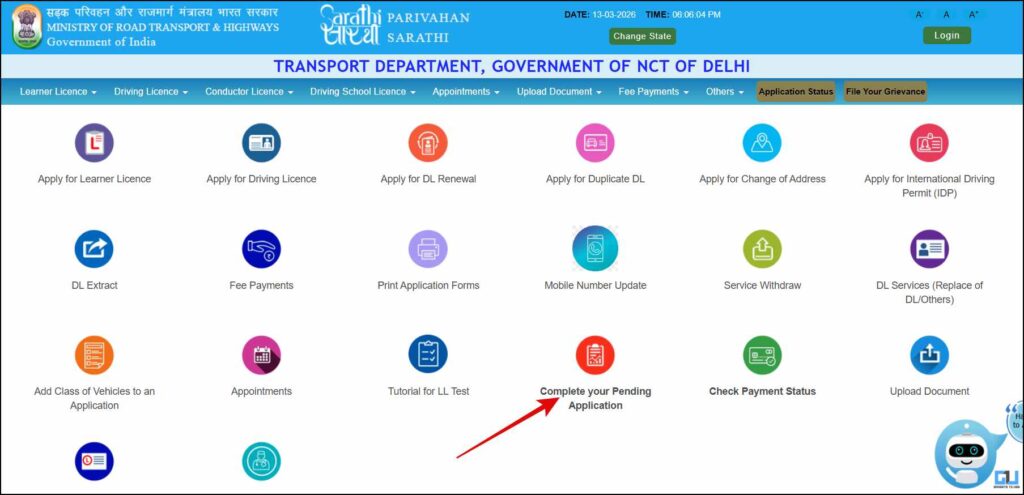
7. Here, enter your application number and date of birth, complete the captcha, and complete the OTP verification using your mobile number. Thereafter, you would see the application status, and if the document is verified and scrutiny completed, you can proceed further.
FAQs
Q. Why are my documents stuck under scrutiny on Parivahan?
If your documents do not match the instructions on the portal, they may be put under scrutiny. Some reasons may be that they are unclear, invalid, or not self-attested.
Q. Is it safe to use third-party websites to reduce file size and resolution of documents before uploading on the Parivahan Portal?
It is generally not recommended to use third-party online services to adjust file size as they can keep your senstive documents saved on their servers. You should use offline tools such as the built-in cropping tool in your phone’s gallery and reputed apps like Adobe Scan or Microsoft Lens to reduce PDF size locally on your device.
Wrapping Up
Obtaining your official documents can be a tedious task. Even one unverified document can lead to rejection and might prompt you to go through the process again. Although online services for this are helpful and offer flexibility, they can sometimes seem insufficient. It’s important to keep your documents up to date and follow the instructions on the portal when uploading them.
You may also like to read:
Have any questions related to our how-to guides, or anything in the world of technology? Check out our new GadgetsToUse AI Chatbot for free, powered by ChatGPT.
You can also follow us for instant tech news at Google News or for tips and tricks, smartphones & gadgets reviews, join the GadgetsToUse Telegram Group, or subscribe to the GadgetsToUse Youtube Channel for the latest review videos.
⬇️ GadgetsToUse Site Search ⬇️
You can find anything on our website, inlcuding tech how to, solution or reviews using google site search box below.
Was this article helpful?
YesNo