


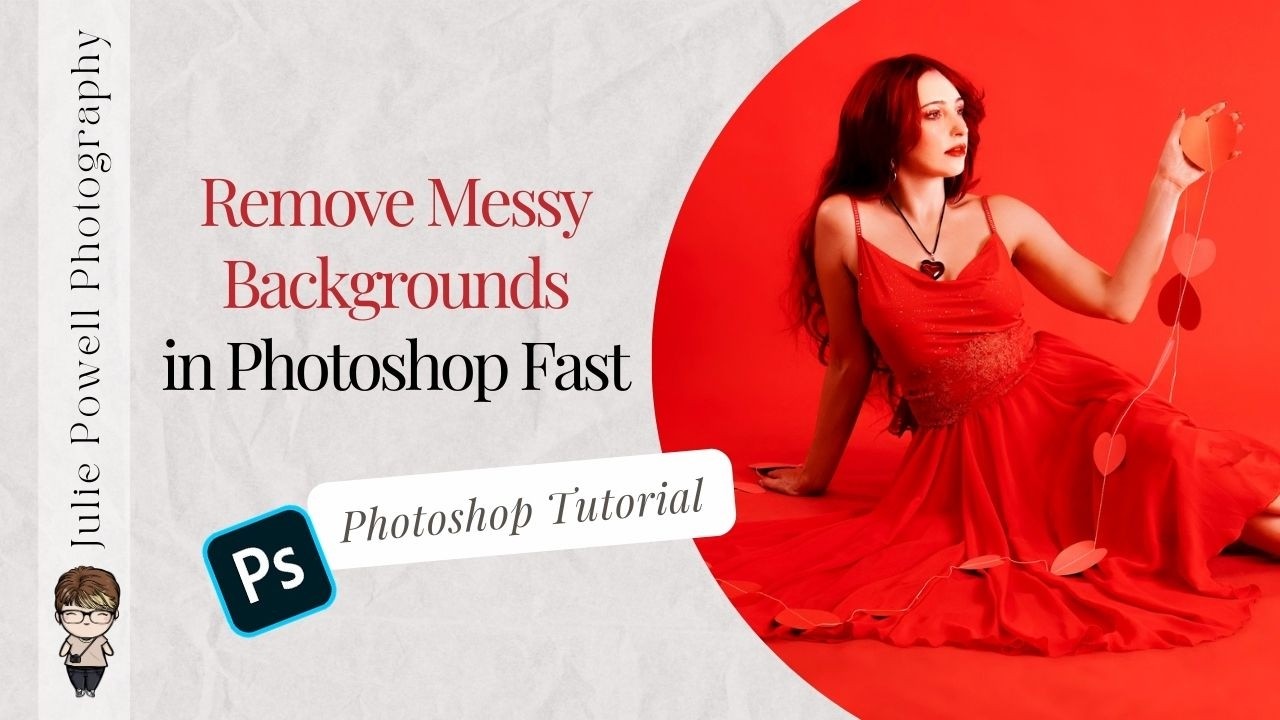
Busy backgrounds can completely distract from an otherwise strong portrait, and most photographers either over-edit or give up too soon. In this Photoshop tutorial for beginner and intermediate photographers, I’ll show you a fast, repeatable way to clean up messy backgrounds using simple tools like Select Subject, Modify, Expand, Delete and Fill, and the Median filter. More importantly, you’ll learn how to turn this process into a custom Photoshop action so you can remove distractions in seconds on future images. This workflow keeps natural shadows and depth intact, avoids that over-smoothed plastic look, and fits seamlessly into a Lightroom to Photoshop editing process. If you’ve ever struggled with cluttered backdrops, uneven texture, or random mess behind your subject, this step-by-step method will help you create cleaner, more professional results without complicated composites or advanced retouching techniques.
Check out more Photoshop Tips & Tricks on my YouTube channel.