



If you happen to have an old Android phone lying around in a drawer or closet, the good news is that it doesn’t have to live there in perpetuity. There are countless ways to repurpose an old smartphone, all of which can breathe new life into that long-forgotten mobile pal of yours.
You’re probably familiar with certain repurposing solutions, like using your old Android phone as an external webcam, a security camera, a dashcam, a storage drive, or even as an emulation machine. But there are also several lesser-known options at the disposal, including one in particular that’s rather under-appreciated: using it as a makeshift Wi-Fi extender.
Conceptually similar to data hotspotting, most modern Android phones let you extend the range of the Wi-Fi network they’re connected to, blasting out a new signal that can then be tapped into by other devices that have access to the password. By transforming your old device into an extender, you can improve the reach of your internet throughout your house, all without having to dish out money for a dedicated external extender product.
What is a Wi-Fi extender?
A device that broadens the wireless reach of a given network

A Wi-Fi extender, often referred to as a booster or a repeater, is a dedicated piece of hardware that captures an existing Wi-Fi signal, amplifies it, and re-transmits it into the air. By doing so, the usable range of a wireless network can be bolstered, removing dead zones or other areas with poor signal reception.
Wi-Fi extenders have been on the market for many years, and they come in all shapes and sizes. Some repeaters are more affordable than others, with the high-end segment of the market dominated by robust mesh network systems consisting of multiple extenders.
For the most part, basic Wi-Fi extenders only extend the range of a given network, without improving on performance itself. In fact, you can expect slower speeds when connected to a Wi-Fi extender than when connected to a router itself, especially as you move further away from the latter device.
How do I turn my old Android phone into a Wi-Fi extender?
Most contemporary Android devices natively support the functionality

To repurpose your old Android device as a Wi-Fi extender, follow these steps:
- Launch Settings.
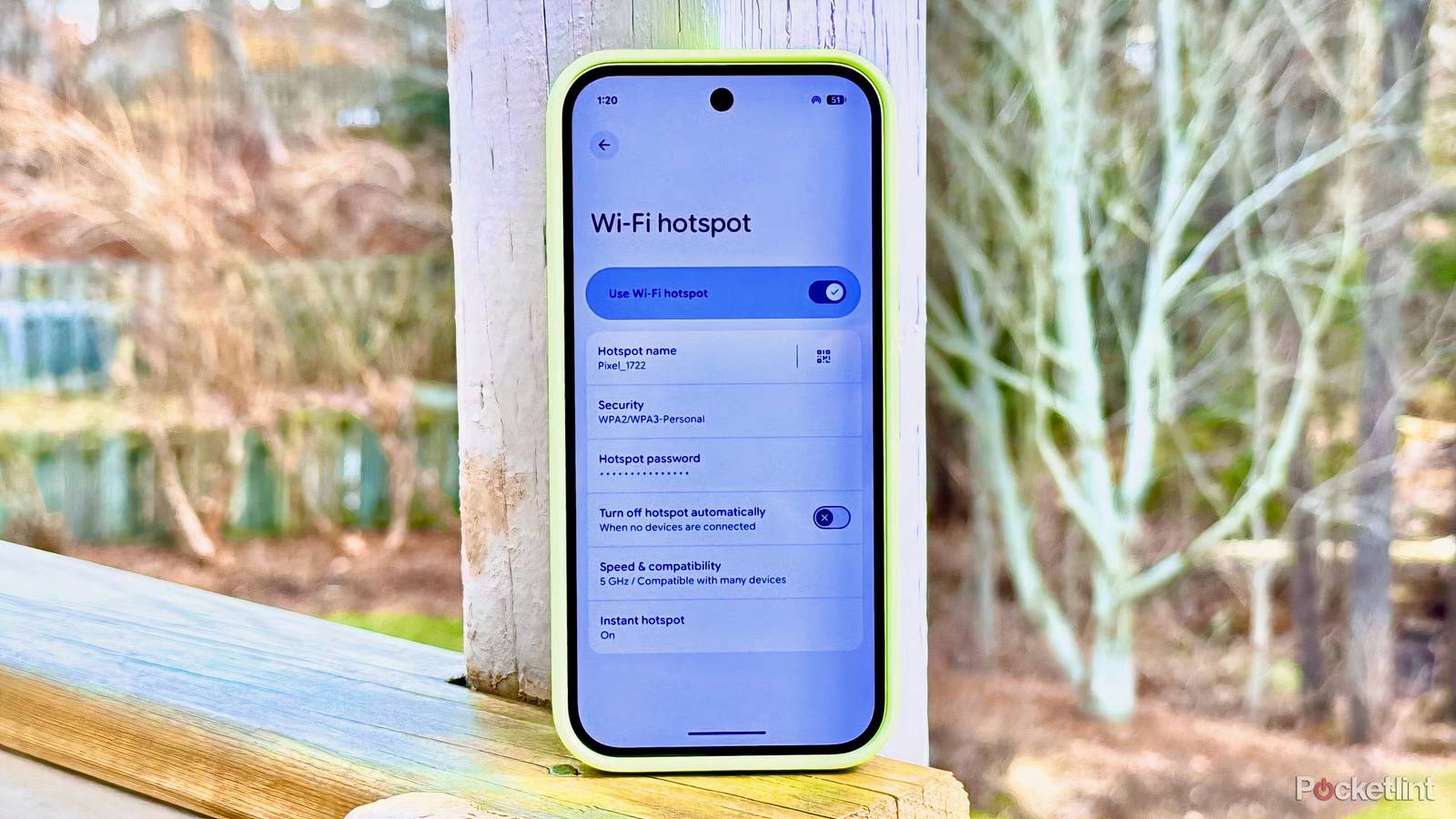
- Navigate to Network & internet > Hotspot & tethering > Wi-Fi hotspot.
- Next, toggle on Use Wi-Fi hotspot.
From here, you can configure the name of your Wi-Fi hotspot, change its password, adjust speed and compatibility settings, and more. Note that when using this method, your ‘extended’ Wi-Fi will appear as a distinct network entity on other devices, meaning it does not display or connect using your existing Wi-Fi network’s name or password.
The aforementioned steps are specific to the Google line of smartphones, but most contemporary Android handsets do natively support Wi-Fi hotspot functionality. The exact steps required to enable the feature within Settings may vary based on your phone’s make and model, as each hardware manufacturer names and organizes on-device settings in its own way.
Once you’ve set up your Wi-Fi hotspot, it’s off the races. You can connect to your extended connection just as you would any other Wi-Fi network, and, on some devices, a scannable QR code can be generated for even quicker pairing.
You may have to experiment with the precise placement of your Android-phone-turned-network-extender, to find the spot that produces the strongest possible signal. I’d also recommend plugging said Android phone into power to ensure it stays online — Wi-Fi hotspotting consumes more power than idle, and so your battery will drain over time.
To avoid battery wear-and-tear, and to also reduce heat production, I recommend turning on your old Android phone’s battery limiter setting if it has one. Most modern Android devices allow you to set charging to stop at around eighty percent, which should help preserve battery health in the long run while remaining plugged in to the wall. If your phone supports passthrough charging, which bypasses the battery entirely, I’d certainly recommend toggling that option on.