


I use my Samsung Galaxy S25+ for my photography because it delivers stunning picture quality and is easily upgradeable. It’s become my go-to camera for everything from work-related product photography to outdoor shots, and family pictures without me needing to invest in a dedicated DSLR.
The phone’s standard photography is fine for most uses, but I like to squeeze a bit extra out of it and push it to its limits to see what it can do. That’s why I’ve made a list of easy ways to improve my Samsung Galaxy photography to get the best results. Some are simple settings tweaks, while others are useful Android apps which enhance functionality.
Grid lines
Align your shots

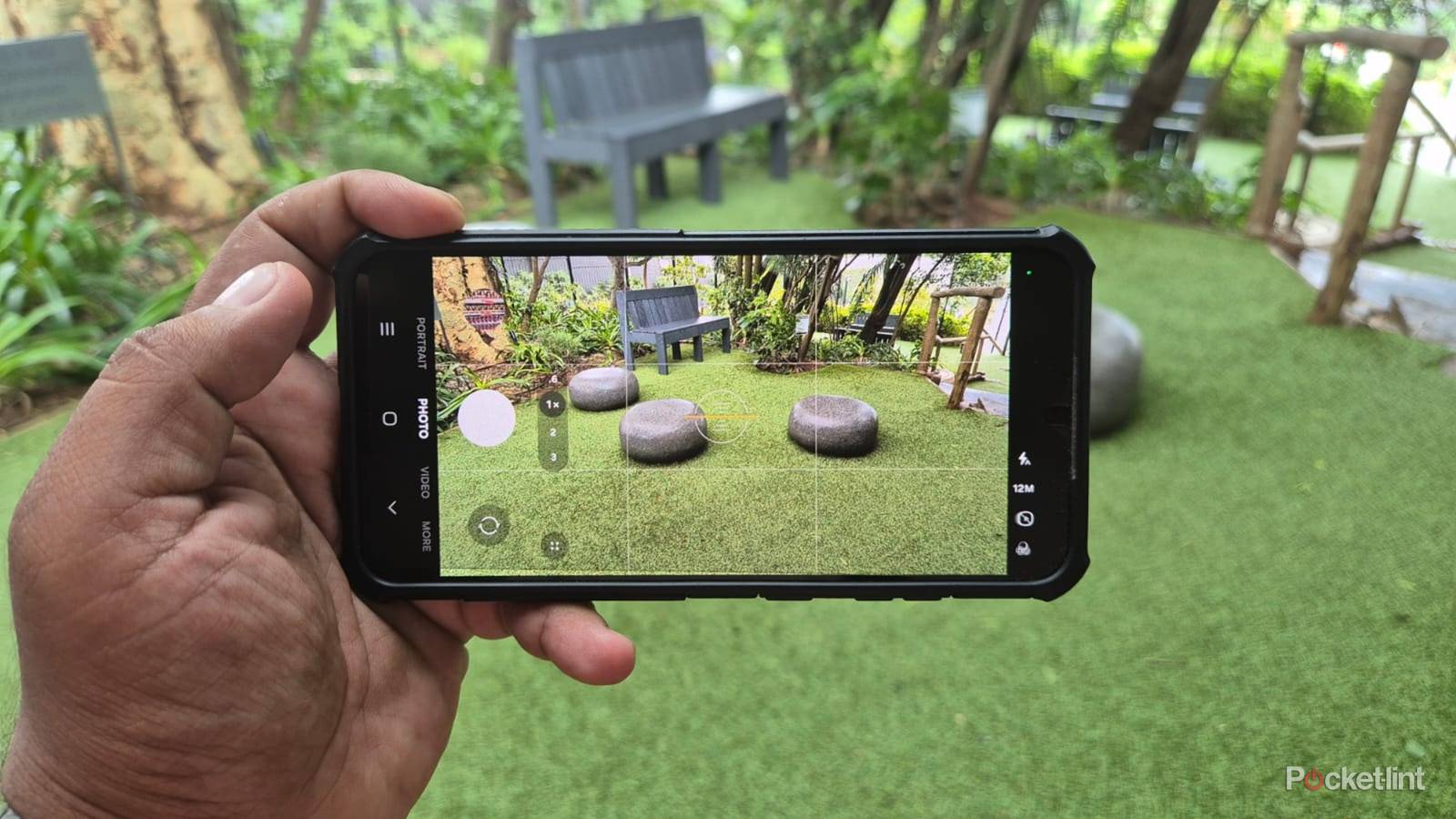
I can’t do without the grid lines and leveler after adding them to my camera via the settings. It’s one of the simplest ways to improve my photography and doesn’t require any special knowledge or skills. Activating it is as simple as going into my camera settings, turning on the composition guide, and using the checkbox to enable Grid lines and level.
The grid lines make it easier for me to line up shots of objects and scenery and act as markers for my composition.
After activation, my screen is divided into nine equal rectangles with a circle in the middle which works similar to a spirit level to notify me when my phone is straight, or at an angle. The grid lines make it easier for me to line up shots of objects and scenery and act as markers for my composition.
The grid lines also help me take faster pictures, especially for product photography, because I use them as reference points to centralize my subjects. All my pictures look more professional due to the improved alignment and balance offered by the grid lines.
Pro Mode
Fine tune your settings

Pro mode is another built-in setting to improve your Samsung Galaxy’s photography. Simply tap on More in the camera menu and tap on Pro to activate this mode. The interface will change and add features, like manual ISO, shutter speed, and white balance settings. You’ll also get shortcuts to the wide, ultrawide, and telephoto lenses.
These added features enhance my shots, if I use them correctly. The ISO mode adjusts my camera’s light sensitivity higher or lower, depending on what I need. Reducing the shutter speed makes it easier to capture moving objects without blur. I usually adjust the white balance setting to bring out the natural colors of shots without them looking too warm or unnaturally white.
Having shortcuts to my phone’s lenses lets me experiment and take shots on-the-fly.
Having shortcuts to my phone’s lenses lets me experiment and take shots on-the-fly. I find the default wide camera fine for most tasks, but still enjoy playing around with the ultrawide for outdoor shots, and it’s also sometimes better for fitting larger monitors and TVs into the entire frame. The telephoto is better for macro shots when I need to capture the little details on products I’m reviewing.
Good Lock Camera Assistant
A free camera software update

Samsung’s Good Lock offers amazing customization modules, and the Camera Assistant is like a free software upgrade to improve my phone’s functionality. It’s one of the most user-friendly apps I’ve come across and consists of simple sliders to change my camera settings.
The first settings include options to add a new 2 x crop zoom shortcut and turn on automatic HDR for more detailed shots. There’s also an option for auto lens switching. If you activate this option, the camera will automatically choose the best lens for your shot based on factors, like the distance, lighting and zoom. You also get a tool to automatically correct distortion, and high resolution settings, which can reduce the noise level in low-light shots and upscale the digital zoom.
The Timer multi-photo options let me choose how many images the camera captures in timed mode, and the interval between each one.
I use the Quick tap shutter setting to capture pictures faster. I also like the Video recording in Photo mode which lets me switch between different camera modes by long-pressing the shutter button. The Timer multi-photo options let me choose how many images the camera captures in timed mode, and the interval between each one.
Galaxy Enhance-X
Magic photo enhancement tools

Enhance-X is a free app downloadable from the Galaxy Store for improving photos and videos. It’s packed with useful features, like the Face tool, which improves my profile photos to make them look more professional. After uploading a picture, the tool lets me adjust the smoothness and remove any motion blur or distortion.
Colorize is probably my favorite Enhance-X feature. It’s a fun AI tool which I use to transform my old photos from greyscale into color with amazing accuracy. I then use the HDR and Brighten tools to make them look more vibrant and colorful. The 24-hour time-lapse tool takes a single photo and turns it into a video with the lighting shifting from light to dark while representing the hours of the day.
The 24-hour time-lapse is a fun tool which takes a single photo and turns it into a video.
Camera Shift is an interesting feature which alters the height or tilt of a photo, and is excellent for improving the proportions in body shots. There are also a number of quick-access tools to remove shadows, haze, and reflection from pictures. Enhance-X also includes a handy Slow mo tool which converts any video to slow motion just by tapping on it.