


I improve the performance of my old USB sticks by following a few simple rules. Most of us use our PC’s USB ports for connecting devices like mice and dongles, and don’t worry much about memory sticks because they have reliable SSDs and cloud storage. However, USB sticks aren’t obsolete and are still worth using as practical and affordable storage solutions.
USB sticks are perfect if you want to back up your data without requiring an account or an online connection. They’re also readily available and compatible with most systems. People often complain that their memory sticks are slow and don’t realize that USB ports play a big part in their performance. That’s why I’ve compiled a list of simple tips and tricks that anyone can follow to get the best out of their old thumb drives. Most take a few minutes to activate and involve changing a few settings or optimizing compatibility.
Know your port speeds
Compatibility determines performance

Your USB ports and sticks support different speeds and won’t deliver the best performance if one is faster than the other. You could have a modern USB port that supports the latest speeds, but it won’t make a difference if your flash drive only supports an older, slower standard. It works both ways, and your new high-speed stick won’t provide fast data transfer on outdated ports.
Your USB ports and sticks support different speeds and won’t deliver the best performance if one is faster than the other.
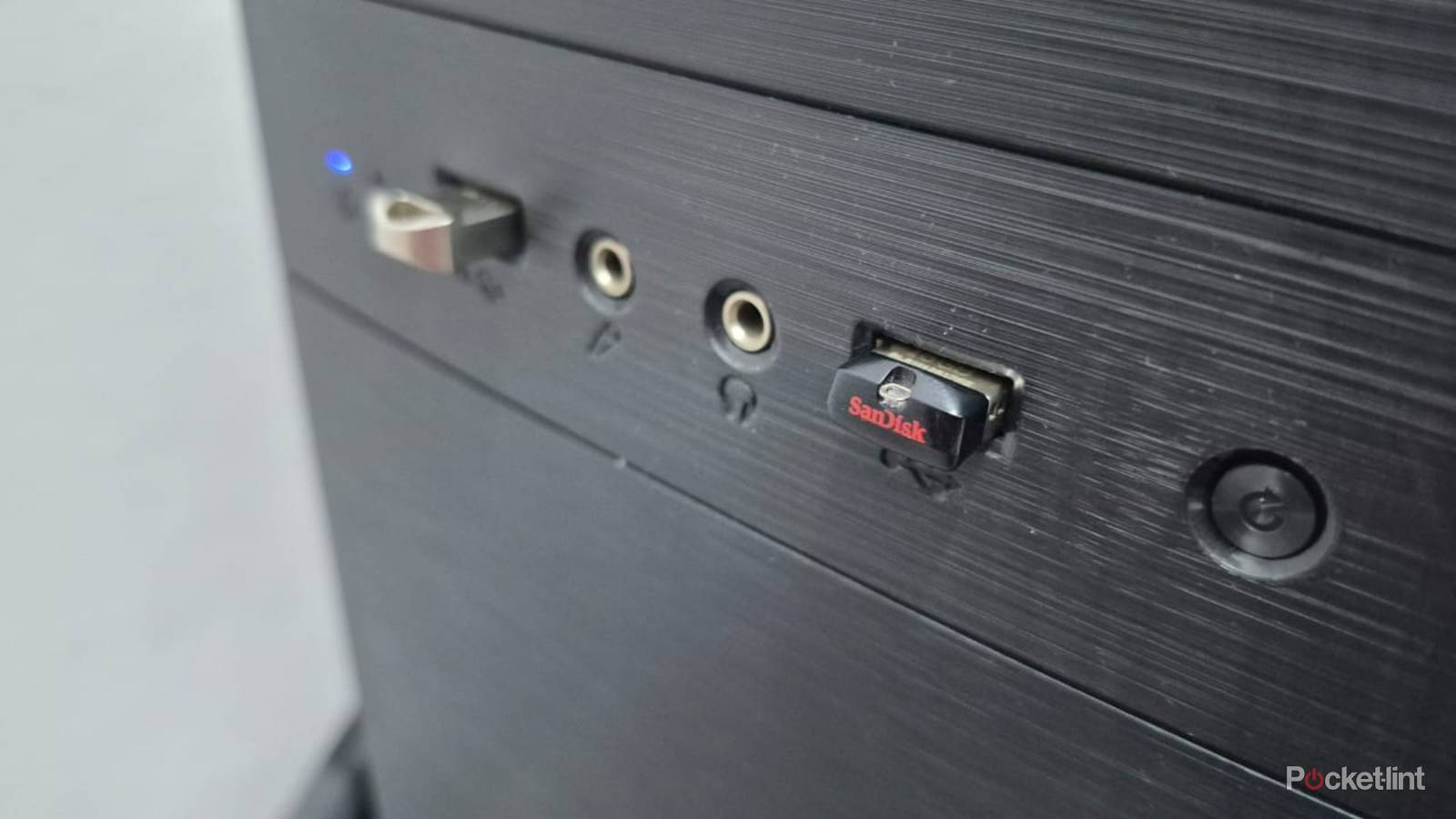
So how do you find out how fast your ports are? Until recently, they were color-coded, and black signified USB 2.0 speeds of up to 480 Mbps, while blue indicated faster USB 3.0 speeds of around 5 Gbps. These days, color-coding has fallen away, and you’ll need to check the symbols around your Type A ports to find their speeds.
Ports marked with an “SS” label usually indicate USB 3.0 speeds. Other ports with a number ten refer to USB 3.1 speeds of 10 Gbps, and ports with the number 20 denote USB 3.2 Gen 2 speeds of 20 Gbps. Thunderbolt ports have a lightning symbol and support 40 Gbps speeds.
Check your USB sticks’ read and write speeds
Some are faster than others

Knowing the read and write speeds of my USB drives helps me decide what to use them for and estimate how long my data transfer will take. The easiest method to check your speed is to plug your USB sticks into your PC, and then go to the Performance Tab in Task Manager. Then select the drive from the list and view its real-world read and write speeds while you’re copying data from it.
Downloading free tools like USBDeview is an alternative way to run speed tests and perform diagnostics on your flash drive.
Downloading free tools like USBDeview is an alternative way to run speed tests and perform diagnostics on your flash drive. The USBDeview app can run directly from the .ZIP file without requiring installation and displays a list of the USB devices connected to your PC. You can then right-click on your USB stick and choose Speed Test from the menu. The app runs the test and displays its maximum read and write speeds.
Format your USB sticks
A fresh start for your sticks

Formatting your USB stick can resolve errors and corruption by erasing all data and creating a new file system. It’s also an easy way to get rid of viruses and suspicious files, which could be affecting performance. You have different options when formatting a USB stick, and choosing the right one is critical to its functionality and compatibility with other devices.
You have different options when formatting a USB stick, and choosing the right one is critical to its functionality and compatibility with other devices.
The older FAT32 file system works on multiple operating systems, like Windows, Linux, and macOS. It’s also widely supported by TVs, car stereos, and other devices. However, its 4GB size limit isn’t the best if you want to copy high-resolution videos and other large files.
NTFS supports large file sizes and is compatible with Windows and most Linux systems. On the other hand, Apple users may encounter issues because macOS can read NTFS drives but can’t write to them without third-party apps.
The exFAT format is a great option because it offers the best attributes of the other formats. It offers the most flexibility because it can handle large file sizes and is compatible with most systems.
Change your USB stick’s removal policy
An easy speed boost

Changing your USB stick’s removal policy can give it a performance boost. It’s set to Quick removal by default, which makes it okay to remove without using the Safely Remove Hardware and Eject Media tool. This method is safe because write caching is disabled, and the data is written directly to the disk. It’s also slower because the program saving information to the drive must wait until all the data is copied before moving on to other tasks.
Changing your USB stick’s removal policy can give it a performance boost.
Choosing the Better Performance option can speed up your file transfers because write caching is enabled, and the information you want to copy moves to the RAM before being transferred to the USB stick. The RAM takes over the copying, and the system can move on with other tasks. The downside is that you must safely eject the USB stick, as removing it while it’s still copying data can cause corruption. Either way, it’s always better to be safe than sorry and use the USB ejection tool regardless of your stick’s removal policy.