


Summary
- Samsung phones have a secret Wi-Fi settings menu called Connectivity Labs.
- To unlock Connectivity Labs you need to navigate to the Intelligent Wi-Fi settings menu under Connections and tap the Intelligent Wi-Fi button five times.
- The Connectivity Labs menu offers useful tools like Home Wi-Fi Inspection, which you can use to test your Wi-Fi’s signal strength, and Nearby Wi-Fi Information.
One of the main features of Samsung’s One UI experience is its extensive settings menu. It offers a wide variety of options for customizing your Samsung phone, including changing wallpapers, managing battery life, setting up routines, adjusting the display, and rebinding the side button, among others. Samsung’s settings app easily beats Apple’s and Google’s, and with Galaxy AI integrated into the app, finding the setting you want to change becomes much easier.
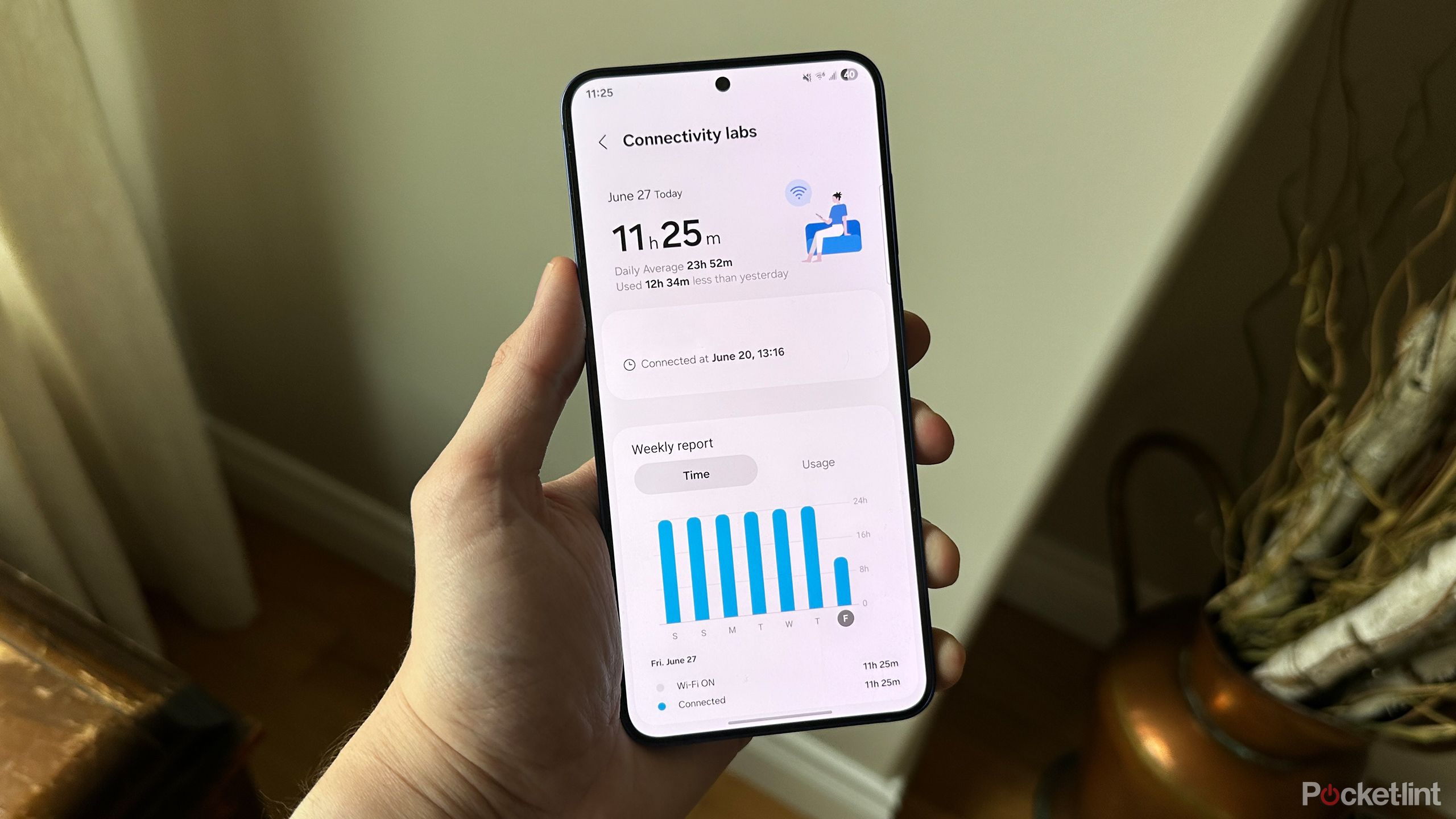
However, Samsung’s settings app still has a few hidden features that even AI can’t reveal. One of these is tucked away in the Wi-Fi settings menu called Connectivity Labs (via Android Authority). By default, this feature is completely hidden. It doesn’t appear in the Wi-Fi settings, and until you enable it, it won’t show up in the search results within the settings app either.
Connectivity Labs is a setting that must be unlocked manually. Once you do, it offers a variety of useful Wi-Fi options to explore. Here’s what Samsung’s Connectivity Labs can do for you and how to unlock it on your Samsung Galaxy device.

- Brand
-
Samsung
- SoC
-
Snapdragon 8 Elite
- Display
-
6.7-inch
- RAM
-
12GB
The middle child of Samsung’s flagship smartphone lineup for 2025, the S25+ features the Snapdragon 8 Elite chipset, a 6.7-inch display panel, and a triple camera array.

Related
I was wrong about the super-thin Galaxy S25 Edge (it doesn’t suck)
I was quite critical of Samsung’s super-slim Galaxy S25 Edge in my hands-on preview coverage, but it’s actually a solid, unique phone.
How to unlock Samsung’s hidden Wi-Fi settings

When you go to the Connections tab in the settings app on your Samsung device, you’ll notice that Connectivity Labs isn’t visible. This is because you need to enter a specific input to make it appear. Here’s how to do it:
1. Go to Connections in the Settings app.
2. Select Wi-Fi.
3. Tap the three dots in the top-right corner.
4. Choose Intelligent Wi-Fi.
5. Tap the Intelligent Wi-Fi button at the bottom repeatedly.
6. Connectivity Labs will then unlock as an option to select at the bottom of the Intelligent Wi-Fi menu.
As you keep tapping the Intelligent Wi-Fi button, a pop-up should appear indicating that continuing to tap it will unlock Connectivity Labs. Keep tapping until it shows up. I had to tap the Intelligent Wi-Fi button five times for Connectivity Labs to appear. Now that you should have it unlocked, let’s dive into the fun you can have with Connectivity Labs.
This is the method I used to enable Connectivity Labs on One UI 7.
1:44

Related
Thin phones are in thanks to Samsung’s Galaxy S25 Edge
This week in tech was a busy one with the arrival of the Galaxy S25 Edge, new iPhone rumors, and (yet another) rebranding plan.
What can you do with Connectivity Labs?
You can test out the signal strength of your home Wi-Fi

Now that you’ve unlocked Connectivity Labs, you can tap on it to access all the new settings. When you first open the menu, you might feel a little overwhelmed because there are many different options to explore. The first one I recommend trying is called Home Wi-Fi Inspection. This feature lets you walk around your house and test your Wi-Fi signal strength to identify any weak spots.
I ran the Wi-Fi inspection test twice and found it to be quite accurate. One area in my home has a very weak Wi-Fi signal, so I set up an extender there, and the tool was able to detect that weak signal area. When I tested my Wi-Fi extender, the Home Inspection tool detected a stronger signal, which was a helpful way to verify that my extender was working properly.
Another setting in this menu is the option to enable a feature called Switching to mobile data faster. By turning this on, your Samsung phone will switch more quickly to mobile data if it detects a weak Wi-Fi signal. If you have an unlimited mobile data plan, I recommend turning this on so you can always maintain a strong internet connection.
There’s also another setting called Switching to mobile data with AI. I’m not exactly sure what this involves, but given the name, I assume it uses some form of on-device AI to determine the best time to switch from Wi-Fi to mobile data.

Another useful feature in this hidden menu is called Nearby Wi-Fi Information, found under Wi-Fi Developer Tools (as seen in the image above). This tool shows all your nearby Wi-Fi networks and indicates which one has the strongest signal and which one is the weakest. This can be helpful when you’re in a public place and trying to decide which Wi-Fi network to connect to.
It’s not clear when Samsung first added Connectivity Labs to One UI, but there are posts about it on the Samsung forums dating back to 2023. I tested this on my Galaxy S25+ running One UI 7, and it worked very well.
If you have a Samsung phone, I suggest trying this out and unlocking Connectivity Labs yourself. Even if you don’t enable any of the features, it’s still a cool page to have access to. Plus, it gives you something to do while waiting for Samsung’s next Unpacked event on July 9.

Related
5 quick tweaks I made to make my Samsung Galaxy way better
Enhance your Samsung Galaxy experience by easily adjusting these settings.