



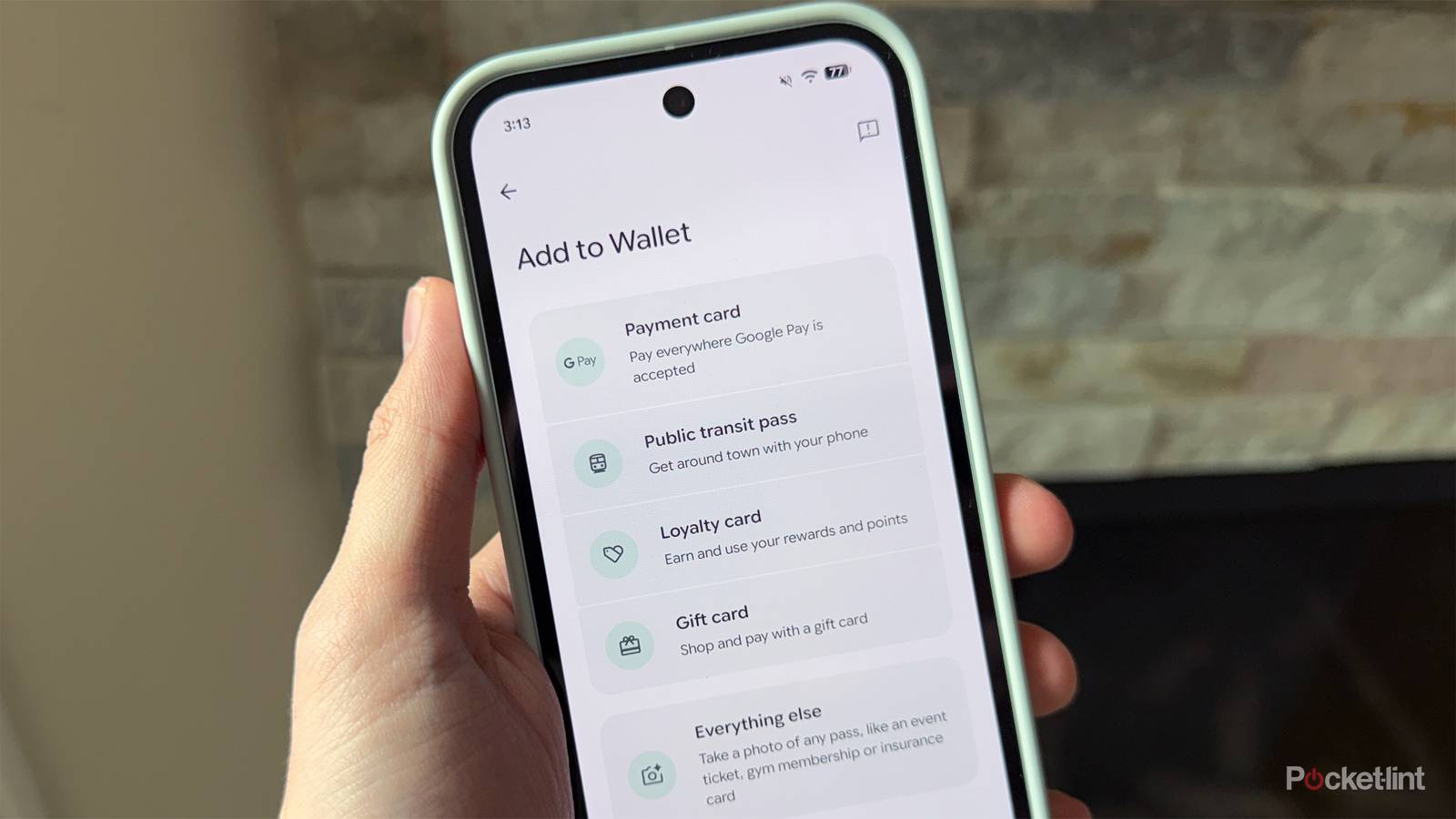
No matter what phone I’m using, whether it’s an iPhone or Android, the first thing I do when I get my hands on it is set up either Apple Wallet or Google Wallet. I rely on my digital wallet so much every day, whether it’s tapping to get gas, pay for groceries, or grab a coffee. So naturally, when I recently got my hands on the new Pixel 10a, setting up Google Wallet was at the top of my agenda.
And if you use Google Wallet every day on your Pixel as I do, there are two settings you should change that are vital to making the experience even smoother — and one of them is something Google only recently added.
When Android 16 rolled out last June, one new Pixel feature that I feel flew under the radar was the ability to change what double-pressing the power button does. Before Android 16, the only thing a double press of the power button could do on a Pixel was open the camera. But with Android 16, Google finally added the option to double-press it to open Google Wallet instead.
It’s a quick, seamless way to make a payment, and luckily, Google has made it very easy to change this on Pixels. Also, there’s a way to add Google Wallet as a shortcut on your home screen so you can access the app easily whenever you need it. Here’s how.

- Developer
-
Google
- Subscription cost
-
No
How to make Google Wallet easier to open on your Pixel
Tap and pay will get faster

For starters, if you want Google Wallet to open when you double-press the power button on your Pixel — similar to how Apple Wallet works on an iPhone — you’ll need to head into your phone’s gesture settings. Here’s how to set it up step by step:
1. Open Settings on your Pixel.
2. Go to System.
3. Scroll down and select Gestures.
4. Choose Double press power button from the list of gestures.
5. Select Wallet, instead of Camera.
Once you’ve set the double-press power button action to Wallet, doing it will bring up Google Wallet’s tap-to-pay screen. From there, you can quickly pick the card you want and pay.
If you just want to open Google Wallet to check something without jumping straight into the payment screen, you can also add a shortcut to your Pixel’s lock screen to easily access the app. Here’s how to set it up step by step:

1. Open Settings on your Pixel.
2. Select Wallpaper and style.
3. Choose the Lock screen option.
4. Scroll down to Shortcuts.
5. For either your left or right shortcut, choose Wallet.
Now you’ll have a Google Wallet shortcut right on your Pixel’s lock screen, so if you need to quickly open it to find a loyalty card, train ticket, boarding pass, or anything else, it’s now much easier to do that.
Additionally, you can also conveniently open Google Wallet by dragging down from the top of your screen to open the Quick Settings menu, then tapping the wallet icon.
Pixel phones aren’t the only Android devices that support these kinds of Google Wallet shortcuts, either. On Samsung Galaxy devices, for example, you can change what a double-press of the power button does to open pretty much any app, including Google Wallet, and you can add app shortcuts to the lock screen, too.