

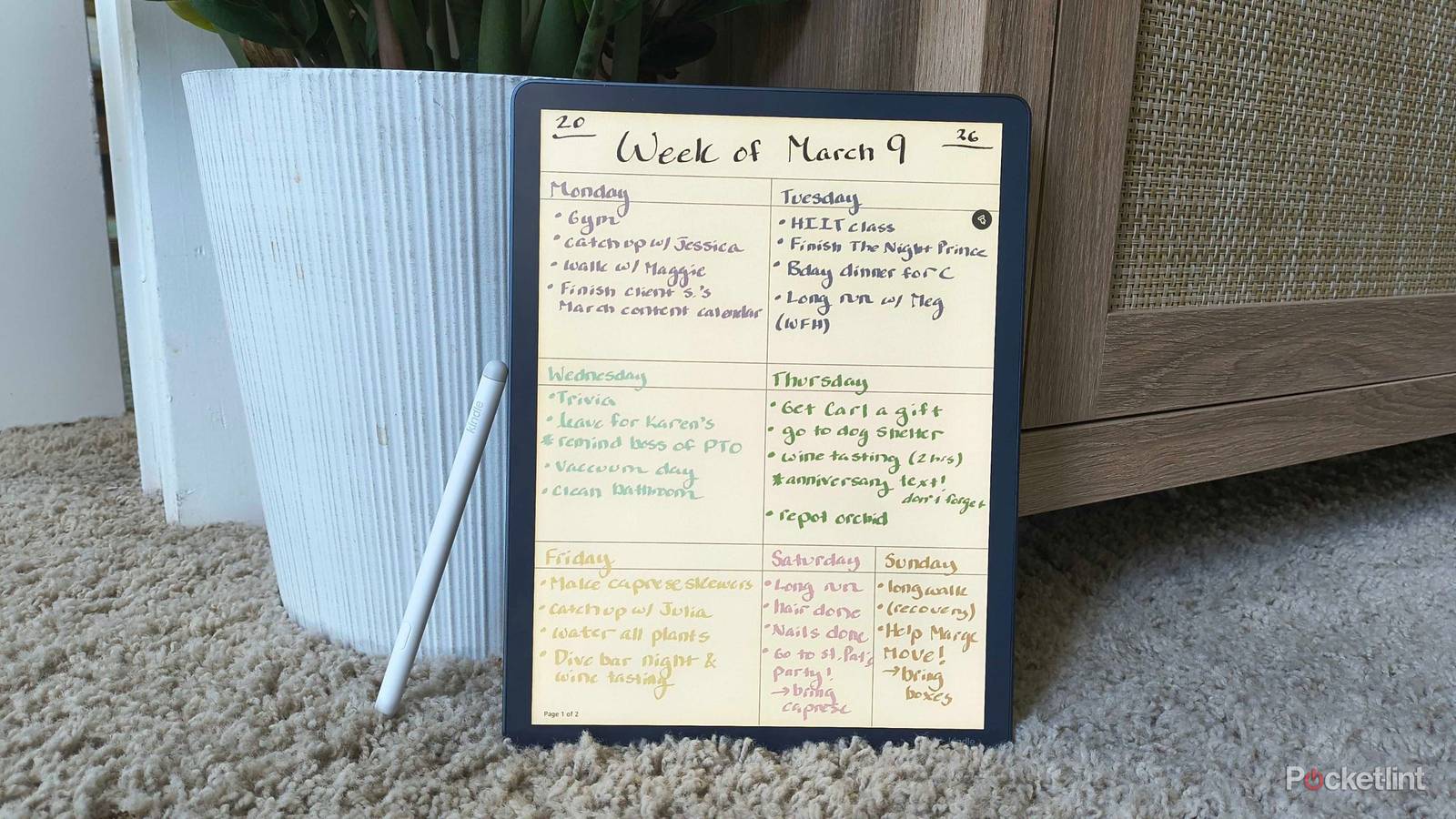
I crowned the Kindle Scribe the ultimate relaxing productivity tool in my tech stack last year, and I’m not putting it away any time soon. In addition to my own scribblings, I use my Kindle Scribe Colorsoft for weekly planning, meeting notes, grocery/shopping lists, and a myriad of other things that require jotting down. AI built right into the software refines my handwriting and can even summarize my important notes, and it has become the only AI I use at all.
I didn’t think it could get better, and then Amazon announced its new Send to Alexa feature. Send to Alexa lets you take specific notebooks from your Scribe and send them to Alexa, which can then organize, summarize, and pull important information from them. As long as you’re an Alexa+ subscriber or Prime member, the tool is yours. But what else can Alexa do with your notes, and how do you send them to the AI assistant in the first place?

- Storage
-
32GB, 64GB
- Brand
-
Amazon
- Screen Size
-
11-inch glare-free display
- Battery
-
Up to 12 weeks
What is Send to Alexa on the Kindle Scribe?
Exactly what it sounds like
Send to Alexa is a new feature that lets you share specific documents with Amazon’s AI assistant so it can use the information to help you go about your day and create action items. Shortly after you send a document, it becomes accessible in your Alexa app, Alexa.com and on other compatible Alexa devices you may own — like an Echo or Fire TV. However, you are required to have a Prime membership or an Alexa+ subscription. So how does it work?
Let’s say you just had a particularly detailed meeting with your boss and took notes on your Kindle Scribe — it included feedback on a presentation, a list of ideas you both brainstormed, details on an important email to send, and an upcoming meeting with a big client. When you send those notes to Alexa, you can ask the AI assistant (via the app, Echo device, or Fire TV) questions about the document.
This integration is a pretty neat way to make the Kindle Scribe even smarter. Writing something down on my Kindle Scribe and being able to reference it to my AI assistant without getting up from my chair feels like something straight out of Star Trek. Now, I’m tempted to change Alexa’s summoning word to “computer.”
In general, the AI assistant can pull out important points and turn them into useful things. Here are just a few things you can ask Alexa to do with the information it gleans from your notes:
- Summarize
- Brainstorm
- Create to-do lists, calendar events, and reminders
- Suggest priorities
- Provide guidance on certain projects
- And more
You can play around with the things you ask Alexa. For example, after I sent it some notes from a meeting with my boss, I asked my Echo speaker, “Alexa, what were the Kindle stories I pitched to my boss in that meeting yesterday?” I had pitched a dozen or so ideas, but the AI assistant responded with the six ideas I mentioned that included Kindles. I then asked if my boss had asked me to do any tasks after the meeting, and Alexa reminded me that my ‘homework’ was to come up with five new ideas for our meeting next week. I then asked it to set a reminder, so I didn’t forget, which the assistant did from across my apartment.
This integration is a pretty neat way to make the Kindle Scribe even smarter. Writing something down on my Kindle Scribe and being able to reference it to my AI assistant without getting up from my chair feels like something straight out of Star Trek. Now, I’m tempted to change Alexa’s summoning word to “computer.”
How to send your Kindle Scribe notes to Alexa
Only for the Kindle Scribe Colorsoft and Kindle Scribe with a front light right now

Released in a recent firmware update for the new Kindle Scribe and Kindle Scribe Colorsoft, Send to Alexa has been slowly rolling out to users over the last few weeks. Here’s how you can send specific notes from your Kindle Scribe to Alexa:
- Go to your Kindle Scribe’s Workspace.
-
Find a notebook you want to Send to Alexa. Press and hold it or tap its three-dot menu.
- You can also do this from inside a notebook: tap the top of the page > choose the ‘share‘ icon (box with an up arrow) > Share entire notebook > Send to Alexa.
- Tap Share.
- Choose Send to Alexa, and press OK.

It may take a few minutes for your notes to go through. As soon as they do, you can wake Alexa up and ask about your specific notes to your heart’s content.