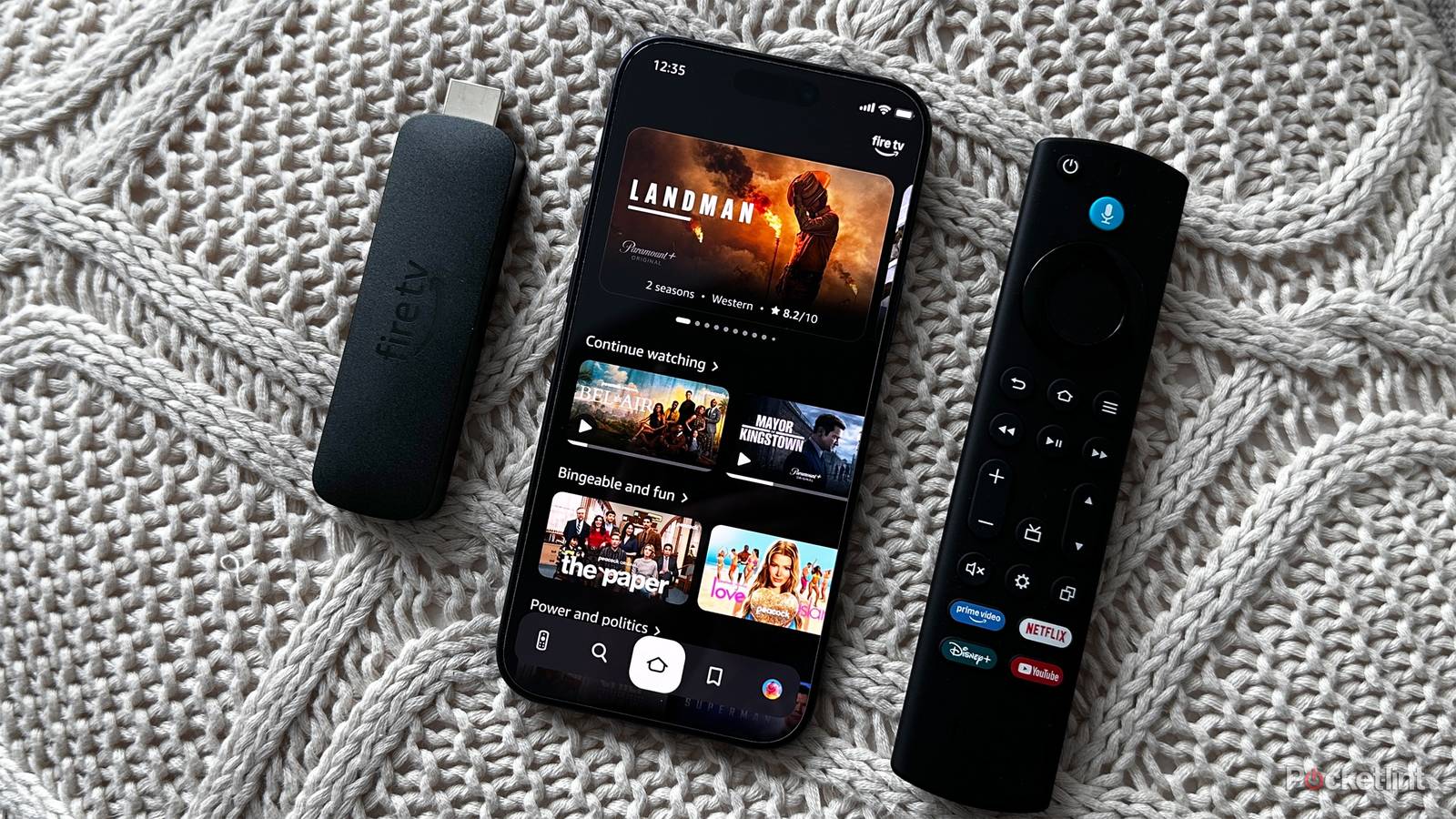
I have to admit, I’m not a huge fan of Amazon’s Fire TV platform. While it certainly gets the job done, it’s only recently that the company decided to tackle long-standing complaints about its interface and performance, and the jury is still out on the second point, given that slowdowns tend to be long-term. Amazon also prefers to put its own content front and center, as you’re probably aware.
There are reasons to choose a Fire TV device though, such as their low cost, and Alexa integration for smart homes. If you’ve just got one, there are a few settings you should fix right away to get the smoothest possible experience. With these changes in tow, you shouldn’t feel like you’re missing (too) much from other platforms.
Video and Audio Autoplay
Who thought these were a good idea?

Perhaps the most crass thing about Fire TV is its ad carousel. Part of the reason Fire TV devices cost what they do is that they’re really a vessel for Amazon services, including ads, and the company doesn’t even necessarily limit itself to ads for movies and shows — you might end up bombarded by a soap commercial when you pop on your TV at the end of a hard workday.
With both Autoplay options off, you’ll probably still see promoted content, it’s just that it will be static and easy to scroll past. There’s no simple way to block ads entirely, unfortunately.
It is, at least, easy to make ads less obnoxious. Just head over to Settings -> Preferences -> Featured Content, and disable both Allow Video Autoplay and Allow Audio Autoplay. If nothing else, you should disable Audio Autoplay. It could actually wake up your partner or child by accident if you haven’t had a chance to lower volume before an ad kicks in.
With both Autoplay options off, you’ll probably still see promoted content, it’s just that it will be static and easy to scroll past. There’s no simple way to block ads entirely, unfortunately. Some people will try setting up a Pi-hole, but this is more technically complicated than you might be prepared for, and it doesn’t work as well with Fire TV as it does with some other platforms. In fact it can potentially “break” the homescreen, forcing you to launch apps through Settings or the Recent Apps button instead (assuming your remote has that button!). These detours are less convenient than scrolling past ads when they appear, if you ask me.
Dynamic Range
Not every app is onboard with the future

When it’s firing on all cylinders, HDR (high dynamic range) is fantastic. It can produce ultra-bright highlights and more shadow detail, making images “pop,” especially on an OLED or mini-LED TV. It’s arguably far more important to image quality than resolution, since you need a giant screen to see the difference between native 4K and 1080p, and upscaled 1080p is often plenty sharp, even on a 65-inch set like mine.
One problem with Fire TV is that your device may be set to force HDR in every situation. That would be great, except that while most TVs over 40 inches now support one or more HDR standards, some app interfaces don’t, and even your particular Fire TV homescreen may not use it. The result can be washed-out or strangely colored images, since SDR (standard dynamic range) uses 8-bit color instead of 10- or 12-bit modes.
When software doesn’t support it, forced HDR can produce washed-out or strangely colored images, since SDR (standard dynamic range) uses 8-bit color instead of 10- or 12-bit modes.
Solve this problem by heading over to Settings -> Display & Audio- > Display -> Dynamic Range Settings and turning on Adaptive HDR. This only activates HDR on your TV when content supports it, otherwise defaulting to SDR. There is the chance that your screen may occasionally flash or go blank for a moment while it switches modes, but it may be worth it to keep colors looking right outside of movies and TV shows.
In rare circumstances, toggling Disable HDR may be necessary. This will force all content into SDR, including video — but if HDR just isn’t working properly, SDR is better than not being able to watch anything at all.
Color Depth
Get the most out of your TV

There’s a chance you may have to switch color depth settings in Fire OS to actually get what you paid for with an HDR-enabled TV. As I mentioned, while SDR relies on 8-bit color, HDR uses at least 10-bit color, giving access to a wider palette. Most of these extra colors are indistinguishable to the human eye, but people do tend to notice that HDR is more colorful.
Head over to Settings -> Display & Audio -> Display -> Color Depth and pick the option most appropriate for your TV. If your model is limited to HDR10 or HDR10+, such as all Samsung TVs, select Up to 10 bits. There’s no point in choosing Up to 12 bits unless your TV is compatible with Dolby Vision, and even then, you may not necessarily be able to tell the difference versus 10-bit. I’m not just talking about the limits of the eye, here — even a TV that’s compatible with Vision probably won’t have the panel technology to reproduce a full 12-bit spectrum. It’s only RGB mini-LED and MicroLED TVs that have been able to achieve 100% of the BT.2020 gamut, and those are so expensive (at the moment) that they can cost as much as a new car.
Ad and data tracking
Good for Amazon, not for you

It’s no secret that most TV streaming platforms collect some amount of anonymized data about you for the purposes of marketing. As the saying goes these days, if something is cheap or free, chances are that you’re the real product, as far as a company is concerned. Facebook and TikTok don’t exist out of generosity.
Interest-Based Ads is a little more insidious than it sounds — Amazon has no way of figuring out what you’re interested in without collecting info such as your rough location. Ultimately, it’s another way of fingerprinting you.
You can blunt data collection on a Fire TV device by navigating to Settings- > Preferences -> Privacy Settings. You’ll want to disable three things here: Device Usage Data, Collect App Usage Data, and Interest-Based Ads. The first two are relatively harmless, mostly used by Amazon to refine its products and business efforts. But Interest-Based Ads is a little more insidious than it sounds — Amazon has no way of figuring out what you’re interested in without collecting info such as your rough location, based on your IP address. Ultimately, it’s another way of fingerprinting you.
If you disable these “features,” you will still get ads, just more generic ones — which isn’t usually a problem, since most people I know skip or ignore ads even when they’re laser-targeted. As a bonus, turning off data collection may result in a minor speed boost, since there’s less background activity. This will probably be very subtle, even on low-end Fire TV devices.