Windows 11 gets a bad rap for its limited set of customization options when compared with its now-defunct predecessor OS. While it’s true that Microsoft’s latest-and-greatest desktop platform lacks certain user-configurable settings that Windows 10 had ( for the time being, at least), it isn’t entirely lacking when it comes to offering up a flexible end-user experience.
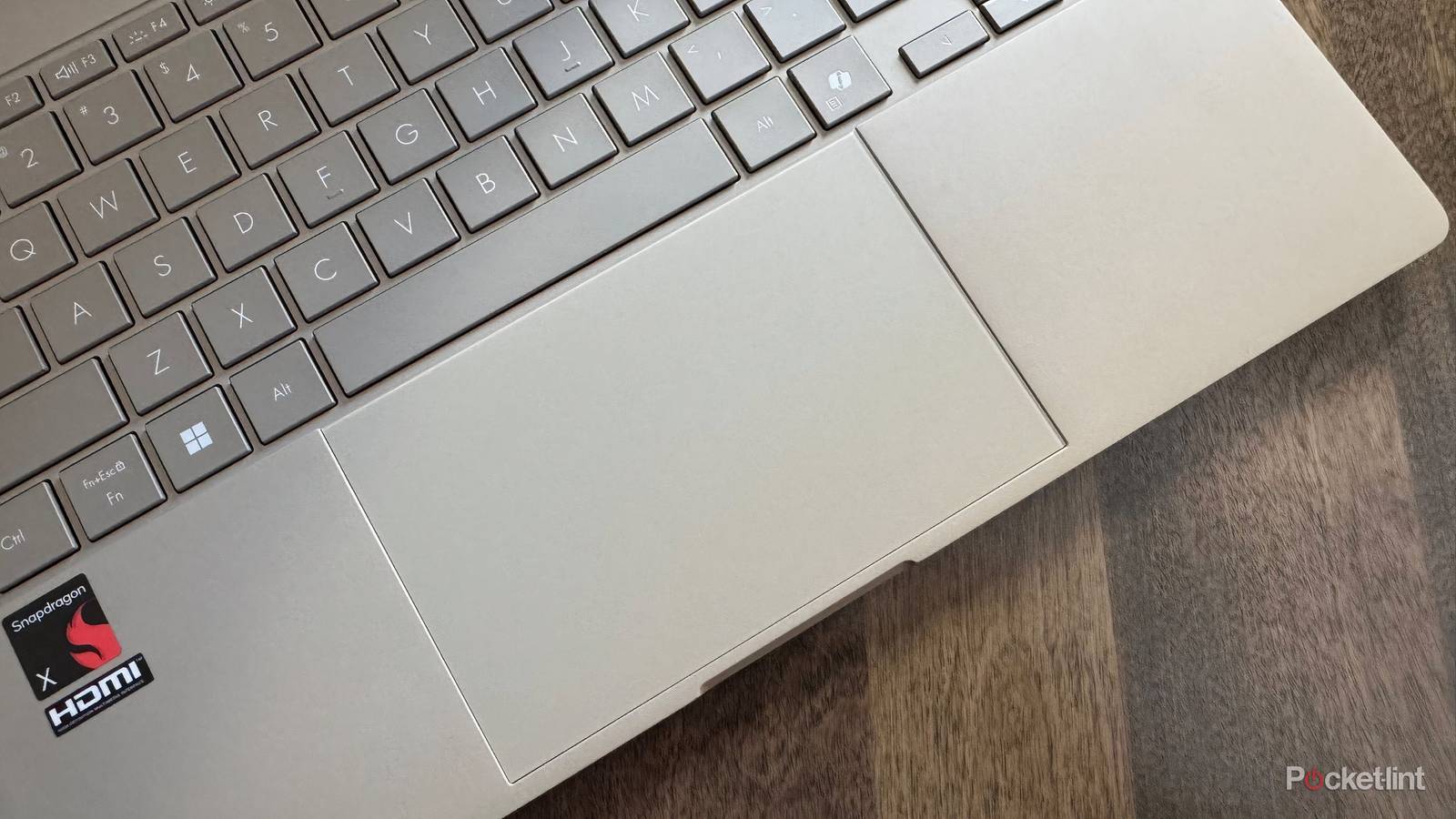
For example, Windows 11 offers plenty of user choice when it comes to trackpad-based gesture controls. If you’re using a laptop, a two-in-one tablet, or even a desktop with, say, the external HyperSpace Trackpad Pro peripheral, then there’s a wealth of options to choose from within the operating system’s Touchpad, More touchpad settings, and Advanced gestures pages within the Settings app.
Advanced gestures, in particular, is an underappreciated Windows 11 nicety, offering up a variety of custom and preset actions that can be mapped to three-finger and four-finger swipe gestures. My personal favorites are Snap window to the left and Snap window to the right, which, when bound to the Swipe left and Swipe right gestures, make for an even more intuitive Windows Snap experience.
Advanced gestures require a precision touchpad, which refers to a standardized class of trackpads with specialized drivers and smooth navigational performance. All new Windows 11 PCs that ship with a trackpad require it to be of the precision touchpad variety, but some older laptops may lack such hardware. On the other hand, Advanced gestures don’t require a trackpad to support haptic feedback.
How to customize advanced PC trackpad gestures
Your Windows 11 PC’s trackpad is more customizable than it lets on

To configure advanced trackpad customizations on your Windows 11 computer, follow these steps:
- Launch Settings.
- Navigate to Bluetooth & devices > Touchpad > Related settings > Advanced gestures.
- From here, expand both the Configure three-finger gestures and the Configure four-finger gestures settings entries, and then tap or click on each gesture’s corresponding drop-down menu.
The options presented within each drop-down menu vary based on the gesture you’re looking to customize, with some entries offering Nothing as an option (which disables the corresponding gesture entirely), and some offering Custom shortcut as an option (which lets you record and bind your own keyboard shortcut to a gesture entry).
Here’s a breakdown of each customizable trackpad gesture, as well as its corresponding drop-down menu of configurable actions:
-
Three-finger gestures:
- Tap: Nothing, Open search, Notification center, Play/pause, Middle mouse button, Mouse back button, Mouse forward button, Custom shortcut
- Swipe up, Swipe down, Swipe left, Swipe right: Nothing, Switch apps, Task view, Show desktop, Switch desktops, Hide everything other than the app in focus, Create desktop, Remove desktop, Forward navigation, Backward navigation, Snap window to the left, Snap window to the right, Maximize a window
-
Four-finger gestures:
- Tap: Nothing, Open search, Notification center, Play/pause, Middle mouse button, Mouse back button, Mouse forward button, Custom shortcut
- Swipe up, Swipe down, Swipe left, Swipe right: Nothing, Switch apps, Task view, Show desktop, Switch desktops, Hide everything other than the app in focus, Create desktop, Remove desktop, Forward navigation, Backward navigation, Snap window to the left, Snap window to the right, Maximize a window
Unfortunately, Microsoft doesn’t provide a ‘reset to defaults’ option within the Advanced gestures page of Settings, and so you’ll have to manually revert changes one-by-one if you want to go back to Windows 11’s out-of-box configuration. With this in mind, below is a screenshot of the default gesture control settings for your reference.