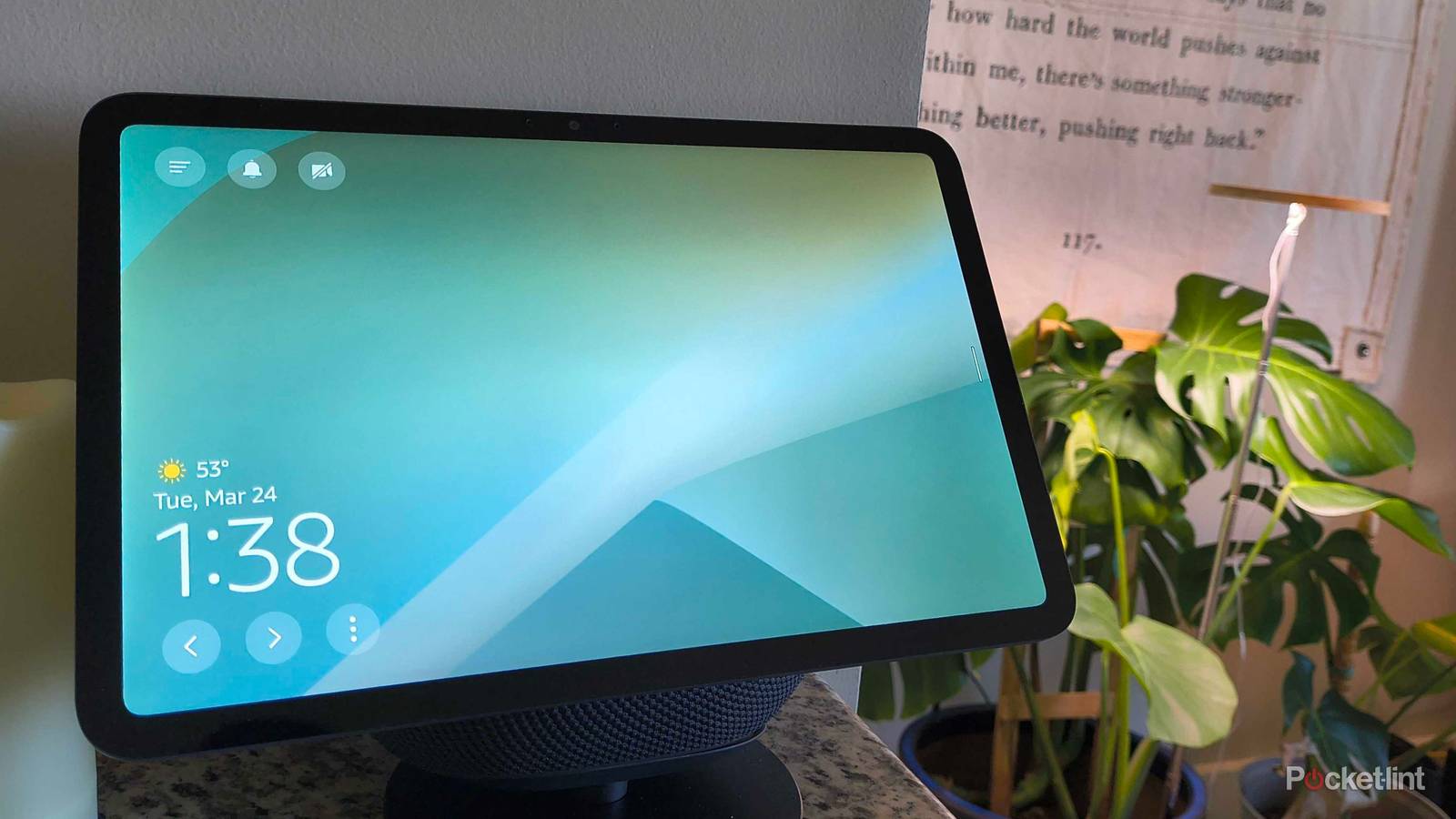
Amazon wants its hands in every cookie jar around your home. But with the Echo Shows, its helpful line of smart displays, it especially wants some real estate on your kitchen counter. My Echo Show 11 sits pretty on the corner of my island, and it’d be my favorite smart device inside my home if it weren’t for one thing: advertisements I didn’t ask for.
I’d even go as far as to say Amazon treats the smart display like a digital billboard on my counter. It promises convenience, smart home control, and helpful digital assistance, but it delivers random advertisements that catch my eye — by design — and consequently light up my temper. Sure, they’re harmless, but something doesn’t sit right with allowing Amazon to bombard me with ads or even “helpful” content all day long — I don’t need to know the “Animal of the Day,” Amazon.
The worst part is that there’s no opt-out. But that doesn’t mean you can’t beat Amazon at its own game — there are a few simple setting tweaks you can make to effectively eliminate ads on your Echo Show device. Here’s what you need to do.

- Dimensions (exterior)
-
10″W x 7.2″H x 5″D
- Colors
-
Glacier White, Graphite
Amazon’s smart display and speaker system designed for Alexa+.
Two steps to screen peace
While I wish you could simply opt out of ads, Amazon doesn’t allow it. Whenever a ‘Sponsored’ slide appears on your Echo Show device, it’s because another company has paid for it. If users could disable ads, it’s safe to say that most people would want to, rendering those sales moot and depriving Amazon of some quick cash.
Annoying as they are, you don’t have to stare at them all day. But since there isn’t a specific setting to turn them off, you have to get creative. The first step to avoiding ads is to put your Echo Show in Night Mode, which effectively turns your device into minimalist mode. Here’s how to do it:
- Slide down from the top-middle of your Echo Show’s screen.
- Choose Settings.
- Tap Display & Appearance.
- Scroll all the way down and tap Night Mode.
- Select Scheduled, and set the timeframe from 12:00AM-11:59PM.
This schedule ensures Night Mode will stay on throughout the entire day and night. Night Mode makes your Echo Show’s display minimalist, dimming the screen and only showing the time, date, and weather forecast by default. When you summon Alexa, the screen will immediately wake and function like normal.
Night Mode is the first answer to pesky ads, but there’s something else you can do to thwart Amazon’s attempt to turn your kitchen into a digital billboard: personalize the home content. Home content is what appears on the screen when your device sits idle, like article suggestions, recipes, and other random pages Amazon thinks might catch your attention. If you find these distracting, like I do, here’s how to tweak your settings to make all suggestions appear less frequently:
- From the home screen, tap the three-dot menu to open up Home Content Categories.
- Scroll through the different categories and identify what you’d like to see versus what you’d rather not see.
- Toggle each category on or off depending on your preferences.
I typically only leave weather and recipe categories on, since the former determines what outfit I wear that day and the latter could inspire dinner. But one thing to note is that Amazon is constantly changing, adding, and removing particular categories, so it’s good practice to check in every month or so to turn off any new categories and make sure your preferences are up-to-date. It’s no surprise that things always change — it’s Amazon, after all.