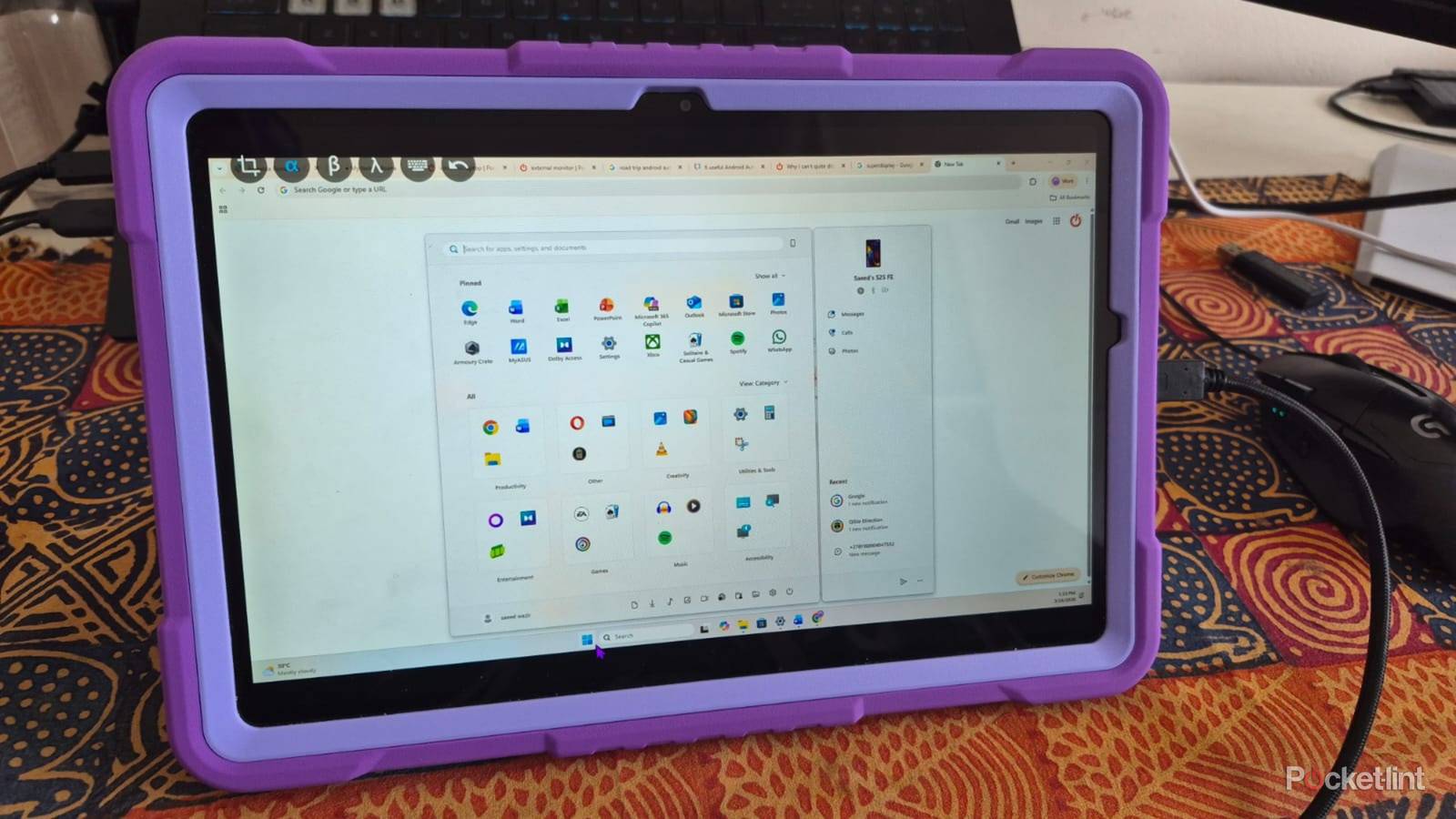
Connecting an Android tablet to my laptop helps me optimize my space and saves me from carrying an external monitor. It works just as well and includes an internal battery for a longer runtime and touch functionality for easier navigation. Another advantage is that I can always ditch my Windows laptop and use my tablet as a standalone device if I feel like it.
Setting up an Android tablet as an external monitor is easy and only requires a few steps. All I do is download and install an app on my Windows PC and tablet, and change some settings to get it working. After that, it connects automatically in seconds, and I have extra space to work. Here’s how I turn my Android tablet into a portable monitor with just four easy steps.
Download SuperDisplay on my Android tablet
Easy to find on the Google Play Store

The first step is to download the SuperDisplay app on my Android Tablet and Windows PC. I open the Google Play Store on my tablet and search for SuperDisplay. It should come up at the top of the search list, and I click on Install. The mobile app won’t work on its own, and I’ll need to download the Windows version on my PC, so the two can communicate with each other.
The mobile app won’t work on its own, and I’ll need to download the Windows version on my PC, so the two can communicate with each other.
I search for SuperDisplay on Google, and it will display the official site at the top of the list. Then I click on Download Windows Driver. I open my downloads folder to run the installation file. After accepting the license agreement, I click on the Install button. I can then connect my tablet to my PC as an external monitor.
Connect the tablet to my laptop via a USB-C cable
No Wif-Fi necessary

The fastest and easiest way to connect the tablet to my laptop is with a USB-C cable. I plug one end into my laptop and the other into the tablet. I then right-click on my desktop and select Display settings. Windows should detect the tablet automatically, but I need to decide if I want to duplicate or extend the display.
The fastest and easiest way to connect the tablet to my laptop is with a USB-C cable.
I usually choose Extend desktop to this display option, so my tablet works as if it were part of my existing monitor and I can drag windows and apps between them. My laptop automatically sets the resolution to 1920 x 1080 and orientation to landscape. These settings are correct, and I leave them as they are. I can then use my Android tablet as an external monitor and use the touchscreen for navigation if I don’t want to use the mouse or trackpad.
Connect my tablet to my laptop via Wi-Fi
No cables, no problem

I can connect my Android tablet to my laptop via Wi-Fi if I don’t have a USB-C cable. To do this, I need to open the SuperDisplay app on my tablet and check for the IP address in the settings menu. I then open the SuperDisplay desktop app in Windows, click on Connect via Wi-Fi, and input the tablet’s IP address. I then click on Save to store it in the app.
After the initial setup, the SuperDisplay app will automatically connect to my laptop whenever I open the app on my tablet.
After the initial setup, the SuperDisplay app will automatically connect to my laptop whenever I open the app on my tablet. I can always change the connection settings to manual for security reasons or to save on bandwidth. To do this, I open the settings menu in the SuperDisplay app and turn off the Connect Automatically slider.
Settings and pricing
Get the best out of the app

The best thing about using my tablet as a portable monitor is that I don’t lose its core functionality. I can run my desktop apps in a SuperDisplay Window and access my mobile apps side-by-side in another window. I can also change the input functions to accept a stylus or configure a higher refresh rate if my tablet supports it. I like that SuperDisplay is a set-it-and-forget-it app and will always connect at the touch of a button without requiring new configuration each time I open it.
I can run my desktop apps in a SuperDisplay Window and access my mobile apps side-by-side in another window.
SuperDisplay is a paid app and costs around $15 for a lifetime subscription. It’s worth it because the subscription is linked to my Google account and lets me use the app on multiple devices. I’ve tried free alternatives, like Duet Display and Spacedesk, but they don’t provide the same smooth experience and aren’t as user-friendly.