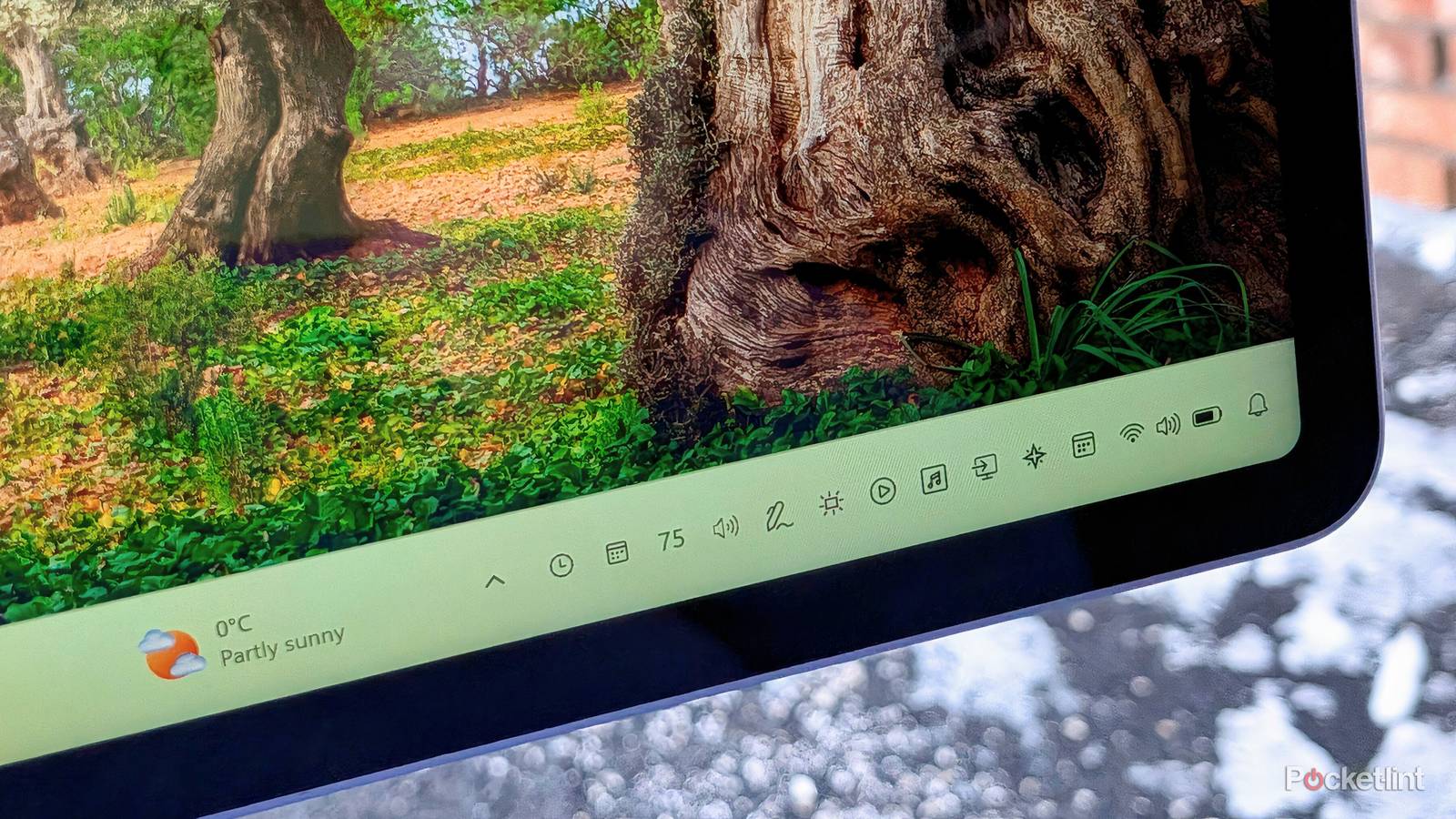
As a platform, Windows 11 plays host to a massive library of third-party software utilities, ranging from decades-old legacy programs to brand-new applications created with modern design principles in mind.
One particular Windows app genre that I’ve always been a big fan of is what I’ll affectionately call system tray flyouts. These lightweight tools add additional or supplemental functionalities to the operating system, often living as applet icons right within the Windows system tray area of the taskbar.
Here are ten taskbar flyout apps that I’ve personally made great use of over the years, and that I often reinstall the moment I set up any new Windows 11 tablet, laptop, or desktop computer.
Fluent Flyouts

Fluent Flyouts is a free and open-source (FOSS) collection of modernized system flyouts for Windows 11. At the time of writing, the package contains dedicated flyouts for both a calendar and a clock. In the future, the developer plans on introducing both a notification flyout and a battery flyout into the mix, the latter of which is based on work done on the older Fire Flyouts application.
For anyone unhappy with Microsoft’s decision to merge various system flyouts into a single, consolidated Quick Settings panel, Fluent Flyouts rectifies this gripe while also adding in a sprinkling of extra functionality and a unique “GlowUI” interface that builds on top of Fluent 2 Design System principles.
Battery Flyout
The most elegant way to keep tabs on your battery status

If you’re unhappy with Windows 11’s lack of a dedicated flyout slider for controlling power profiles, then Battery Flyout is here to save the day. In addition to bringing back Windows 10’s convenient access to power profiles, it also provides a glanceable battery life graph, the option to display your battery percentage right on your taskbar, as well as battery status details for all your other battery-powered PC peripherals. Battery Flyout offers excellent attention to detail, and it can be purchased for a small single-time fee from the Microsoft Store.
EarTrumpet
A classic volume control tool

As far as system tray flyout apps are concerned, perhaps none are as iconic or revered as EarTrumpet. This free and lightweight utility makes it quick and convenient to adjust not only your system’s main volume, but also the volume of all your running apps, your connected headphones or earbuds, and more.
These days, Windows 11 does ship with its own native volume mixer within Quick Settings, but EarTrumpet stands as a competent third-party alternative. For those that look back upon the app with a deeply ingrained sense of nostalgia, it’s hard to resist giving it a download even in 2026.
Ink Workspace
A digital artist’s best friend

If you own an active digital stylus for your Windows 11 PC, then Ink Workspace is a no-brainer download. This free flyout serves as a sort of pen launcher, providing quick access shortcuts to various actions, applications, and recent files.
For anyone using a Windows tablet or a two-in-one convertible for note-taking, sketching, drawing, or photo editing, Ink Workspace is the ideal companion. As an added bonus, it revives Microsoft’s now-defunct Live Tile aesthetic, while adapting it to look and feel right at home on Windows 11.
Monitorian
Make multi-monitor brightness control a breeze

If you rely on a multi-monitor setup to get work down, or if you frequently dock your PC into an external display when sitting at a desk, then Monitorian is a handy tool to have at your disposal. This utility adds dedicated sliders for controlling brightness levels on all connected monitors right from within a single flyout, essentially acting as a universal brightness control panel.
This software-based solution is certainly more convenient than relying on the finicky interfaces and mushy buttons found on most external monitors, though its functionality is contingent on your panel supporting the DDC/CI standard. While Monitorian is free to download and install, an optional paid subscription tier is available, which unlocks command-line tools, customizable hot keys, the ability to control more than four monitors, and other perks.
Control audio playback right from your System Tray

Media Flyout is the multimedia manager interface Microsoft should’ve built right from the beginning. Unlike Windows 11’s anemic default offering, which obfuscates a bare-bones set of playback controls above the Quick Settings pane, Media Flyout is full-featured.
The app, which can be purchased for a small one-time fee, offers gorgeous album artwork accenting, a list of concurrent audio streams that can be quickly jumped between, shuffle and loop buttons, and other miscellaneous niceties.
FluentFlyout
A full suite of modern PC flyouts

FluentFlyout is an open-source suite for Windows 11 that unlocks a range of useful flyouts that are all themed to match the general aesthetic of the operating system. Most notably, there’s a media playback flyout with tons of configuration options, as well as an experimental ‘up next’ flyout option.
Additional flyouts for Caps Lock, Num Lock, and Scroll Lock can also be enabled, all of which look and feel polished when in motion. A paid subscription tier is also available for FluentFlyout, which unlocks a media playback taskbar widget, extra personalization options, an audio visualizer, and more.
Input Switcher
Swap between video signal sources with a single click

If you have a multi-monitor PC setup, Input Switcher makes switching between input sources an absolute breeze. For a small one-time fee, the app unlocks a cleverly simplistic flyout with options to switch between USB Type-C, DisplayPort, and HDMI. The app also includes keyboard shortcuts, which is a nice touch. As with Monitorian, however, DDC/CI monitor functionality is required to get started with Input Switcher.
Twinkle Tray
Ideal for anyone using a secondary display

Monitorian isn’t the only multi-display brightness flyout worth checking out. Twinkle Tray offers much of the same functionality as the former across all DDC/CI monitors, but does so with a slightly more modern user interface design. It’s a shame that WIndows lacks the native ability to control multiple screen brightness levels right out of the box, but with free options like Twinkle Tray and Monitorian on the market, it’s hard to complain.
Calendar Flyout
Bring back Windows 10’s Agenda View

Microsoft may have just delayed its upcoming Agenda View feature for the Windows 11 calendar flyout (via Windows Central), but that doesn’t mean you have to sit around waiting for it to officially launch. If you loved the ability to view and manage your calendar events right from a system tray flyout in Windows 10, then you’ll love Calendar Flyout.
The free app embraces modern design guidelines, it includes a proper ‘Today’ section under the main calendar itself, and it also includes options to display seconds on screen, to add a number to the front of each week, and to add alternative time zones.