Liquid Glass was the biggest visual change Apple made to macOS last year, but it was paired with a fair amount of new apps and deeper integrations with the company’s other platforms, too. Not only did macOS Tahoe add a Phone app to the Mac for the first time, it also brought the iPhone’s live-updating notifications, Live Activities, to desktop and laptop computers. The most meaningful change Apple made was entirely Mac-specific, however.
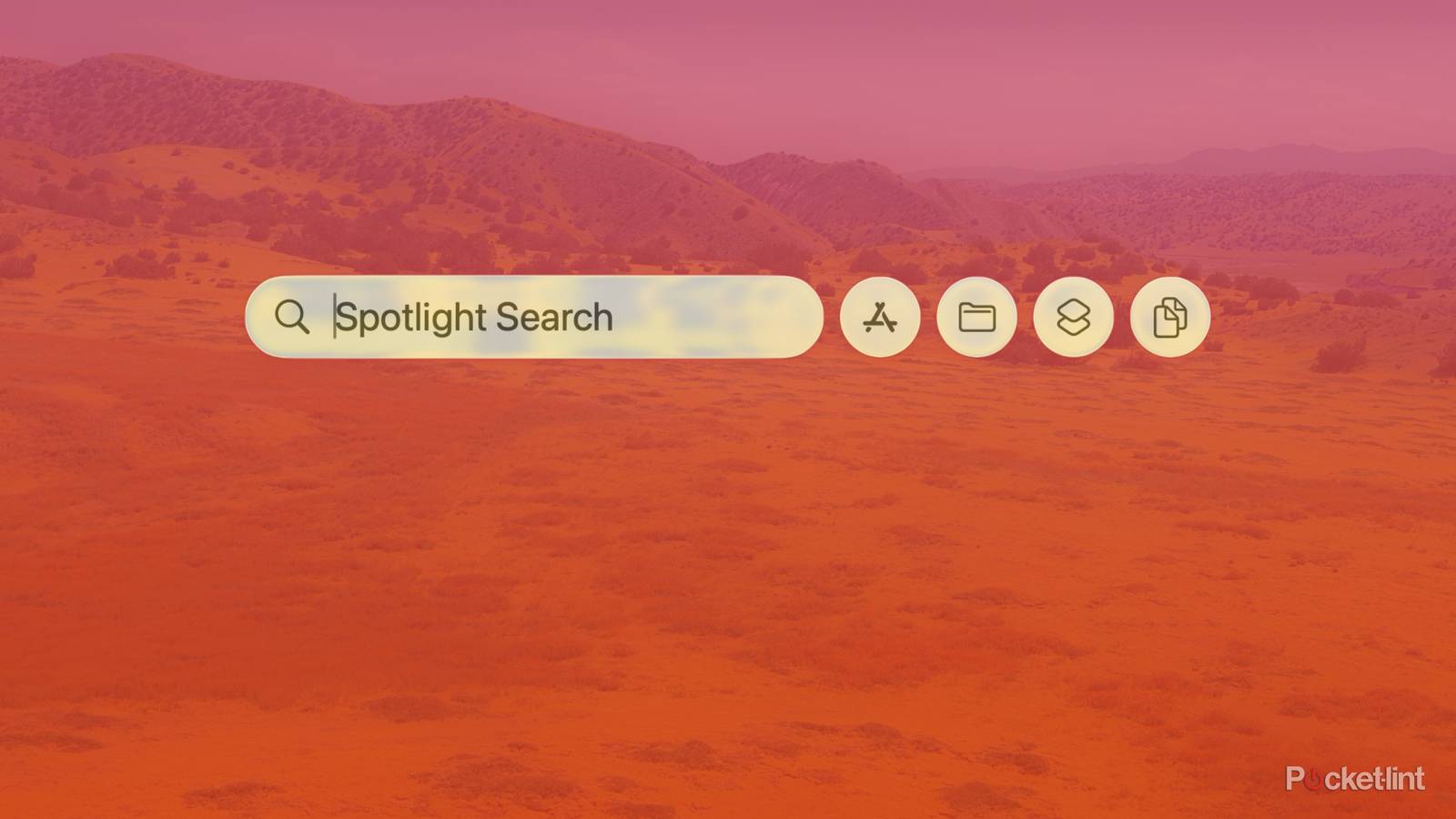
Spotlight, Apple’s system-wide search feature, has been around for decades at this point, but in macOS Tahoe, Apple showed the feature some love. Not only is Spotlight a tool for search, but in the latest update, it’s also capable of taking actions inside of apps without you having to open them. The update has made it possible for me to do a lot more on my MacBook Pro without touching a trackpad or mouse, and with the right setup, it could do the same for you.
Spotlight can find files and launch apps
Sometimes it’s faster to search for the app you want

At its most basic, Spotlight is a way to search your Mac for files and applications. You can summon Spotlight with a simple press of Command + Space and start typing out what you’re looking for. I’m far from an “iPad Kid,” but I grew up navigating computers with a mouse and a trackpad first and a keyboard second. Spotlight makes that a lot less essential, but it can also take some getting used to if you’re not accustomed to typing for what you want. Once you do get used to it, though, using your computer becomes a lot more intuitive.
Rather than opening a new Finder window, I’ve been typing to search for what I’m looking for with Spotlight. Apple’s internal search engine doesn’t always feel as responsive or accommodating as a web search or some third-party tools, but it’s at least gotten me to what I need so far. It also works well as a basic app launcher. Apple’s tried multiple different ways to make opening and rearranging apps as simple as it is in iOS, but has now settled on an “Apps” icon in the dock, apps placed in the dock or on the desktop, and Spotlight as the main places you can open an app. You just search for an app in Spotlight, scroll down with the arrow keys and hit Enter to open the app.
You can switch between open apps by pressing Command + Tab.
Rather than constantly returning to my dock or the Finder file system, I’ve found this to be a satisfying way to get what I need without slowing down or clicking away from what I’m working on. And importantly, in macOS Tahoe, the functionality of Spotlight doesn’t end there.
Spotlight can run Shortcuts and take actions in apps
Let Spotlight streamline simple tasks

While searching for things is great, and has been a classic feature of macOS for decades, Spotlight becomes truly powerful when you take it beyond search. The open text box is the input paradigm that’s in vogue right now, and while Spotlight isn’t as flexible as a general AI assistant, it can do things for you in the way an AI agent can. Just don’t expect any miracles.
While the best-case scenario would mean all these Actions are defined in advance, and you don’t have to spend time tinkering with Shortcuts, the fact that it’s possible is commendable in its own right.
Spotlight can do math and simple unit conversions, a helpful skill if you don’t want to open the calculator app or look up an exchange rate. As of macOS 26 (Tahoe’s other name), though, Apple has also added a bunch of actions Spotlight can take inside apps. The whole experience is powered by the company’s App Intents framework, which lets developers define useful parts and features of an app, and then surface them inside other Apple features, like Siri, Spotlight, or widgets. For example, using Spotlight, I can send a new message in the Messages app without opening it. The same goes for sending an email with the Mail app. You could also add a task to the Reminders app, or a note to the Notes app, without having to reach for a mouse.
Apple lets each action be assigned to quick keys, short, two character combinations that signal you want to run an Action (for example “ft [the name of the person you want to call]” to start a FaceTime call), and the company lets you combine multiple actions with a Shortcut, which macOS gained support for in 2021. Not every app offers the exact Action you might want, which is another place where Shortcuts make sense. I had to create a Shortcut to add items to a specific shared grocery list in the Reminders app, for example, but Spotlight’s ability to run Shortcuts could enable even more complex workflows if you want it to.
While the best-case scenario would mean all these Actions are defined in advance, and you don’t have to spend time tinkering with Shortcuts, the fact that it’s possible is commendable in its own right. And there’s a good chance Spotlight already has access to what you need. To pull up the full list of available Actions in Spotlight:
- Press Command + Space to open Spotlight.
- Press Command + 3 to view Actions.
- Scroll through your available Actions using the arrow keys.
- Once you find an Action you want to run, press Enter.
Third-party alternatives show Spotlight’s potential — and shortcomings
You’ll still find the most capable tools outside of Apple’s own apps

On macOS, Spotlight isn’t the only option when it comes to tools that let you navigate your computer through your keyboard and clever text inputs. Several third-party options, the most prominent and popular probably being Raycast, can replace Spotlight’s functionality with something even more open-ended. Raycast and apps like it are still more powerful than Spotlight in terms of the number of apps and services they can connect to. They also, at least in the case of Raycast, include features Apple hasn’t explored yet, like access to AI models, and built-in functionality like notes and focus timers that Apple makes a bit more complicated to set up.
There was an assumption when Apple first announced its Spotlight update, that the company was effectively replacing these third-party options with its own, but the reality is a lot better. Apple still could drive a company like Raycast out of business by completely replicating its features for free, but at least for now it isn’t. Instead, Spotlight acts as a good free starting place for anyone interested in trying a new way to use their computer. It has a learning curve, but if you master it, and tweak it to your needs, it could make everything better.