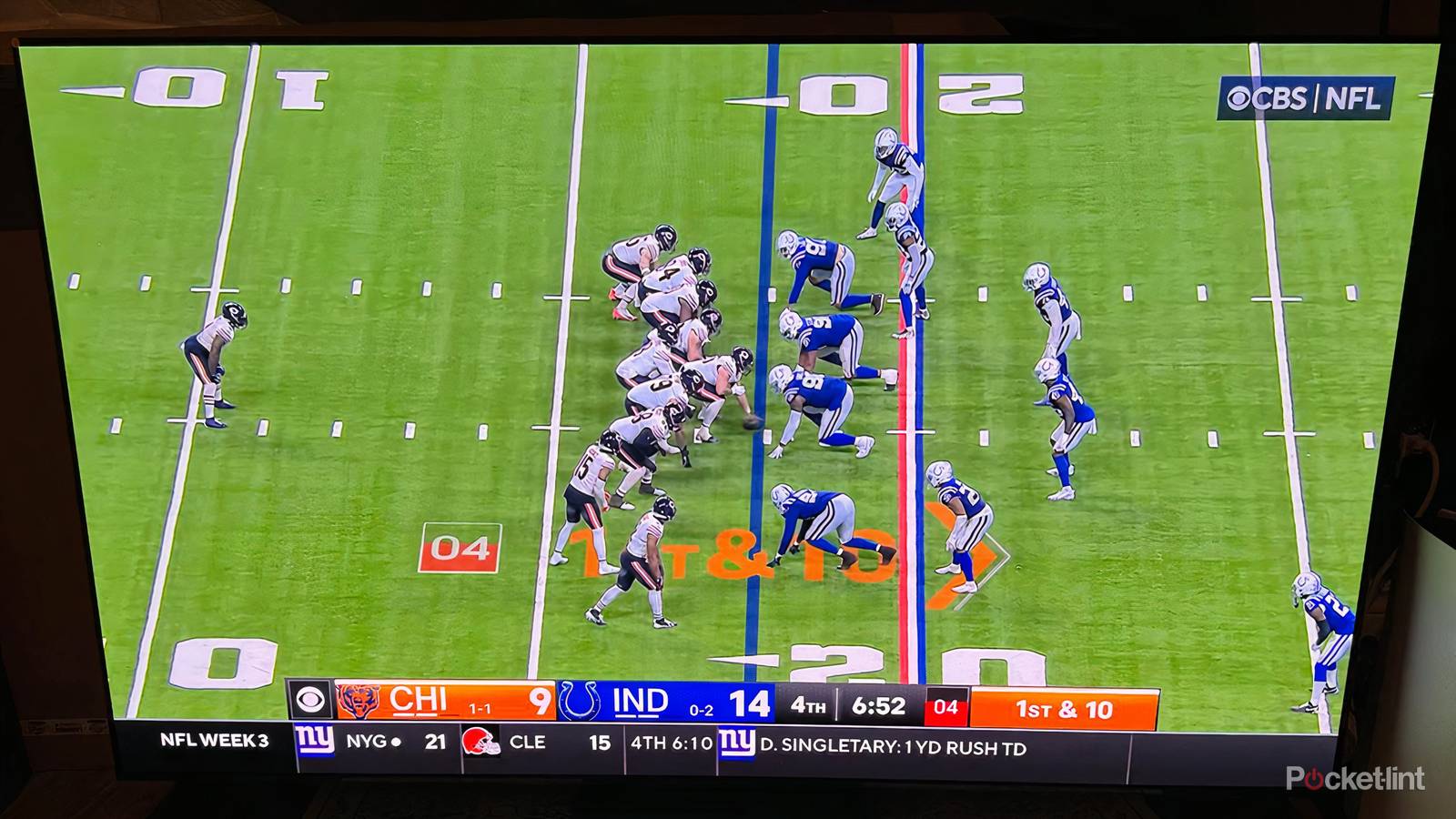
New smart TVs are designed to be ready to enjoy right out of the box. It takes mere minutes to connect to WiFi, log into your favorite app, and start streaming. While the image on the screen may look good and everything feels seamless, there are some default settings worth checking out first.
If you recently bought a smart TV, or you simply never checked out all your TV’s many features and options, there are some things you should investigate. Here are some default settings that need to be adjusted immediately.
Drop vivid presets for natural ones
Adjust color temperature to embrace cinematic fidelity

Firstly, you’ll want to change the picture settings. Floor model TVs use vivid presets to gain attraction. Colors are bright and saturated, and the blue tint helps draw eyeballs. This may be great for sales, but it’s not good for watching TV at home for extended periods of time. Opt out of dynamic or vivid presets and find natural, theater, or cinema options.
One of the big differences here is color temperature; vivid or dynamic settings boost cooler temperatures, which maintains a blueish tint. That blue light may seem appropriate at first, but it distorts some of the color on screen, particularly when it comes to skin colors. The blue light can also strain your eyes over time. Instead, the other presets offer warmer tones that better align with cinematic fidelity and comfort. It may seem off at first, but you’ll soon adjust and wonder how you ever watched a screen with a blue tint to it.
Toggle off any motion smoothing functions
Avoid ruining your favorite shows and movies

Perhaps the most divisive smart TV feature, it’s worth taking a look at your motion smoothing settings before proceeding. Also known as frame interpolation, motion smoothing is a kind of software processing. It artificially inserts frames to reconcile potential differences between your TV’s refresh rate and the source material’s frames per second (FPS).
Motion smoothing can sometimes be tricky to find in your TV settings because every TV manufacturer will refer to it as something different, even though it does the same thing. Look for the keywords within names like TruMotion or Action Smoothing.
While this feature can help with certain types of content, namely live sports and reality TV, most new fictional titles may be hurt by motion smoothing. It can create the “soap opera effect,” which causes for some viewers an unnatural, uncanny image. If you’re someone who enjoys a lot of prestige TV and cinematic films, look for motion smoothing and either lower its influence or turn it off completely.
Check out your ad and privacy settings
Turn off everything possible that tracks your viewing behavior

This may be less intuitive, but you’ll want to check out all your privacy and ad settings that may be enabled on your smart TV. Manufacturers want to collect as much data on you as possible: they want to know what you’re watching, for how long, and everything you’re skipping over as that data is very helpful for a lot of other companies. That’s why any privacy and advertisement setting that can benefit manufacturers and all their third-party partners will be toggled on.
These settings won’t have any effect on performance or quality of what you’re watching. Your TV manufacturer will claim that they help bring your titles you may want to watch, and that by knowing what you like, you’ll get better recommendations. But that’s not really necessary, since that’s what every streaming service does anyway. You don’t need recommendations on your home page.
Also, your TV is going to promote things it wants you to watch, not necessarily what it thinks you want to watch. So turn off Viewing Information Services, Interest-Based Ads, and Auto-Content Recognition (ACR). And turn off anything else while you’re digging around these settings, which are likely going to be buried deep down in your menus. All they do is collect unnecessary data on your viewing habits, and that data can end up in a lot of different places.
Make a decision on HDMI-CEC
Consider convenience with your many connected devices

There is one setting that is worth looking at and making a decision about, in part because it’s often overlooked and misunderstood. HDMI-CEC is a technology that basically allows you to control your TV and its various connected devices with the same remote. This can be a huge convenience for some viewers and a major headache for others.
HDMI-CEC allows you to use your TV’s remote to control the volume on your soundbar, for example, and also navigate a streaming device’s operating system. When you turn on your TV, it’ll turn on your soundbar as well so that everything is ready to go. That’s generally helpful. However, the drawback is that turning on your TV may accidentally turn on other connected devices, like a gaming console or Blu-ray player, if that was the last device that was used. That is more annoying.
HDMI-CEC has a lot of benefits for those that have a lot of connected devices, it just might take some time getting used to.
Turn off any settings that control power consumption
Be mindful of saving energy and environmental detection

Your TV may come with an energy savings option that’s turned on by default. That’s a problem. The idea behind energy-savings options on TVs is all well and good, but it mostly undermines your TV, especially if you’re investing substantially on something quite good.
That’s because anything called energy or eco-saving measures will lower the brightness and turn off certain processes that are all designed to make the image as best as possible. The screen will be dimmer and the TV might be slower. If you’re spending time and money finding the best TV to suit your entertainment needs, trying to save power here and there will only be a chore and keep your TV from reaching its fullest potential.
Sometimes these modes come on because of sensors that TV is enabling; you’ll want to turn those off too. Sensors may be used to detect ambient light and adjust your TV accordingly, or they may be used to detect motion if you have an art gallery or screensaver mode set up. It’s worth being mindful of what your TV can learn about you and just how much you want it to know.