Being productive on a desktop operating system usually means one thing: juggling a multitude of floating application windows across one of more display surfaces. Ever since their popularization in the 1970s, cascading windows have been a contemporary hallmark of PC-based workflows, allowing for speedier multitasking and easier cross-referencing of work materials.
Of course, too much of a good thing can prove counterproductive, and this is absolutely the case when it comes to desktop window management. Having an overwhelming number of windows on screen at one time can lead to cognitive overload, resulting in stress and frustration. A disorganized array of windows can also cause confusion, while adding extra friction to what should otherwise be a smooth work operation.
Most recently, I stumbled across HazeOver — a macOS utility that manages to keep my desktop windows in order, and my scatter-prone mind at bay.
Software makers have tinkered with novel solutions throughout the years, and modern operating systems now come equipped with a variety of useful tools to help facilitate the manipulation of app windows. On Windows 11, for example, we have Task View, Windows Snap, and, Alt+Tab, while on macOS we have Mission Control, Expose, Stage Manager, and Cmd + Tab.
Now, these native windowing solutions are arguably robust enough for daily use, but that hasn’t stopped crafty third-party developers from continuing to innovate on their own terms. Most recently, I stumbled across HazeOver — a macOS utility that manages to keep my desktop windows in order, and my scatter-prone mind at bay.
HazeOver instills a sense of calm
My desktop is finally free of clutter, and my mind is at ease
HazeOver’s claim to fame is that it acts as a digital light shade of sorts. When enabled, the utility subtly dims your desktop, widgets, folders, shortcuts and background windows, while spotlighting the particular app window you’re currently working with in the foreground. As you click from one window to the next, HazeOver dynamically dims the rest to stay out of your way.
Conceptually, HazeOver is rock solid, and in practice, the system is remarkably effective. My hyperactive brain is highly prone to distraction, and casting a spotlight (both figuratively and literally) onto a specific app window as I get work done within it helps to soothe my mind.
HazeOver can be trialed for a limited period of time, after which a software license is purchasable for a one-time fee of $5. Free alternatives to HazeOver with a similar feature set also exist on the market, including Blurred for macOS.
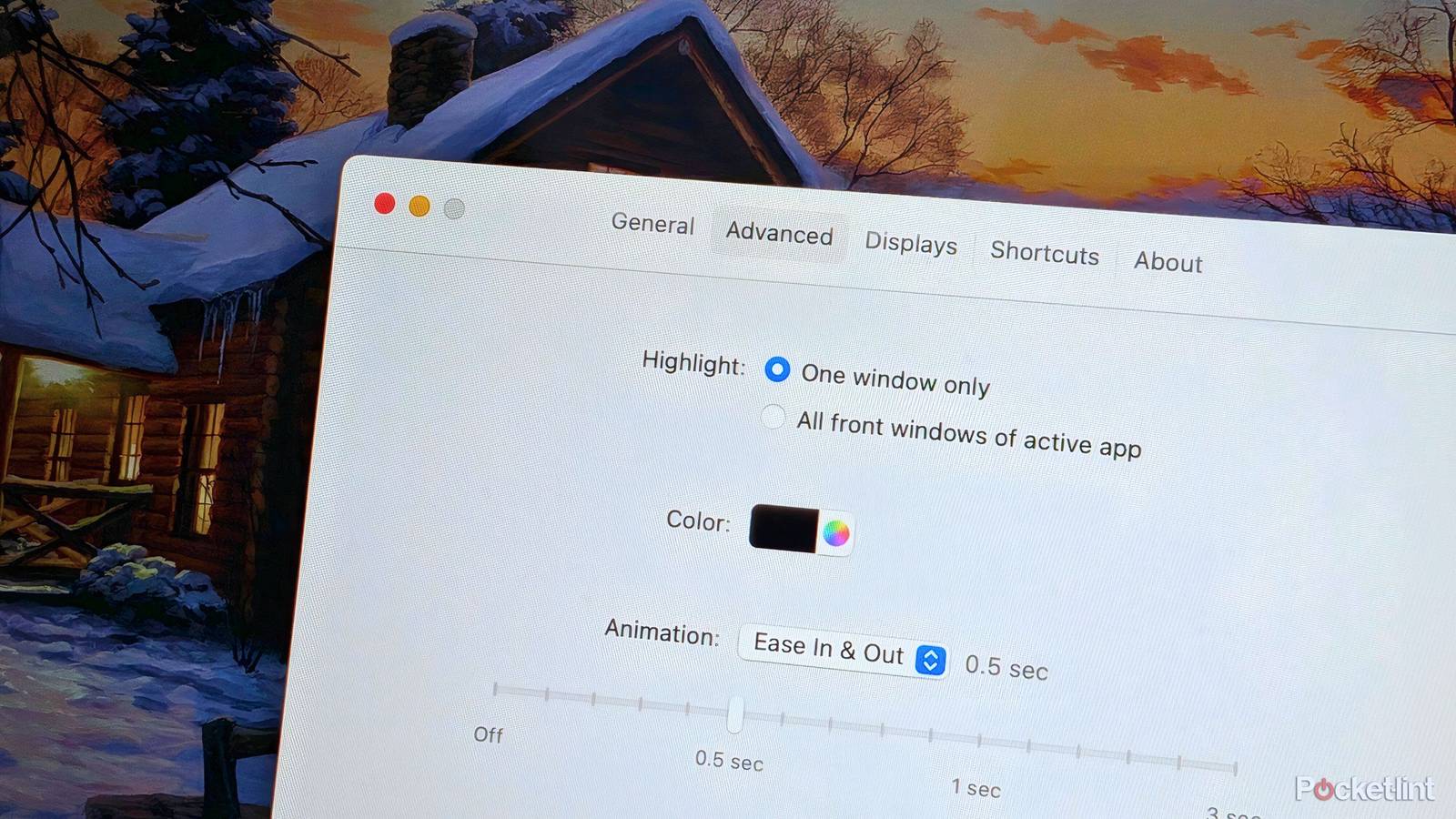
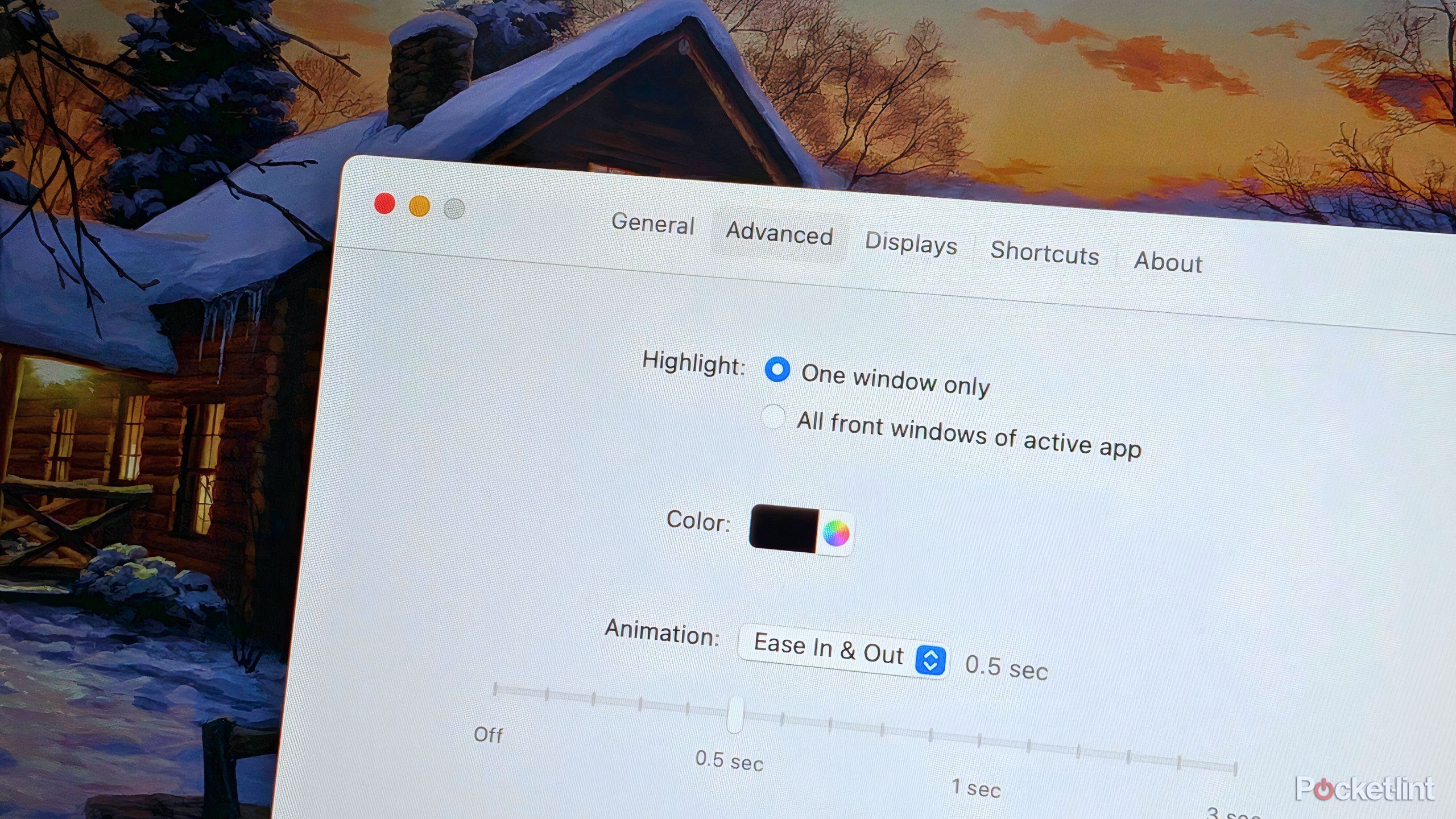
HazeOver lives within the macOS Menu Bar by default, where it can be quickly toggled on or off, or adjusted on the fly for a more intense or subtle dimming effect. Diving into the app’s main settings page, you can adjust intensity from zero percent to one hundred percent, toggle Start at login, home in on animation styles and color filters, prescribe keyboard shortcuts, and adjust multi-monitor behaviors.
If there’s one customization option that I’d love to see added to HazeOver in a future update, it would be a configurable blur effect. The utility’s basic background dimming is solid, but I reckon a subtle gaussian blur would add further polish and aesthetic appeal to the package (but please, no Liquid Glass). Even without a blur filter, HazeOver is a superb macOS utility that I plan on using to stay optimally productive and to enhance my mental clarity while computing.