



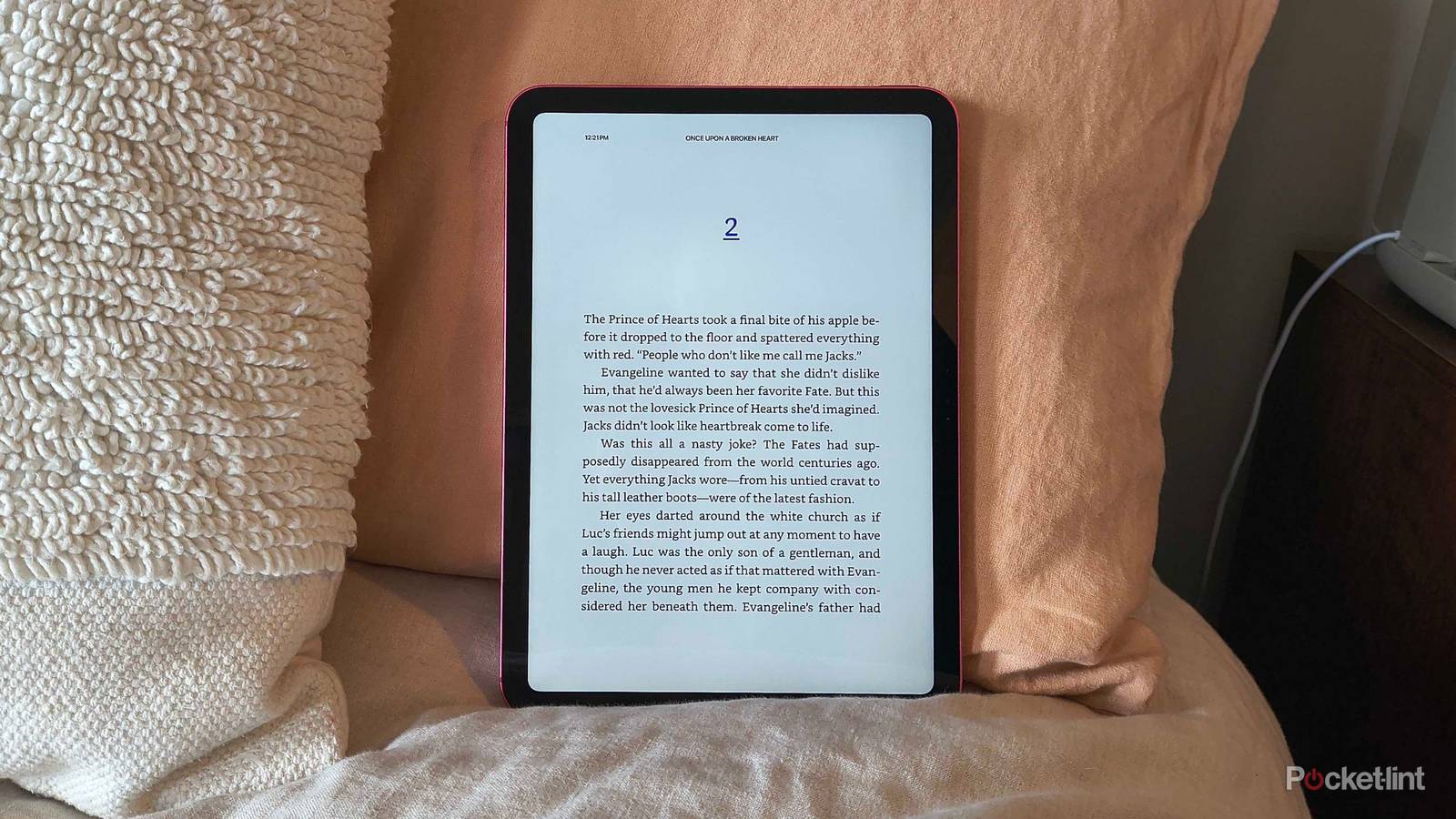
A few weeks ago, I finally added an iPad into my workflow. It’s proven quite useful for my day-to-day tasks — but not all of them have been for work. While I prefer the classic E Ink display on my beloved Kindle Paperwhite, I’ve found myself sneaking into the Kindle app every few hours just to read a chapter or two during my workday. It’s right there, and it feels much more productive than hopping on Instagram to doomscroll.
Plus, if I’m already taking my MacBook Pro, A16 iPad, and iPhone 16 Pro to a coffee shop to work, I’m not going to add another device to my bag. While I wouldn’t want to read for more than an hour on my iPad — the screen isn’t as forgiving as an e-reader’s paper-like display — its convenience is hard to ignore. But that doesn’t mean I can’t try to simulate an E Ink screen during those short reading breaks.
An iPad screen is a far cry from E Ink — no one’s arguing that — but I found an Accessibility setting that gets you as close as possible. Once you find the sweet spot between it and your brightness, your eyes will thank you.
Tweak White Point settings to simulate an e-reader display
As close to paper-like you can make an iPad screen

Reduce White Point is a setting hidden deep within the Accessibility menu on your iPad or iPhone. It lets you use a slider to reduce the intensity of bright colors on the screen, which is especially helpful if you’re trying to dim the brightness even more than the lowest setting in your Control Center allows.
But just dimming the screen isn’t enough to make your iPad look more like E Ink — you can do that right from the Control Center without digging through settings. I found that when you keep your iPad at full brightness but play with the White Point reduction, you can get a less intense display without losing screen clarity in a bright room.
During the day, my personal sweet spot is 87% White Point reduction at full brightness.
If you’re reading in a pitch black room and feel like your screen is too bright even at the lowest setting, play with White Point settings. It’s an eye-saver for late-night bookworms.
How to simulate E Ink on your iPad
Step-by-step

Reducing White Point on an iPad is easy, but follow this process to make sure you choose the right settings for your eyes:
- Open your preferred reading app and open one of your books to a normal page.
- Turn your iPad’s brightness all the way up.
- Close your reading app and open Settings.
- Tap Accessibility.
- Under Vision, tap Display & Text Size.
- Scroll to the bottom and toggle on Reduce White Point.
- Use the slider to play with different options. Test the intensities by jumping into your already open reading app (I use the five-finger drag gesture to quickly switch between Settings and my reading app).
During the day, my personal sweet spot is 87% White Point reduction at full brightness. I reduce the White Point even more if I’m reading at night, but usually I return home to my Kindle at that point, so it’s a last resort.