



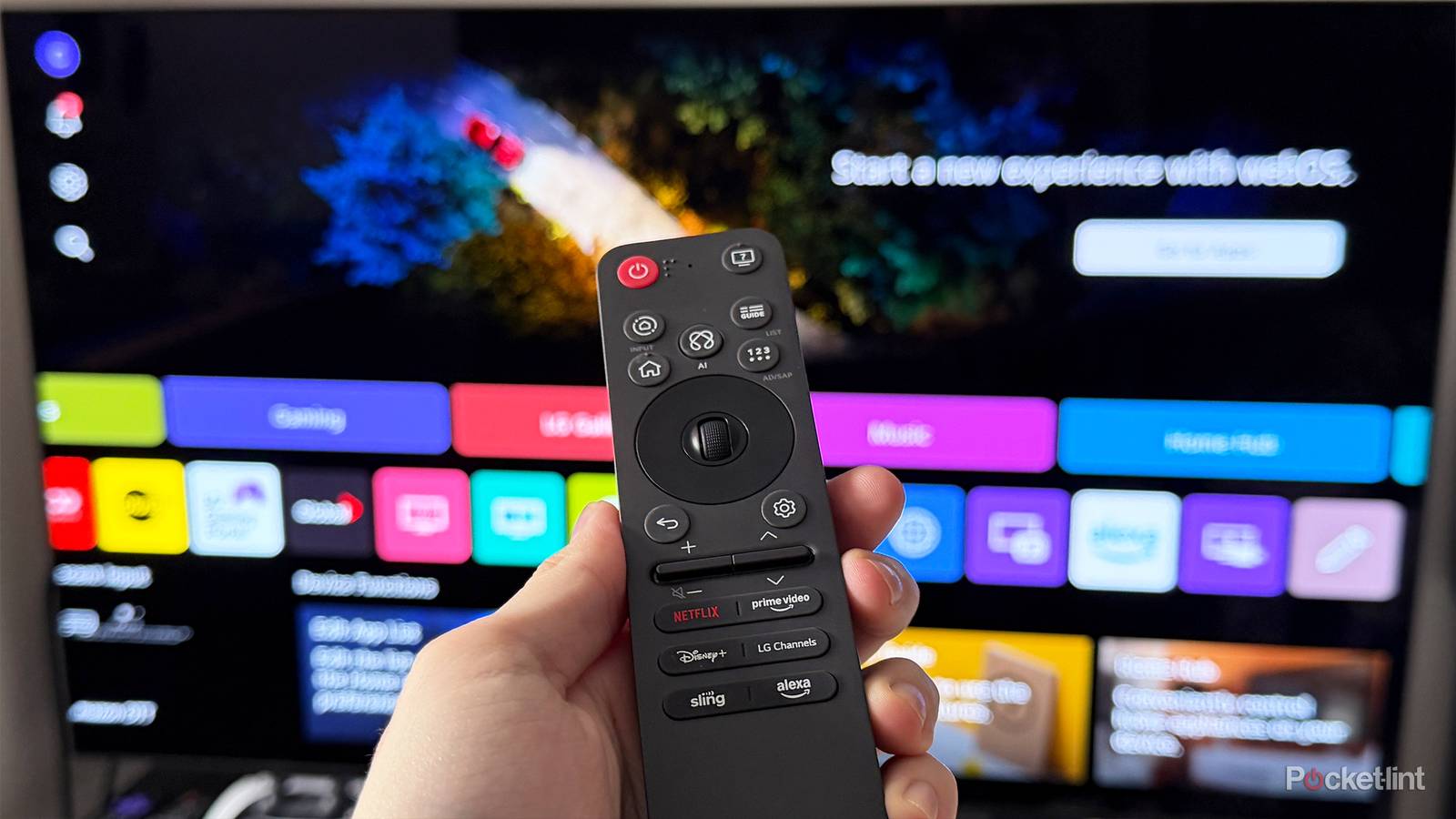
A few months ago, I picked up my very first LG TV, the LG C5, and I’ve been incredibly happy with it so far. It’s my first OLED TV, which has amazed me on its own, but I’ve also been really impressed by the overall quality and ease of use. One thing I’ve really come to appreciate is LG’s settings menu, which seems to have a quick fix for just about every issue I’ve run into, whether it’s getting rid of the ads on the home screen or making sure the TV powers on to the last input automatically.
But despite using my LG TV for a few months, I only recently discovered a secret settings menu I didn’t even know existed. What’s cool about it is that it lets you tweak a handful of options you won’t find in the main settings menu, like disabling the LG logo that appears when you power the TV off. It also surfaces useful information about your TV’s operating system that could come in handy in the future.
So, if you’re interested in checking out this secret settings menu on your LG TV and seeing what it has to offer, here’s how to open it and what you’ll find inside.

- Display Size
-
42, 48, 55, 65, 77, or 83 inches
- Operating System
-
webOS
- Display Type
-
OLED
How to open LG’s secret settings menu and what you’ll discover
It doesn’t have many options, but the few it does have are quite useful
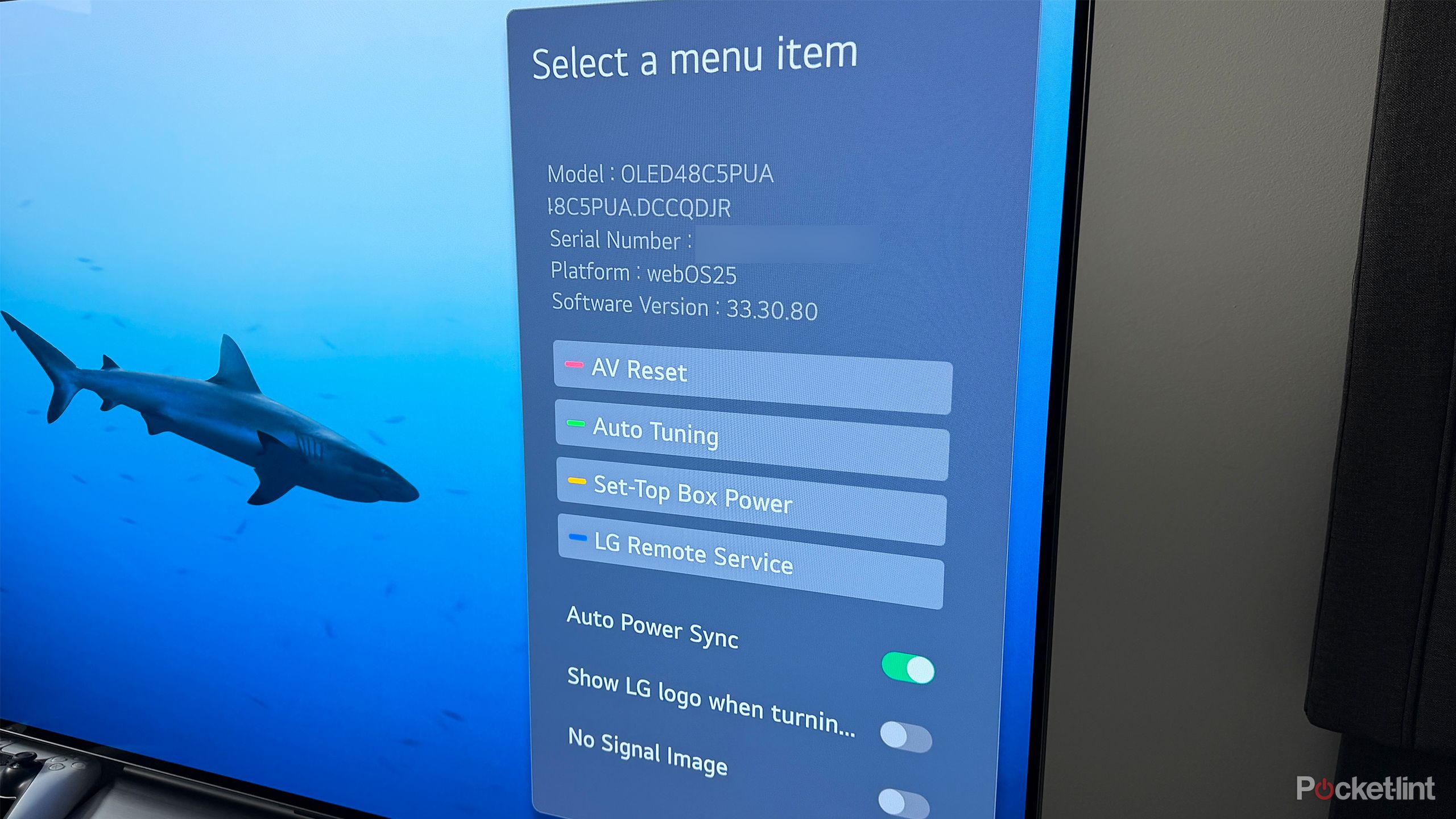
To open the secret settings menu on your LG TV, all you have to do is press the settings button on your remote (the gear icon) three times in a row.
When you do that, instead of the usual settings menu popping up on the left side of the screen, a different menu appears on the right with the heading “Select a menu item” (as you can see in the image above).
The first thing you’ll see is important information about your TV, including its serial number and the software version it’s running on. If you ever need your serial number for a warranty claim, or you’re troubleshooting and want to check which version of webOS you’re on, this is a quick and easy place to find it.
Below that is a list of more technical options. I haven’t really messed with these myself, but the four settings listed are AV Reset, Auto Tuning, Set-Top Box Power, and LG Remote Service.
At the bottom of this menu, you’ll find the most useful settings, including Auto Power Sync, Show LG Logo when turning off the TV, and No Signal Image. All of these are enabled by default, but you can toggle them off if you want. Before you do, here’s what each one actually does.
Auto Power Sync lets your TV power on when a connected device is turned on. For example, if you have a PS5 plugged in, turning on the console will automatically turn on your TV, without you needing to touch the remote. I find this incredibly handy, so I’ve kept it turned on.

Next, you can disable the LG logo that appears when you power the TV off. I turned this off instantly, since it feels a bit pointless to me. I’d rather the TV just shut off instead of flashing an LG logo then powering down.
Finally, there’s the No Signal Image setting. By default, when your TV detects no signal from an HDMI input, it displays a bright, colorful screen to let you know. If you turn this option off, the TV will show a black screen with a simple “No signal” notification instead. It’s much less bright and doesn’t grab your attention as much, so if you want a low-key no-signal screen, toggle this option off, which is what I decided to do.
All in all, I was pretty surprised to stumble upon this secret settings menu on my LG TV the other day. While it doesn’t have a ton of options, there are still a few useful ones that make it worth checking out, and I’m glad I took advantage of them to make using my LG TV even better.
If you’re looking for more LG TV tips and tricks, I’ve written about a few others here on Pocket-lint that are worth checking out, such as how to turn off a setting called Live Plus that spies on what you’re watching and a feature called Memory Optimizer that lets you clear your TV’s cache to help keep things running smoothly.