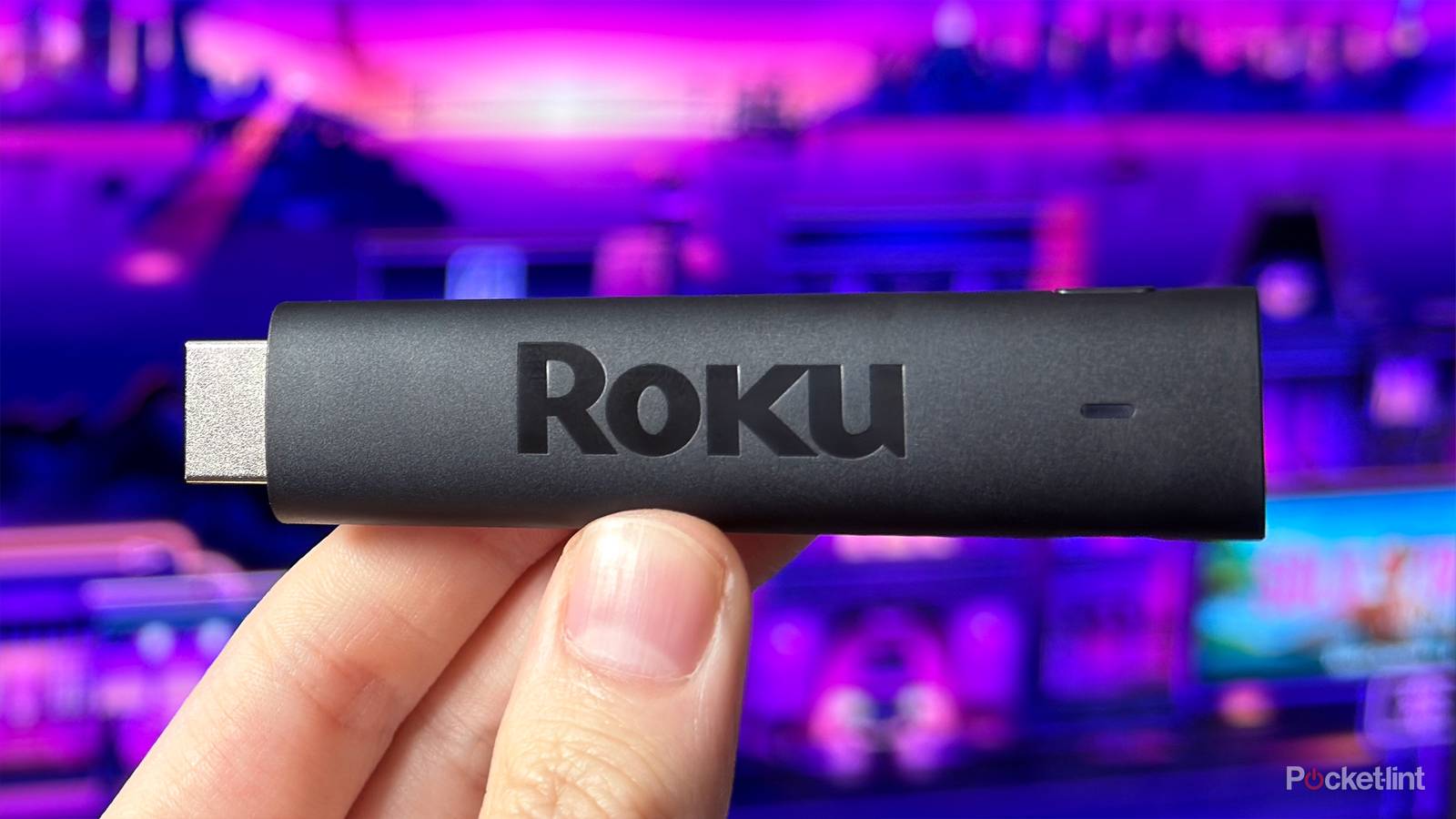
After using a Fire TV Stick for a while, I decided it was time to switch things up in 2026 and recently started using a Roku Streaming Stick Plus. The last Roku device I owned was a Roku Premiere, so it had been quite a while since I’d used one. But I have to say, I’ve been extremely impressed with the experience so far. Roku OS remains incredibly user-friendly, and the 4K HDR streaming quality has been superb.
That said, once I unboxed my Roku Streaming Stick Plus and finished setting it up, I immediately made a few adjustments to improve the experience. That’s not to say Roku doesn’t do a good job of automatically setting up the device, but there are a few tweaks you can make yourself that really help make using your Roku Streaming Stick easier and more personalized.
So if you’ve recently picked up a Roku, or even if you’ve had one for a while, here are five things I did right away that made my streaming experience far better, and that you can easily do too.

- Brand
-
Roku
- Operating System
-
Roku OS
- Downloadable Apps
-
Thousands
A slim plug and play streaming stick that includes 4K/HDR support and includes a voice remote.
Clean up the home screen

The first thing I wanted to do after setting up my Roku Streaming Stick Plus was clean up the home screen — specifically by getting rid of the menu items I knew I’d never use. Don’t get me wrong, there are some useful options on the Roku home screen, like Live TV and What to Watch. But there are also others that I don’t really need that just end up getting in the way, like Sports, Weekly Trivia, and Featured Free.
With that in mind, if you want to remove the menus you don’t use and adjust the home screen to your liking, Roku makes it pretty easy. Just head to Settings > Home Screen. From there, you’ll see a couple of layout options, including the ability to disable Recommendation Rows — which I chose to do to make getting to my apps quicker — as well as an option to change the tile size if that’s something you want to tweak.
Below those layout settings, you’ll find a list of all the home screen menu items. This is where you can choose which ones stay and which ones go. For example, I wanted to get rid of Featured Free, so I hovered over it, selected Hide, and boom, it was gone from my home screen.
Remove unwanted apps
Keep the apps you use front and center

Keeping with the theme of cleaning up the home screen, the next thing I wanted to do was get rid of some apps I knew I wouldn’t use.
By default, Roku installs a handful of streaming apps — like Netflix, Disney+, and Apple TV — that automatically sit on your home screen. Personally, while I use Netflix and Disney+, I don’t use Apple TV. And if I ever do in the future, it’ll most likely be through the Prime Video channel instead, so I don’t actually need the standalone app.
To keep things tidy, I got rid of it and a few other apps. Thankfully, Roku makes this extremely easy to do. All you have to do is hover over an app, press the Star button on your remote (the button to the right of the microphone), and a menu will pop up with the option to remove it. Select that, and voilà, the app you want off your home screen is uninstalled.
To ever reinstall an app you’ve removed in the future, you can easily do that from Roku’s Streaming Store by searching for it.
Change the wallpaper
You can switch it to something other than Roku City

With the home screen sorted, I next customized the wallpaper theme on my Roku. By default, it’s set to Roku City, which looks cool and is quite lively, but I wanted something a little more minimal, so I changed it to a plain purple background.
If you want to change the wallpaper on your Roku, just head to Settings > Theme. From there, you’ll see all the different options available, including a “decaf” brown background, and a “graphene” black background. Additionally, in that same menu, you can change your Roku’s screensaver, so if you don’t want Roku City appearing when your TV is idle, you can switch it to something else, like a clock.
Connect a Bluetooth audio device
Listen to your Roku with your AirPods

If I’m watching TV late at night or while I’m doing chores around the house, I sometimes use my Bluetooth headphones to listen to it. While the Roku Streaming Stick Plus initially lacked support for pairing with Bluetooth audio devices, Roku added it in an update last year. This means you can now connect Bluetooth audio devices, such as a pair of AirPods, directly to your TV and listen to shows and movies through them rather than your TV’s speakers.
To pair Bluetooth headphones or earbuds with your Roku, go to Settings > Remote & devices > Bluetooth headphones & speakers. From that screen, you can pair any Bluetooth audio device with your Roku. Once your device is paired, it’ll connect to your Roku automatically whenever you enable Bluetooth on it.
Set up the Roku mobile app
You can use your phone as a backup remote

Finally, one last trick worth checking out on your Roku is connecting it to Roku’s mobile app. It’s available on both iOS and Android, and once connected, it lets you control your Roku directly from your phone. So if your Roku remote is out of reach, has mysteriously disappeared into the couch, or you can’t grab it because your cat is lying on you, you can just open the Roku app on your phone to control it.
The Roku app includes all the same controls as the physical remote and even has its own app drawer. That means you can quickly launch any app on your Roku directly from your phone, without even going to the home screen. Additionally, you can browse all the shows and movies available on The Roku Channel in the app and then select to play them on your TV. It’s a cool secondary screen for your Roku, and I’ve found myself using it a lot for its sheer convenience.

- Developer
-
Roku
- Subscription cost
-
No
You can connect Roku’s mobile app to your Roku streaming device and use it as a backup remote.