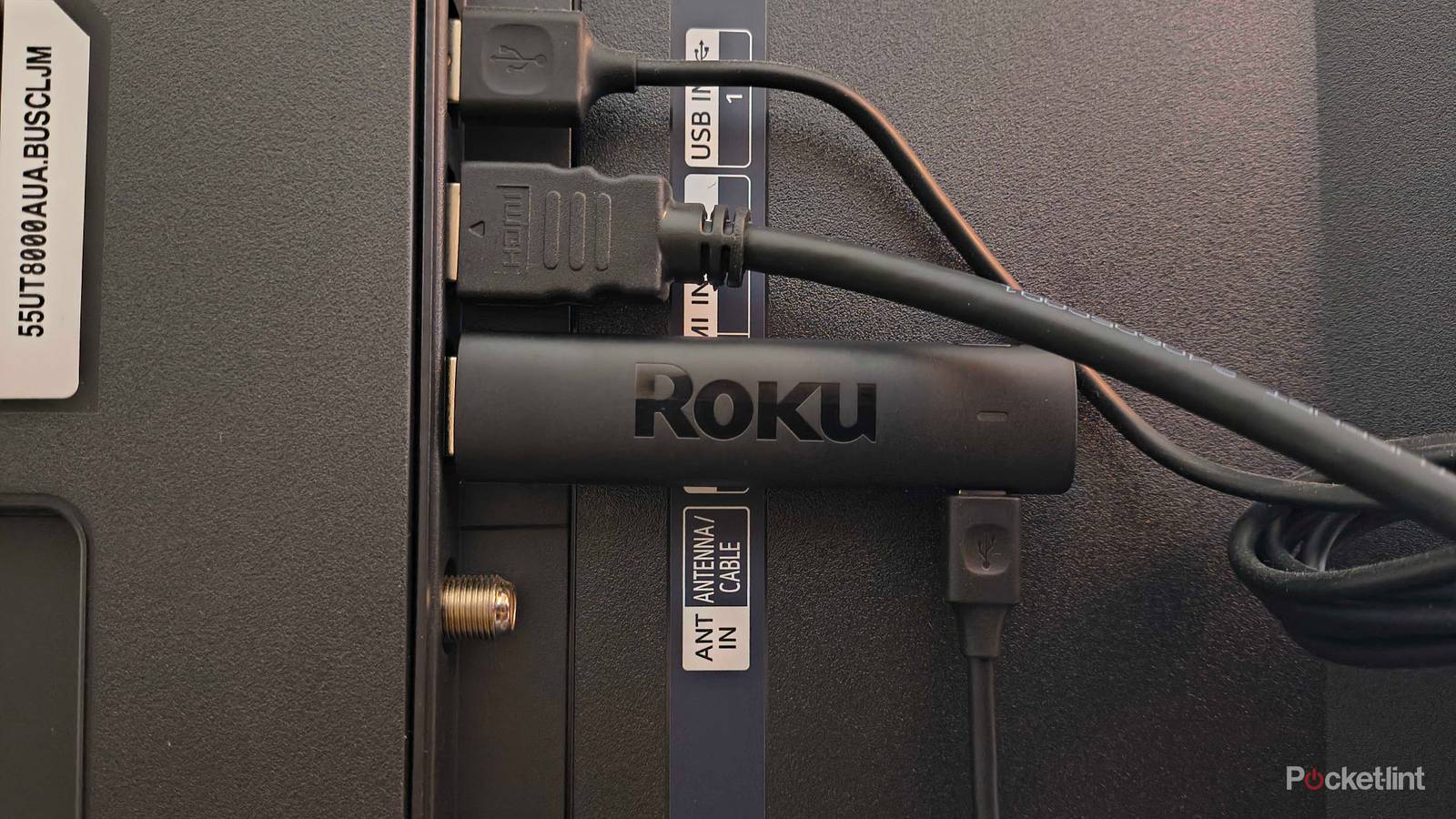
If the streaming stick fits, the port should wear it — right? Wrong. With all the buzz around HDMI ports lately, I’ve been educating myself on the differences between various input types on my TV as well as on all my devices. Spoiler alert if you’re new (like me): they are not all created equal.
I got a Roku Streaming Stick 4K a year ago, and I’m still finding new quirks about it. Recently, I learned you can’t just plug it into any HDMI port and expect sunshine and rainbows. In some cases, the wrong port can even sabotage your sound or picture quality.
Whether you’re a new or seasoned Roku owner, you can avoid making the biggest TV mistake by choosing the right port for your streaming stick. But which one is that, and why?

- Operating System
-
Roku OS
- Resolution
-
4K
- Ports
-
HDMI 2.0b, USB for Power & Long-range Wi-Fi receiver
- Connectivity
-
Wi-Fi
What is HDMI?
Back to basics

HDMI stands for High-Definition Multimedia Interface. You’ve probably seen the acronym hundreds (if not thousands) of times both on the hardware of your TV and on-screen input options, say, if you used to switch from live TV to the Wii when you were a kid.
In an effort to break this down the way someone did for me, think of each HDMI port like a door. If nothing’s plugged into it, there’s nothing behind it. But once you connect a device (like a streaming stick), its interface lives on the other side. You “open” the door by switching to that HDMI input in your TV’s menu.
In my case, it boots a portal straight to Roku City.
Symptoms of using the wrong HDMI port for your Roku device
Some ports are better than others

Your Roku Streaming Stick might still turn on even if it’s in the “wrong” port, but you’ll likely run into a few issues when you try to use it. If you plug it into a port that doesn’t support 4K or HDR, the TV picture may look a lot less sharp than you’re used to. Don’t gaslight yourself into thinking nothing’s wrong or blame the TV’s hardware — it could be solved by switching HDMI ports.
You might also encounter a copy-protection handshake problem (an HDCP error), which won’t even let you see the video on-screen. This essentially means that your Roku and the TV failed to do a quick digital secret handshake that proves that they’re allowed to show protected videos from services like Disney+, Netflix, and other streamers. If the handshake fails, it might be because the HDMI vibes weren’t right (or the port doesn’t support the right HDCP standard).
If you don’t think that’s the issue, you can also reset the handshake by unplugging the Roku and the HDMI connection (from both ends if there’s a cable), and turning off the TV. After a few seconds, turn the TV back on, and plug the Roku back in before trying again.
Two other major issues could include an actual black screen, a “no signal” display, or even audio abnormalities — especially if you’re using a soundbar. I’m no spiritual detective, but I think an HDMI mistake is a much better conclusion than a haunted TV.
Which HDMI port should I plug my Roku device into?
House-hunting for your streaming stick

Simply put, your streaming stick needs to be in an HDMI port that supports 4K — and for streaming services specifically, the requirement is HDMI 2.0 (or newer) and HDCP 2.2. On the back or side of your TV, look for HDMI ports labeled:
- 4K
- HDR
- HDMI 2.0 / 2.1
- HDCP 2.2
These aren’t guaranteed to be in one order or another. Your TV might mix ports differently than another, so pay attention to the labels. In the odd case your TV doesn’t label them, you might need to break out the original user manual or contact the manufacturer.
On some TVs, you might also need to toggle on an “Enhanced HDMI” or “UHD Color” setting for that particular port (the names vary from model to model).
If you’re using a soundbar, that too needs to be in a special port. Every device in the chain needs to be on the same page to get a good, synchronized streaming experience. The special HDMI port to look for is the ARC or eARC. But there is one caveat — if you aren’t using a soundbar, you can still plug the streaming stick into the ARC / eARC port — it isn’t inherently “bad” for it.
Once your Roku stick and audio equipment are in the right port-homes, give it a whirl again. You might be much more satisfied with your experience than before.