Last night was date night, which usually entails me overestimating my culinary skill set and choosing an overly elaborate recipe from the internet. I refuse to ask ChatGPT to generate recipes, and the way TikTok chefs break down their dishes is more cinematic than tutorial — anything for the views, but I digress. Recipe bloggers are my preferred culinary resources, and they sure know their way around a kitchen.
But as savvy as they are, their websites usually are not. Recipe cards are often hidden within rambling backstories, heartfelt notes, or even posts detailing the neighborhood’s Facebook group gossip — yes, they can get even more brow-raising than that. When you finally get past the suspicious detail about Granddaddy’s demise, you’re bombarded by ads that displace you again. The only way to escape is to print the recipe before they catch you again.
Well, I’m a twenty-something woman in a little apartment who refuses to buy a printer. So I just suffer, but my date-night debacle last night was the last straw — surrounded by the ingredients for short rib ragù, my hands covered in raw steak, my classical music was cut off by a screaming ad for paper towels, my place on the site was lost, and the smell of burning oil filled my apartment. Not fun.
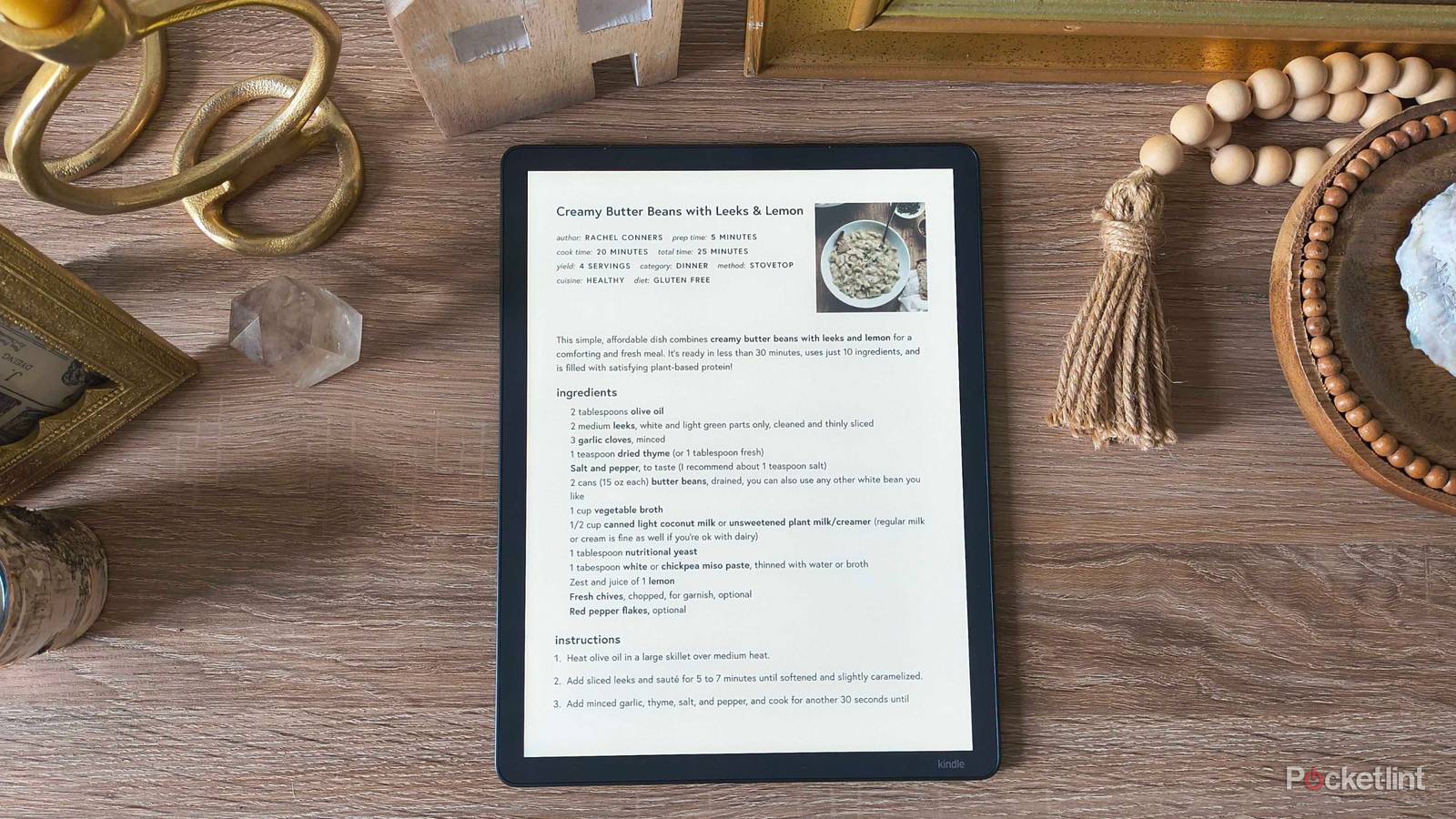
I needed a way to get these recipes off my phone, offline, and in my kitchen. Then I remembered my bread and butter here on Pocket-lint: Kindles, and Amazon’s very handy Send to Kindle portal. Laughing evilly, I downloaded all my recipes to my e-readers and turned them into my own digital cookbook — here’s how.

- Resolution
-
150ppi
- Storage
-
32GB, 64GB
- Brand
-
Amazon
- Screen Size
-
11-inch glare-free display
Download your favorite recipes
Save them as PDFs

There are a few tedious parts of this process, and the first step is the worst — but getting it over with quickly is the smartest way to do it. I pulled up all my favorite recipes online, scrolled down to the recipe card (as is typical recipe blogger style), and clicked the option to print it. From there, I saved it as a PDF and removed any pages that didn’t serve me.
Usually, the recipes save, download, or print without any ads included.
Send the recipe PDFs to your Kindle
And create a Collection

If you haven’t ever used Send to Kindle, it’s an official portal you access through your Amazon account that lets you upload a variety of file formats and send them directly to your e-reader (as long as it’s one of Amazon’s Kindles). I use it to download articles I want to read without distraction, my own documents for a backup, and even fan fiction from AO3.
Once you’ve downloaded the recipes, upload the PDFs to the portal, and they will appear on your device. Make sure you’re connected to Wi-Fi so the files can sync.

Now, create a Collection for your recipes. Collections are folders on your Kindle that help you organize your library, which is especially helpful for a cookbook. You don’t want to go digging for mushroom stroganoff among your romantasy novels.
Tweak some settings
And then bring your Kindle into the kitchen
Congratulations, your Kindle is now a kitchen assistant. However, here are a few tips to make referencing it while you cook easier:
- Change the sleep timer so your screen doesn’t go dark (Tap the top to open the menu ribbon > tap the three dots in the upper right > Settings > Device options > Sleep timer > choose 30 minutes or an hour)
- Turn the Brightness all the way up (swipe down on your screen > move the brightness slider all the way to the right)
- Turn off Auto Brightness (swipe down on your screen > uncheck the box beside Auto Brightness)
You don’t want to be squinting at the screen, constantly adjusting brightness, or turning around to find your device powered off without your knowledge. Those disruptions are almost as annoying as ad interruptions — almost.
Do this on any Kindle
But I prefer the Scribe’s larger screen

The Send to Kindle feature works with most Kindle models (even the basics, after the second-gen), so you can do this with any of your Amazon e-readers. However, there’s a real advantage to referencing your recipes on a Scribe: display size.
Kindle Scribes, especially the newest 2025 models, are big, bright, and look uncannily like E Ink-based iPads. While some people look at that as a drawback, it’s a true leg up in the kitchen. I have referenced recipes on both the Kindle Scribe Colorsoft and the first-gen Kindle Scribe, and they sit wonderfully on a cookbook stand. My Kindle Paperwhite looks admittedly a little small in comparison, but its waterproof factor definitely comes in handy if my cooking session starts getting messy.
Be sure to keep your devices away from any splashing sauces, broths, or cooking liquids of any kind — Scribes do not boast any IP ratings or water-resistance.

- Storage
-
32GB, 64GB
- Brand
-
Amazon
- Screen Size
-
11-inch glare-free display
- Battery
-
Up to 12 weeks