Summary
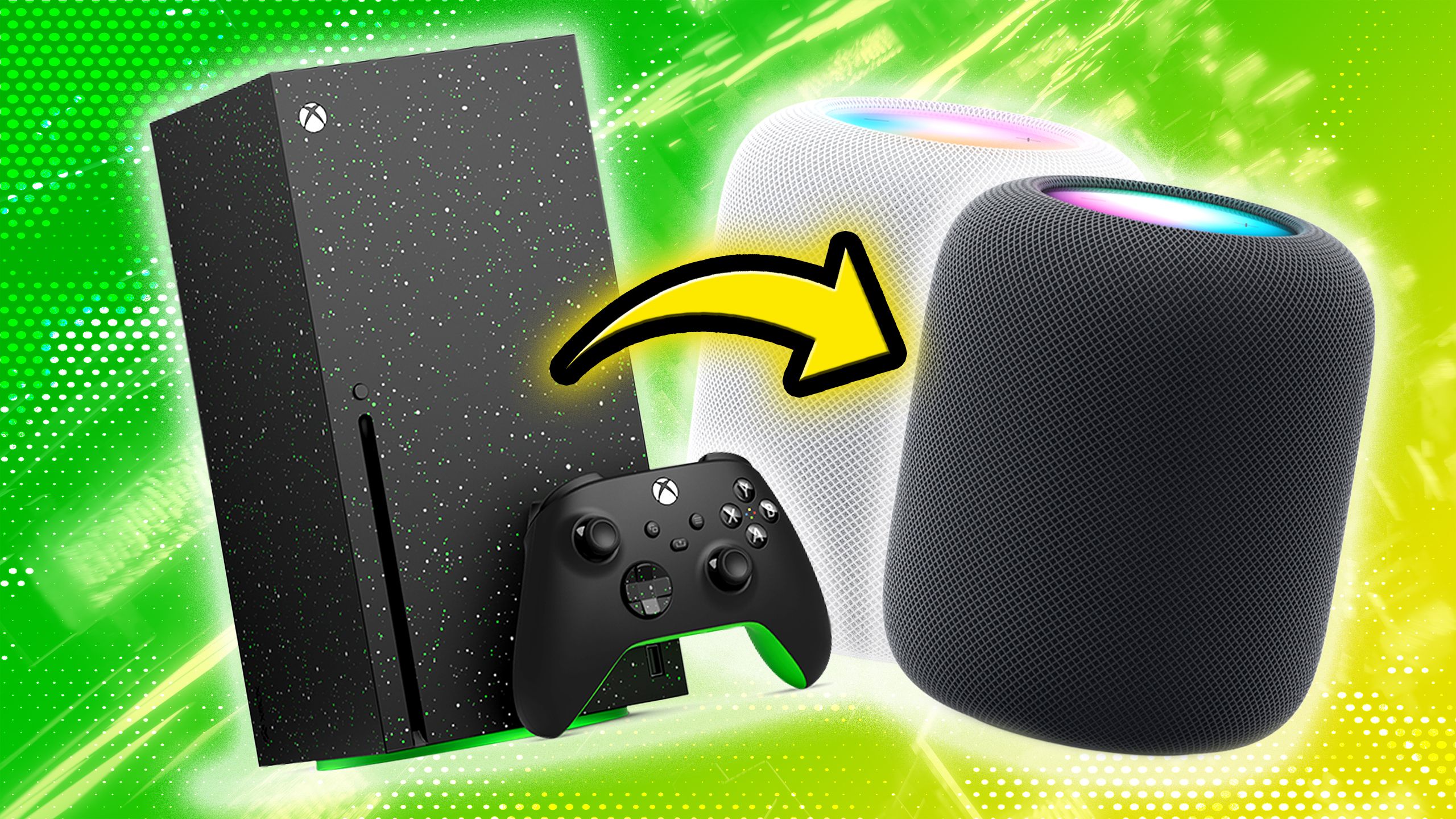
- HomePods can output audio from any device connected to your TV, as long as the speakers are paired with a second- or third-generation Apple TV 4K.
- Your Apple TV needs to be connected to your TV’s ARC/eARC port using a compatible HDMI cable.
- Once everything else is installed and configured, go to your Apple TV’s Settings > Video and Audio > Audio Output menu and click Play Television Audio.
One of the best uses of Apple’s HomePod isn’t as a conventional
smart speaker
, like an Amazon Echo, which you’re usually meant to set on tables, shelves, and counters for music and
smart home
control. Instead, a growing number of people — judging from anecdotes — are choosing to use HomePods as wireless speakers for their
Apple TV 4K
. It’s not always the most cost-effective home theater option, but it is nice to eliminate clutter, and even a pair of HomePod minis can sound surprisingly nice. A pair of full-size HomePods playing Dolby Atmos material is a thing to behold.
Some people don’t realize, though, that you can funnel audio from more sources than just your Apple TV. In fact, just about anything connected to your TV should work, including cable boxes, game consoles, and Blu-ray players. The catch is that you need a specific hardware and software setup for everything to work properly — and once you’ve got it going, you may find yourself stuck in the Apple ecosystem unless you’re willing to shell out even more cash for a replacement. I’ll explain everything you need to know.

Related
Are Macs good for gaming in 2025? It’s complicated
Apple has been struggling to attract gamers to Macs for decades. How’s it doing now?
What hardware do you need to get started?
Good news and bad news on this one

Apple
Before anything else, you’ll need a TV with an ARC or eARC port. ARC stands for Audio Return Channel, and the short explanation is that it allows speakers and other audio gear to deliver their content via
HDMI
, rather than dedicated audio cables.
eARC
is an updated standard based on HDMI 2.1, the benefit being much higher bandwidth — at its best offering uncompressed, 192kHz, 24-bit sound. So, while both ARC and eARC support common formats like Dolby Atmos, you won’t get the most out of your TV without eARC. Check the labels on your TV’s HDMI ports to see what you’re equipped for.
Unavoidably, you’ll also need a second- (2021) or third-generation (2022) Apple TV 4K. The first-gen model simply isn’t compatible with Apple’s pass-through tech, and there’s no method to connect HomePods directly to a TV. Instead, they need to be set up in the
Apple Home
app, then selected as audio output on the Apple TV.
There’s no sign that Apple is planning to add more ports to HomePods anytime soon.
Be sure to use the correct HDMI cable, too. You’ll need an HDMI 1.4 cable or better for ARC, and HDMI 2.1 or later for eARC. There should be some version marking on the cable you’re using. If not, you’ve only got two options: testing a cable to see what it’s capable of, or buying a replacement you know is compatible.
You can use either one or two HomePods, but if you plan to use a pair, they need to be the same model and generation — you can’t link a full-size HomePod and a HomePod mini, for example, or a first-gen and a second-gen. I’d strongly recommend buying a pair — it’s the only way to enable stereo and
Dolby Atmos
playback. Of course, you’ll also need to check if a particular app, video, or song is encoded for Atmos.

Related
5 dumb mistakes to avoid when buying a TV
Let me save you the return trip to Best Buy.
How to get game consoles and Blu-rays to play through your HomePods
All the steps you need to know

Apple
So you’re aware, I’m not going to run through the full setup processes for Apple TVs, HomePods, or the Apple Home app. That would extend things needlessly, since Apple provides basic setup information in the Apple TV and HomePod boxes. I will mention when each setup needs to happen, though, since you might be unboxing everything for the first time.
If you plan to use a pair, they need to be the same model and generation.
Follow the steps below. If you’ve already got one or two HomePods linked to your Apple TV, skip ahead to step 10.
- Update your iPhone or iPad to the latest software via Settings > General > Software Update.
- Connect your Apple TV 4K (second- or third-generation) to your TV’s ARC or eARC HDMI port using an appropriate cable. Remember, you need at least HDMI 1.4 for ARC, and HDMI 2.1 for eARC.
- If you need to, finish setting up your Apple TV, including assigning it to a room in Apple Home. If you haven’t already set up Apple Home, use the app on your iPhone or iPad first.
- Update your Apple TV to the latest version of tvOS by going to Settings > System > Software Updates and clicking Update Software.
- Turn off your Apple TV using the Siri Remote.
- Install the HomePod(s) you’re going to use, putting one on each side of your TV if you’ve got a stereo pair. In the Home app, be sure to assign your speaker(s) to the same room as your Apple TV.
- Still in Home, go to … > Home Settings > Software Update to make sure your HomePod software is current. Be patient.
- When your HomePods are ready, turn the Apple TV back on.
- You should be automatically prompted to use your HomePod(s) for TV audio. If not, use Settings > Video and Audio > Audio Output options instead.
- Make sure all the secondary peripherals you want to use HomePod output (consoles, Blu-ray players, etc.) are connected to your TV.
- Back in your Apple TV’s Settings > Video and Audio > Audio Output menu, select Play Television Audio under Audio Return Channel.

Related
Why can’t Google and Roku match the Apple TV?
It may be matter of whether the companies even share the same goals.
Additional notes
Troubleshooting, and the downsides of using HomePods

If you’re still having trouble, check that ARC, eARC, and/or HDMI-CEC are enabled in your TV’s native settings menu (not the one on your Apple TV). You may also need to double-check the version on your HDMI cable, and whether it’s plugged into the proper port. Most TVs have multiple HDMI ports, but only one equipped for ARC or eARC.
The major downside of using HomePods as a do-it-all audio source is, of course, that your Apple TV has to remain permanently connected. If you pull it out of the loop, a HomePod will lose its connection with the TV. That’s a major discouragement to leaving the Apple ecosystem, so you might want to choose a conventional soundbar instead if you’re not an Apple die-hard.
Because the connection between a HomePod and an Apple TV is not only wireless, but linked to Apple Home, there’s also the potential for problems from wireless interference or bad settings in the Home app. To repeat, your Apple TV and HomePod(s) have to be assigned to the same room in the same home — if not, they won’t be able to see each other.

Related
My 6 favorite Apple HomeKit accessories for apartment living
Home automation often feels like a homeowner-only game. Fortunately, there are plenty of renter-friendly HomeKit devices.