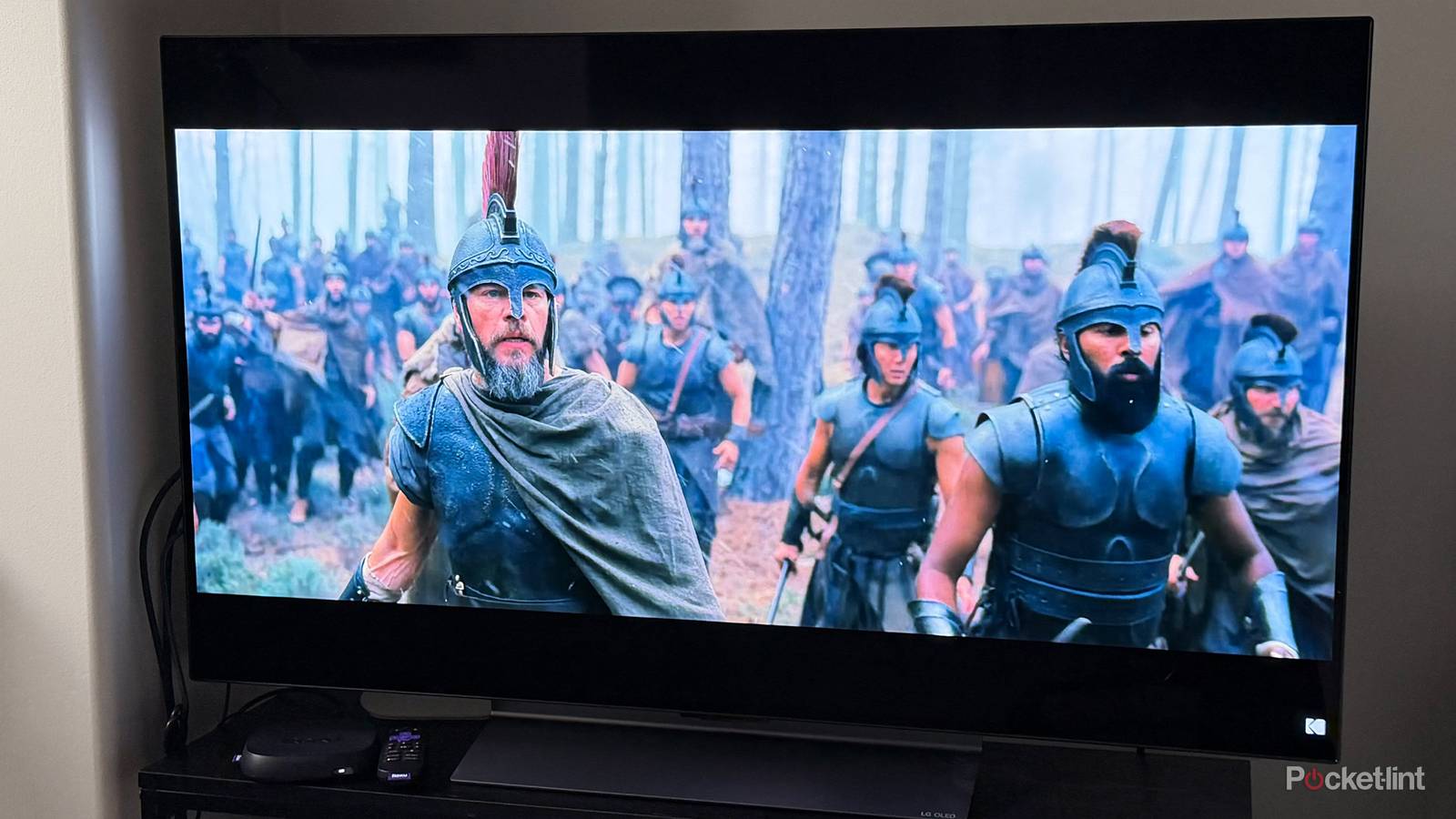
Ever since I got my LG C5 TV last year, I’ve spent a lot of time tinkering with it. Don’t get me wrong, I’ve loved the experience right out of the box. Its OLED picture quality, vivid HDR, and high refresh rate have made gaming and streaming an absolute blast.
But like every device I own, I want to get the most out of it, so I naturally spent plenty of time exploring the settings menu. Along the way, I improved the picture quality and brightness by dialing back the energy-saving settings, removed ads from the home screen, and even renamed my HDMI inputs, so I always know exactly which device I’m switching to.
One area I hadn’t spent much time with, though, was the audio. I always thought my TV’s built-in speakers sounded perfectly fine, but once I started digging through the sound settings, I realized they could sound much better. Better yet, I found one feature in particular that made movies, shows, and games feel noticeably more immersive.
With that in mind, here’s how I improved the audio on my LG TV and how you can do the same.
How to improve the audio on your LG TV
Sound Modes go a long way

First things first, the easiest way to improve the audio on your LG TV is to change its Sound Mode. You may have adjusted your TV’s Picture Mode before, which offers presets like Cinema, Sports, and Game Optimizer that tweak the picture to better match what you’re watching. LG TVs offer similar Sound Modes that optimize the audio for different types of content, and the difference can be more noticeable than you might expect.
There’s even a mode designed to boost vocal frequencies, so if you sometimes struggle to hear dialogue in a movie or TV show, this setting can help make voices much clearer.
Fortunately, changing the Sound Mode on your LG TV is simple. Here’s how:
1. Open the Settings menu on your LG TV by pressing and holding the gear icon on your remote.
2. Navigate to Sound.
3. Select Sound Mode.
4. By default, Standard is selected. Simply choose another mode, such as Cinema or Sports, to change your TV’s sound profile.
Personally, I switch to Cinema whenever I’m streaming a movie or TV show, as it adds a bit more bass and gives action scenes more impact. When I’m gaming on my PC or PS5, I use Game Optimizer, which automatically adjusts the sound profile in real time based on the game you’re playing to create a more immersive experience. If hearing dialogue is your priority, Clear Voice Pro is the mode to use. It makes voices much easier to hear by lowering the volume of background music and sound effects without making everything else sound flat. There’s also a Sports sound mode, which improves the clarity of voice commentators and helps amplify the crowd noise to help bring more energy to any match you’re watching.
But beyond sound modes, there is another way to create a more immersive audio experience on your LG TV, and it’s thanks to one key functionality: Bluetooth.
How to enable Bluetooth audio on your LG TV
Unlock a more immersive experience

Whenever I’m not watching movies or playing games with friends or family, my favorite way to use my LG TV is actually with a pair of Bluetooth headphones. I find it to be much more immersive than using my TV’s built-in speakers, especially when I’m gaming.
Thankfully, LG makes it incredibly easy to connect Bluetooth audio devices. So if you’d rather listen through a pair of headphones, earbuds, or a Bluetooth speaker instead of your TV’s speakers, you can.
Better yet, this isn’t a feature limited to premium models. Most LG TVs released since 2017 support Bluetooth audio. Here’s how to connect a Bluetooth device to your LG TV:
1. Open the Settings menu by pressing and holding the gear icon on your remote.
2. Go to Sound > Sound Out > Use Wireless Speaker.
3. Select Bluetooth Device.
4. Put your Bluetooth headphones or speaker into pairing mode.
5. Select your device under Connectable Devices to pair it with your TV.
Once your Bluetooth audio device is connected, it’ll appear under Registered Devices in the sound settings, making it easy to disconnect and reconnect whenever you want. If you ever want to switch back to your TV’s built-in speakers, just go back to Sound Out and select Use TV Speaker.
Overall, changing the Sound Mode on your LG TV and using Bluetooth are two of the easiest ways to improve its audio. If you’ve been looking for a way to get better sound without spending money on a soundbar or a full surround-sound system, both are well worth trying.

- Display Size
-
42, 48, 55, 65, 77, or 83 inches
- Operating System
-
webOS
- Display Type
-
OLED