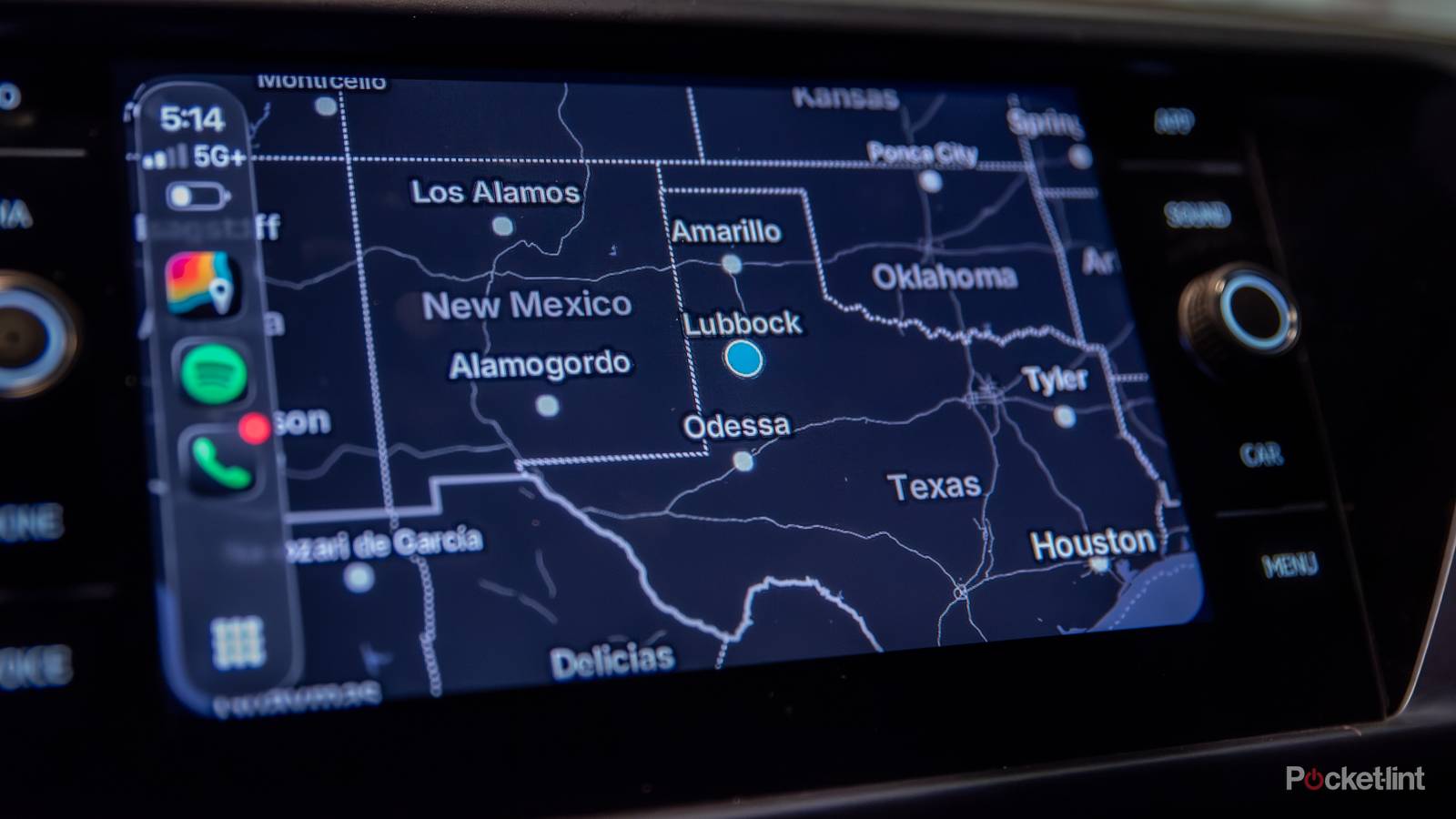
To pull back the curtain, while a lot of the things I cover for Pocket-lint involve personal experience, they’re not necessarily for things I’m actively engaged with. While I’ve spent years using the Apple TV 4K, for example, I’m not streaming from one at the moment, since the two units my wife and I own are packed away for a cross-country move. I’m just so intimately familiar that the tech is easy to talk about.
That makes this piece a little different. For the move we’re on, we’ve chosen to drive instead of fly, which has made CarPlay and Google Maps mission-critical. We’re strangers in a strange land. Accordingly, I’ve had to pay special attention to the settings both platforms are using. I’ve been relying on Apple Maps as well — but let’s face it, even a lot of diehard iPhone owners prefer Google’s app.
The Google Maps settings I depend on
Make or break your trip

I’m going to start with Google Maps, simply because of one section under the Profile -> Settings -> Navigation menu (on your iPhone): Route Options. These determine what routes the app is allowed to recommend, so for a roadtrip, changing them can potentially shave hours off your travel time. In my home city, for example, I would normally leave Avoid tolls on, since shaving a few minutes off a commute isn’t worth paying several dollars extra. When we’re talking about distances of dozens or hundreds of miles, however, the cost of a toll can be outweighed by the extra gas/charging the longer route would require, not to mention the demands you might have to reach a flight, train, boat, or event on time. In fact I would make sure Avoid ferries and Avoid highways are disabled as well, unless you already know these won’t cause problems.
You should also cache offline maps along your route to avoid trouble when cell signal dies. Since I’ve already talked about this before, the one thing I’ll add here is that you may need to clear up storage on your iPhone first. A larger map can potentially consume a few hundred megabytes, so consider how badly you need to save that vaporwave playlist from Spotify.
It may also be critical to visit Settings -> Your vehicles, because this lets you switch between Gas, Diesel, Hybrid, and Electric modes. There’s no point receiving gas station recommendations if you’ve got a full EV, and some charging stations may not be compatible with your vehicle. In fact Google tailors projections and suggestions based on your make, model, and trim, so you may get more efficient (or just plain safer) routes with a little customization.
My CarPlay settings
Streamline before you leave the driveway

Turning to CarPlay, the most essential thing is organizing your homescreen. By default, CarPlay adds every compatible app from your iPhone, and not in any order of importance. Starting by heading over to Settings -> CarPlay -> [car model] -> Apps in iOS, then tapping the red circle icons next to any apps you don’t plan to use. You can then tap and drag the triple-line icons to rearrange priority. Typically, it’s only the first 8 to 10 apps that will appear on your first homescreen page, so reserve that space for the most vital items. You probably don’t need ChatGPT or WhatsApp front-and-center.
As for widgets (under Settings -> CarPlay -> [car model] -> Widgets), I don’t find these particularly useful. In my vehicle, seeing them means swiping away from my navigation and music controls, so I can’t leave them up unless I’m in a city I’m familiar with. There is some value, however, in setting up things like Weather and Calendar widgets, so I can check important info without having to ask Siri.
Once you’re in your car, be sure to open the Settings app and experiment with the Appearance menu. I’d strongly recommend leaving icons set to Default or Dark, since Clear can make things harder to pick out. Underneath that, make sure the overall appearance of CarPlay is set to Dark or Auto. If you choose Light, that’s going to sear your eyeballs when the sun goes down. In fact I often prefer Dark regardless, since it’s not like you’ll be unable to pick out icons midday.