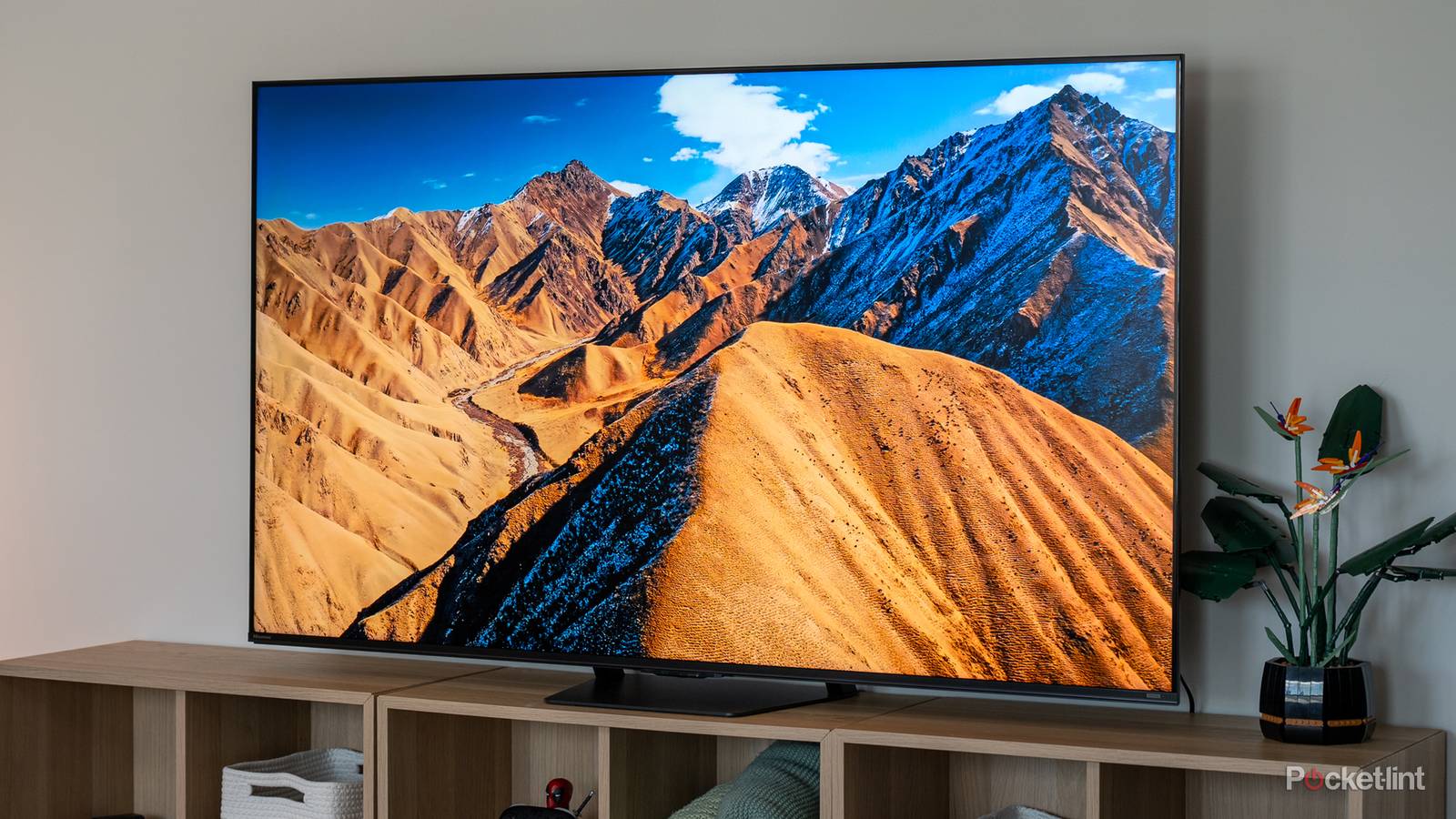
Dolby Vision is a popular HDR format, and it’s a decent upgrade over regular HDR10. It’s one of the big reasons people invest in the 4K Blu-ray format, myself included, and it’s also a staple of high-end TVs. You’re starting to see Dolby Vision creep into more affordable TVs as well, and I’d say that’s a great thing for the most part. I would love for Dolby Vision to be available for more people, so I’m glad that it’s not locked behind expensive sets anymore.
The only issue is that many TVs support Dolby Vision without having the necessary hardware to back it up. Your TV may recognize a Dolby Vision input, but that doesn’t mean it’ll be able to properly display it. The result here is a less-than-ideal Dolby Vision implementation, and it might lead you to think that the whole format is junk. That’s far from the case, but a lot of it does boil down to how good your TV is. Sadly, if Dolby Vision doesn’t look great, it might just mean your TV isn’t good enough.

- Brand
-
Hisense
- Display Size
-
55, 65 & 75 inches
- Dimensions
-
145 x 89 x 31cm
- Operating System
-
VIDAA Smart OS
- Display Type
-
Mini LED
- Display Resolution
-
4K (3840 x 2160)
TV specs matter a lot with Dolby Vision
Many TVs aren’t good enough

A cheap TV isn’t typically something that gets very bright, and that’s a big part of what makes Dolby Vision go. One thing I see a lot of people talk about with Dolby Vision and HDR in general is that it helps the image pop off the screen. That’s certainly true, but only if you have the peak brightness that allows for that to happen. What you’ll see is that a lot of budget TVs don’t have high peak brightness, and even at their brightness, the picture is relatively dim.
On the lower end of the spectrum, many cheap TVs don’t have the local dimming zones necessary to reach acceptable black levels. If your TV can’t get dark enough, and it can’t get bright enough, then you’re stuck with a Dolby Vision implementation that leaves a lot to be desired. Cheap TVs often have this double whammy, and it’s not a great way to experience Dolby Vision. The good news is that this isn’t representative of what a good Dolby Vision scan looks like. The bad news is that it probably means you need to go out and buy a new TV if Dolby Vision looks like this on your TV and you are sure that you have the right settings for everything.
I understand wanting to save some cash and cut corners, but Dolby Vision is one of those situations where it’s worth spending more to get it. I have a semi-large collection of 4K Blu-ray discs, and many of those come with Dolby Vision. Before I got a dedicated 4K Blu-ray player, I just watched my discs on my Xbox without using Dolby Vision at all. I have since gotten a TV and a player that supports Dolby Vision, and I haven’t looked back. I was already paying for Dolby Vision by buying discs, so I figured I might as well upgrade the rest of my setup to fully take advantage of it. The same thought process applied to Dolby Atmos, and that’s why I have an Atmos surround sound setup in my living room now.
Your TV and player settings are important too
Double check this

IF you are certain that your TV can handle Dolby Vision, then you might have some additional settings to tweak to make sure you’re getting the best experience. For starters, you should check your 4K Blu-ray player, because you could be making a very common mistake. Many players automatically flip to Dolby Vision when it’s available, but you might not have a player that does that. My Sony player has to have Dolby Vision manually turned on, so you need to go into your settings and do that if you are watching a disc with Dolby Vision.
Another thing to take note of is the different Dolby Vision settings myself. On my Sony Bravia, I have my pick of Dolby Vision Bright or Dark. As you might’ve guessed by the name, Bright gives a brighter image while dark is darker. In my experience, Dark looks a lot better, but Bright is great for people who have trouble controlling the brightness in their room. Before I invested in a set of blackout curtains, I used the Bright setting, but I’ve since switched to Dark for all of my viewing now. You should try out both and see what you like the best, but you should know that both of these settings give you a slightly different image. There’s not really a correct setting to use here, so just use what looks best to you. For me, that’s Dark almost all the time, but I can certainly understand why you’d want to use the Bright setting.