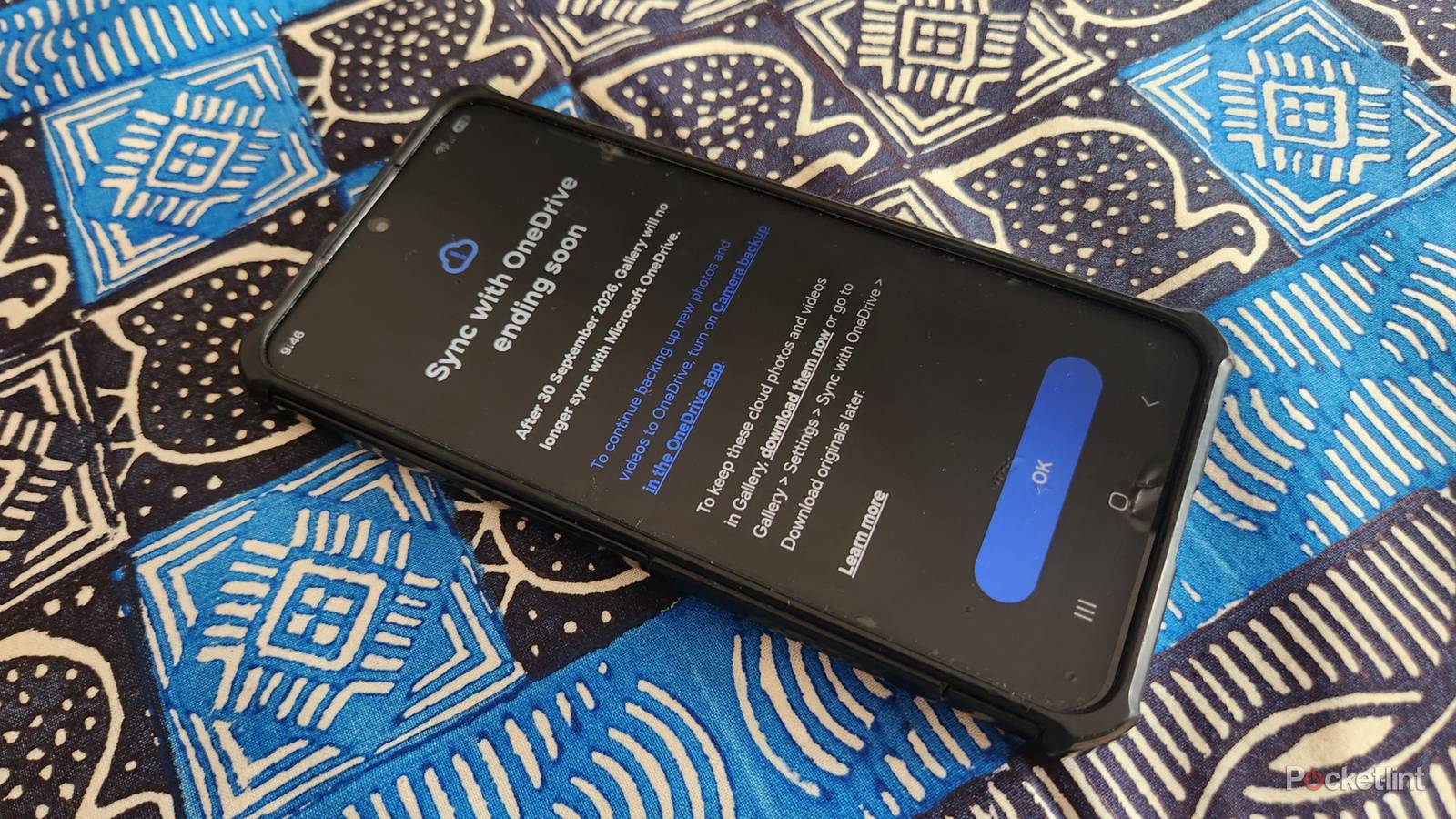
Samsung Gallery will no longer sync with Microsoft OneDrive after 30 September 2026, so you’ll need to make changes if you still want to view your backed-up photos. OneDrive has been my go-to solution for backing up my Samsung Galaxy camera pics for years, and I love the convenience of accessing all my phone and laptop photos in a single location.
Samsung is phasing out OneDrive sync in its Gallery app, possibly to introduce its own cloud service to replace it. This leaves existing Samsung users in a bind because they won’t be able to access their backed-up photos in the Gallery app if they don’t make some immediate changes. Here’s what to do if you still want to access your photos after Samsung’s deadline.
Who’s affected by Samsung ending Microsoft OneDrive sync on its Gallery app?
Most users will feel the pinch

All Samsung users who back up their Gallery photos to OneDrive are affected by the changes. New Samsung users won’t be able to set up OneDrive sync before September 30, 2026.
Existing users won’t be able to access their backed-up photos in the Gallery app after the deadline.
Existing users won’t be able to access their backed-up photos in the Gallery app after the deadline. However, they will be able to see their photos in OneDrive.
What can users do to access their backed-up photos?
Various solutions are available

OneDrive’s integration with Samsung Gallery provides a seamless photo solution that automatically syncs across devices without requiring any manual user intervention. From now on, Samsung users will need to download the OneDrive app separately and make some settings changes to back up their photos.
Current users can open Samsung Gallery and navigate to Settings. Open Sync with OneDrive, which should be at the top of the screen. You’ll see a warning message saying, “After 30 September 2026, Gallery will no longer sync with Microsoft OneDrive. To continue backing up new photos and videos to OneDrive, turn on Camera backup in the OneDrive app.”
From now on, Samsung users will need to download the OneDrive app separately and make some settings changes to back up their photos.
To do this, open OneDrive and go to Settings. Then ensure that Camera Backup is enabled. It’s also worth checking how much free space you have at the bottom of the screen and tapping View Plan to see which features you can access.
Alternatively, you can go back to Sync with OneDrive in Gallery Settings. You’ll see the same warning as before and an option saying, ” To keep these cloud photos and videos in Gallery, download them now or go to Gallery > Settings > Sync with OneDrive > Download originals later.”
It’s always worth having an external backup on an SSD or network storage device to keep your photos safe.
Tapping Download them now will open the Download originals window. It will display the amount of free space on your phone and provide options to download photos from your folders, like the Camera and WhatsApp images. You’ll need to tick each folder and tap Download to copy your OneDrive photos into your gallery. Ensuring your device has enough storage for all the photos is easy because each folder you tick displays the amount of required space. On my phone, it worked out to around 50GB. I found it faster to use a stable Wi-Fi connection rather than a mobile network because of the large amount of data.
Should Samsung Gallery users migrate to Google Photos?
It depends on your preferences

Some Samsung users won’t mind accessing their backed-up photos in the OneDrive app instead of the Gallery app. Samsung’s constant app changes also leave a bitter taste in users’ mouths, and many prefer Google’s stability. Others will prefer another photo app offering seamless backups within a single ecosystem.
How to migrate from Samsung Gallery to Google Photos
It’s fast and easy

Google Photos works differently from Samsung Gallery, and photos are stored in the cloud rather than on the local device. Ensuring you have adequate cloud storage available is the first step. Google offers 15GB of free space, and you’ll probably need to upgrade to a paid plan to store your entire photo library.
Google offers 15GB of free space, and you’ll probably need to upgrade to a paid plan to store your entire photo library.
Here’s how to migrate from Samsung Gallery to Google Photos. Open Google Photos. Tap Get Space to upgrade your storage plan. Monthly and annual plans are available. Then tap the Backup photos and videos on this device automatically slider to turn on backups. Samsung Gallery will still store and edit your photos locally, but it won’t offer cloud-based backups.