


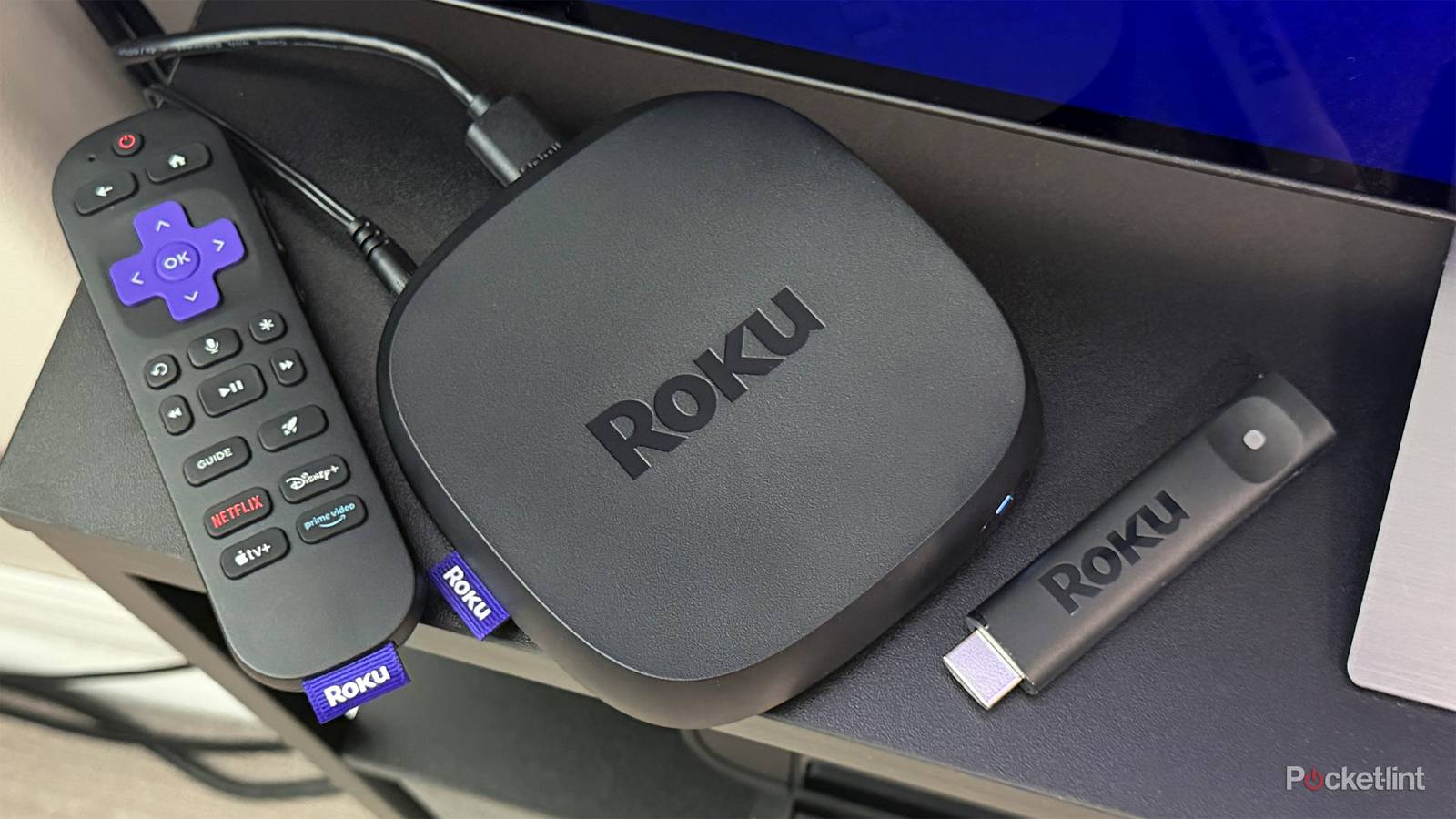
I spend a lot of time testing streaming devices, including the Fire TV Stick 4K Max, Google TV Streamer, Apple TV 4K, and the Roku Ultra. For a while, the Fire TV Stick 4K Max was my go-to streaming device because it was affordable, user-friendly, and offered the features I wanted, such as Dolby Vision and Dolby Atmos support.
Earlier this year, though, I picked up a Roku Ultra to get back into the Roku streaming world. Since then, it’s become the streaming device I use every day, whether I’m watching free channels on The Roku Channel or binging shows and movies on HBO Max, Netflix, or Disney+.
That said, as I usually do with all my devices, I spent some time tinkering with the settings and features on my Roku Ultra to get the experience just right. Out of the box, the home screen can feel a bit cluttered, and over time, Roku devices can slow down, which can negatively affect the experience. Roku also includes several useful features that are somewhat hidden and often overlooked, even though they can noticeably improve the overall experience.
With that in mind, whether you have a Roku Ultra, a Roku Streaming Stick, or a Roku smart TV, here are four essential tweaks and features I recommend trying. They’ll help you access your favorite apps faster, keep your device running smoothly, and even improve your audio experience.
Clean up the home screen
Make it easier to jump into your favorite apps

The first thing I did after setting up my Roku Ultra was clean up the home screen. I’ve been testing the Google TV Streamer lately, and one of my favorite features is its Apps Only mode, which strips away most of the clutter and ads on the home screen, leaving you with a simple grid of apps.
Unfortunately, Roku doesn’t have an Apps Only mode, but you can still clean up the home screen and reduce the number of ads. In the settings menu, you can hide interface elements such as Recommendation Rows and Quick Access, making it more seamless to jump straight into your apps. Here’s how:
1. On the Roku home screen, go to Settings > Home screen.
2. Set Recommendation rows to Hide.
3. Set Quick Access to Hide.
Once you’ve made those changes, the Recommendations and Quick Access sections that normally appear above your apps will be gone, simplifying your home screen and making it quicker to get to your favorite apps.
Additionally, while you’re in the Home screen settings, I recommend changing the Tile Size for apps. By default, it’s set to Smaller, but I prefer Larger because it makes the app icons bigger and more prominent.
Use your phone as a remote
Roku’s free mobile app is worth downloading

Next up is a special feature I’ve been using a lot lately: Roku’s free mobile app. It’s available on iOS and Android, and once you connect it to your Roku, you can use your phone or tablet as a remote.
So, if you ever misplace your Roku remote, or you’re comfortably settled on the couch and don’t feel like getting up to grab it, you can simply pull out your phone and use the Roku app to navigate the interface and launch apps.
While I do like the Roku Voice Remote Pro that comes with the Roku Ultra, I have to admit I’ve been reaching for my phone more often. It’s incredibly convenient, and I especially like that the app includes a built-in app drawer, so you can jump straight into your favorite apps without even going to the Roku home screen first.
The Roku app also lets you watch The Roku Channel on the go, so if there’s a free channel you really enjoy, you can watch it anywhere.
Speed up your Roku
Your slow Roku can feel fast again

Rokus aren’t immune to a problem that eventually affects just about every device: over time, they can start to slow down. If you’ve had your Roku for a while, chances are it isn’t quite as snappy as the day you bought it. Sometimes it’s subtle, but other times it’s obvious, whether it’s stuttering while navigating the menus or apps freezing when you try to open them.
The good news is that these issues don’t necessarily mean it’s time to buy a new device. There are a couple of things you can do to help your Roku feel fast again.
The first, and easiest, is clearing your device’s system cache. Apps build up cached data over time to help load things like image thumbnails more quickly, but too much cached data can eventually impact performance. Unlike Fire TV devices, Roku doesn’t include a dedicated Clear Cache option in its settings, but there is a simple workaround that forces the system cache to clear by restarting the device. Here’s how:
1. Press the Home button on your Roku remote five times.
2. Press the Up button once.
3. Press the Rewind button twice.
4. Press the Fast Forward button twice.
After entering that button combination in that order, your Roku will briefly freeze before the screen goes black and the device restarts. Once it’s finished booting up, the system cache will be cleared, which can help improve overall performance.
Another simple way to keep your Roku running smoothly is to uninstall apps you no longer use. If your device’s storage is nearly full, it can affect performance. Removing apps you haven’t opened in a long time not only frees up storage and prevents performance issues but also helps keep your home screen tidy.
Headphone Mode
Unlock a more immersive listening experience

Last but not least, another free and handy way to upgrade your Roku experience is Headphone Mode. It’s easily my favorite Roku feature and, in my opinion, one of the platform’s most underrated.
Headphone Mode lets you listen to whatever you’re streaming on your Roku through Bluetooth headphones or speakers connected to your phone or tablet, instead of your TV’s speakers or sound system. Like the backup remote feature, it works through Roku’s free mobile app.
It’s especially useful if you’re a night owl who doesn’t want to disturb anyone while watching TV late at night, but it’s also great for solo viewing when you want a more immersive experience. I use Headphone Mode all the time with my Roku Ultra, especially when I’m watching a show or listening to a podcast while making dinner or doing chores around the house. I’ve used it to watch entire seasons of shows, like The Bear, and I’ve found the sound quality to be superb. Typically, I use my AirPods Pro with it, but you can use any Bluetooth headphones or speaker connected to your phone.
To get started with Headphone Mode, you’ll need the free Roku mobile app. Once it’s connected to your Roku, simply open the Remote screen and tap the Headphone icon to switch your audio from your TV to your connected headphones or speakers (as you can see in the image above).
A better Roku experience is easier than you think
Overall, these tweaks and features are easy to use and can noticeably improve your Roku experience at no cost. I’ve tested all of them on my Roku Ultra, and they’ve helped make it my go-to streaming device, especially Headphone Mode.
Beyond the tips I’ve covered here, there are a few other things I’d recommend. If you spend a lot of time watching free live TV on The Roku Channel, I’d recommend making good use of the Search and Favorites features to make it easier to find something to watch. If you have a Roku Ultra, the Lost Remote Finder and the USB port are also worth using.
Finally, if you enjoy streaming free content on The Roku Channel, it’s also worth checking out apps like Plex, Tubi, and Pluto TV. All three offer huge libraries of free movies and TV shows, along with hundreds of free live TV channels.

- Dimensions
-
4.9 x 5.0 x 1.0 inches
- Connective Technology
-
Bluetooth® streaming, 802.11ax dual-band MIMO Wi-Fi 6 (2.4 GHz / 5 GHz), 10/100 Base-T Ethernet
- Brand
-
Roku