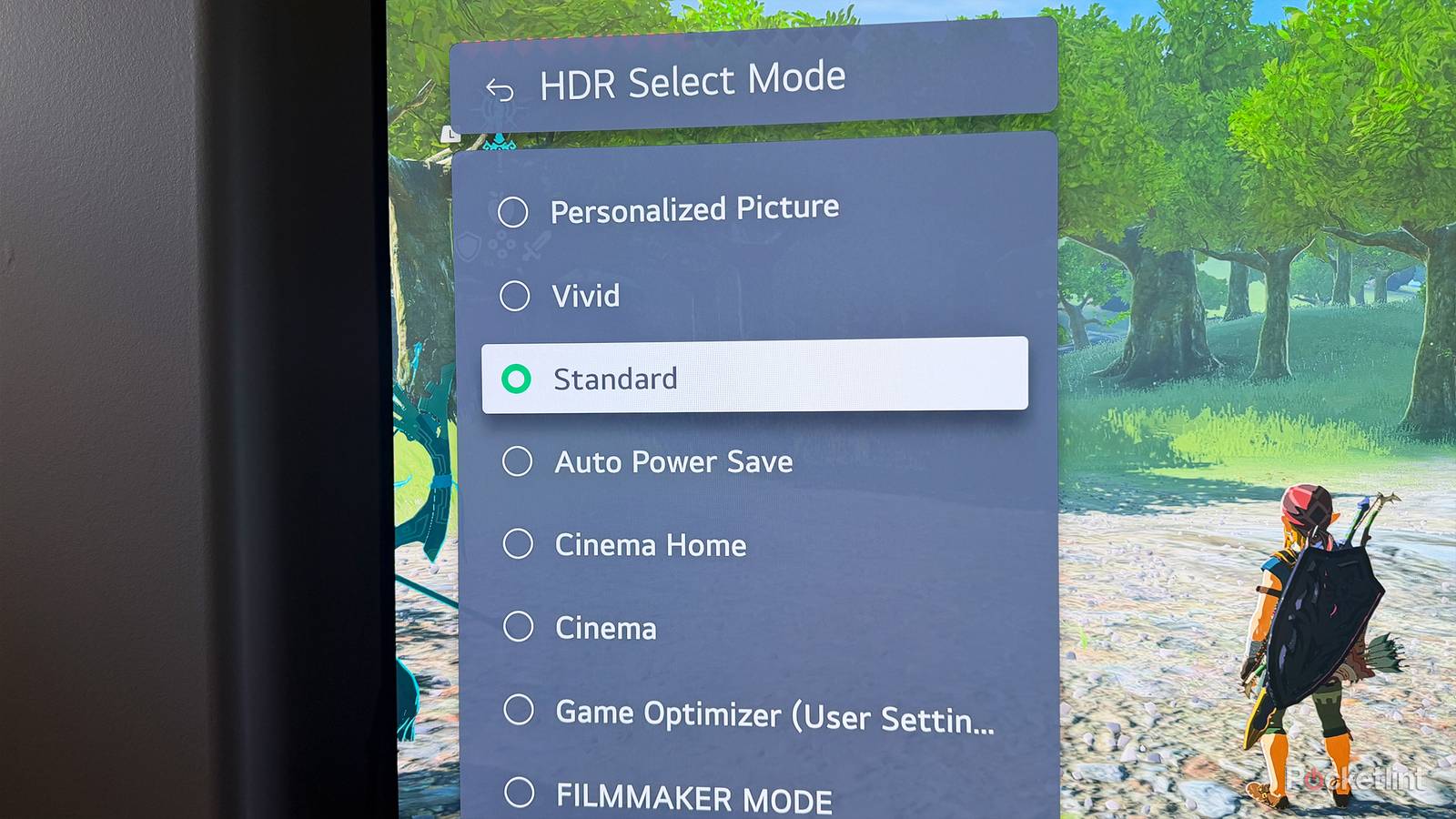
Picture modes should, on paper, be one of the simplest things on your smart TV. You pick something that looks good, and you’re off to the races — if you even bother changing modes at all. Current TVs tend to function well out of the box, at least if you’re just watching a Netflix stand-up special or the local news.
There’s far more going on than you might think. You almost certainly shouldn’t stick with a TV’s default picture mode, and even most of the other options aren’t worth using. So what’s wrong with them, and why are they included then? Which modes should you use?
What the picture modes on your TV do
And why they’re usually awful

You’ve got the right idea about the basics. Yes, when you switch modes, what you’re doing is altering multiple image settings that you’d otherwise have to tweak one-by-one. These include factors like brightness, contrast, tint, and saturation. Perhaps the most noticeable is color temperature, also known as white balance. Counter-intuitively, higher temperatures (measured in Kelvin) make images look cooler and bluer, while lower shift things warmer, towards amber or orange. It’ll make more sense if you remember your physics.
Sometimes, however, these modes change things that your brain doesn’t immediately grasp, such as sharpness and noise reduction. Another example is gamma curve, a measure of how smoothly brightness scales from pure black to pure white. Skewing the curve affects mid-tones, as well as how stark shadows appear. Multiple modes on your TV are likely to turn on motion smoothing, intended to fix judder and blur.
The first problem is that TVs often default to a mode that’s superficially impressive, whether to catch your eye in a store or make you feel good about the $500, $1,000, or $2,000 you just dropped. The worst offenders carry labels like Vivid or Dynamic. These ramp brightness, contrast, saturation, sharpness, and/or noise reduction up to extreme levels — which can admittedly look nice in some circumstances, but often at the expense of detail. This ultimately looks unnatural, and indeed noise reduction can actually strip the film grain from classic movies, or anything shot by Christopher Nolan or Quentin Tarantino.
Other modes aren’t necessarily much better. If a mode incorporates aggressive motion smoothing, like Sports, it can completely sabotage movies and “prestige” TV shows. That’s because the tech relies primarily on inserting artificial frames to match your TV’s refresh rate, killing the natural blur of the standard cinematic framerate, 24fps. Frequently the consequence is the “soap opera effect,” so named because it can make a $200 million blockbuster seem like it was shot for $20,000. Sports are about the only content for which motion smoothing should be on at all, at least until Dolby Vision 2 and HDR10+ Advanced are better supported.
Always, always avoid using any energy-saving (a.k.a. eco) modes. I’m normally a fan of anything that can save both money and the environment, but on a TV, these options are pointless. The main way to reduce power consumption is by lowering brightness. What you’re left with, then, is a dim image with less contrast, probably including reduced highlights in HDR modes. Your TV may even scale back refresh rates, which will be especially problematic if you’ve got a PC or game console hooked up. It’s common for many apps to top 60 frames per second.
Even more reasonable modes can have their drawbacks. On my Hisense U68KM, the Theater Night mode is mostly sensible, but does still warm up colors, which may give you the wrong impression of what a scene is supposed to look like.
So what modes should you use on your TV?
The chosen few

Whenever you’re connecting a PC or console, set your TV to Game Mode. In fact, if you’re connecting over HDMI 2.1, your TV should do this automatically via a technology called ALLM, short for Auto Low-Latency Mode. Game Mode disables all image processing, which is not only redundant for devices with their own GPU, but a source of unnecessary lag. You might not mind this delay if you’re just browsing the web or editing Excel spreadsheets — but in a game like Blasphemous or Elden Ring, it can mean the difference between beating a boss or spending the next hour trying to do it again.
For all other purposes, I recommend starting with Filmmaker Mode as a baseline, and making manual adjustments from there. This is actually similar to Game Mode, but with the aim of preserving a movie or show’s intended look. It additionally sets color temperature to the D65 white point, which is dead neutral (practically speaking).
I’m suggesting the mode as a baseline for a few reasons. In some cases, a TV might be deficient in a way that makes it unappealing. Some people don’t like the way it looks regardless, as images will be more subdued if you’re used to modes like Vivid. Give it a shot, however — if you can’t get used to it after a week, a little bit of extra brightness and contrast might be all you need. Leave motion smoothing and noise reduction off.

- Display Type
-
Hi-QLED MiniLED Pro
- Refresh rate
-
165Hz
- Speakers
-
2.1.2 multi-channel surround
- Processor
-
Hi-View AI Engine Pro