


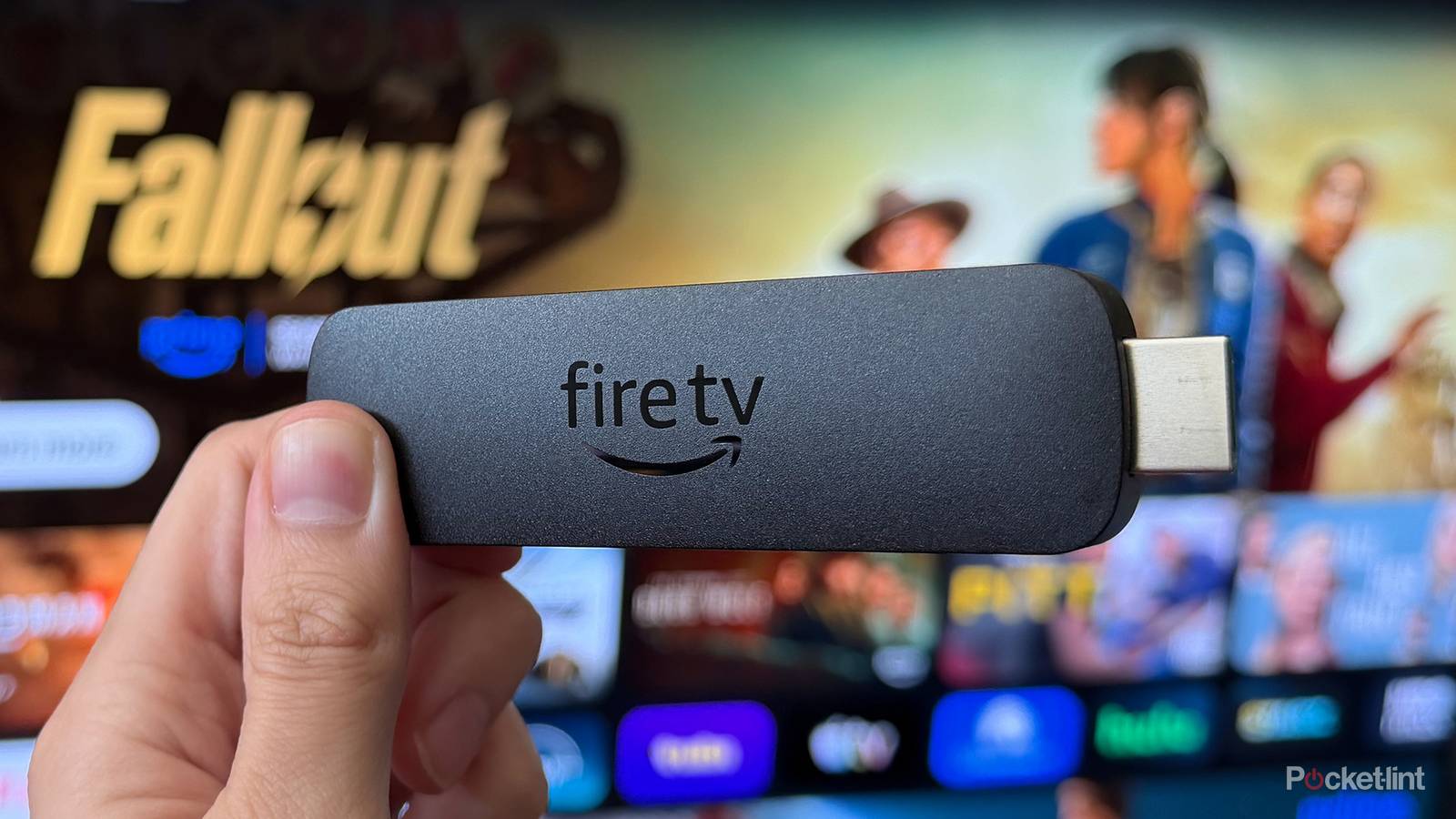
Typically, when someone asks me for a recommendation for a budget streaming device, my go-to answer is one of Amazon’s Fire TV Sticks. They’re affordable and, more importantly, incredibly easy to set up and use. Just plug one in, connect it to your TV’s HDMI port, and you can start streaming within minutes of taking it out of the box.
That said, while Fire TV Sticks are user-friendly and make it easy to stream your favorite movies and shows, they can still require some fine-tuning to make the experience as good as possible. For example, right out of the box, the picture quality can sometimes look washed out, ads may start playing automatically on the home screen, and there are many useful features that Amazon doesn’t highlight during the initial setup.
Whenever I get a new Fire TV Stick, the first thing I do is head straight to the settings menu to make a few tweaks that improve the overall experience. With that in mind, here are four essential tweaks I recommend for any Fire TV Stick, whether it’s new or old, to get the most out of it.
Turn off Always HDR
Get rid of washed-out colors on your TV

When I first connected my Fire TV Stick 4K Max to my TV, I immediately noticed something looked off. The colors on the home screen and in some streaming apps looked incredibly washed out. At first, I assumed it had something to do with my LG TV’s HDR settings, but it turned out my TV wasn’t the problem at all. After digging through the Fire TV Stick’s settings menu, I discovered that the setting “Always HDR” was the culprit.
By default, Amazon enables Always HDR on all its Fire TV Sticks connected to an HDR-compatible TV. As the name suggests, it forces HDR (High Dynamic Range) on everything, even when the content doesn’t support it. The result is that the home screen, settings menu, and even some streaming apps can end up with dull, washed-out colors. In my view, it looks terrible and makes even a great TV look worse than it should.
Fortunately, there’s an easy fix. Simply change the HDR setting from Always HDR to Adaptive, and your Fire TV Stick will only use HDR when the content actually supports it. That gets rid of the washed-out colors and makes the interface look much more natural, while still delivering the true-to-life colors HDR offers across any content and app that supports it. Here’s how to do this on your Fire TV Stick:
1. Open the Settings menu on your Fire Stick.
2. Go to Display & Audio > Display.
3. Select Dynamic Range Settings.
4. Choose Adaptive.
To easily access the settings menu on your Fire TV Stick, simply press the settings button (the gear icon) on your remote.
Speed up your Fire TV Stick
Sluggish performance can be improved

If you’ve been using your Fire TV Stick for a while, chances are it isn’t nearly as fast as the day you first unboxed it. Over time, the more apps you install and use, and the more data they store, the slower your device can become. After using my Fire TV Stick 4K Max for more than a year, I noticed navigating the menus had become noticeably sluggish, and I even ran into a few instances where apps froze completely when I tried to open them.
Fortunately, a slower Fire TV Stick doesn’t necessarily mean it’s time to buy a new one. There are a couple of simple steps you can take to help speed it back up and help make it feel brand-new again.
The first thing I recommend doing is clearing all the cache data on your Fire TV Stick. Apps build up cache over time to help load content more quickly, and while that’s normally a good thing, too much cached data can eventually slow things down and take up valuable storage space. Thankfully, Fire TV Sticks have a setting called “Clear All Application Caches” that lets you clear the cache for every single app all at once. Here’s how:
1. Go to Settings > Applications.
2. Select Clear All Application Caches.
3. Press Confirm to delete the cached data for all installed apps.
If clearing all the cached data doesn’t entirely fix the issue, there’s another trick worth trying. You can download an app from the Amazon Appstore called Background Apps and Process List. It’s essentially the Fire TV Stick equivalent of Task Manager on a Windows PC or Activity Monitor on a Mac, letting you see which apps are running in the background on your device and close any you don’t need to free up system resources. I’ve found it can make a noticeable difference if your Fire TV Stick has started to feel sluggish.
Turn off autoplaying ads
You can’t eliminate ads entirely, but you can make them less annoying

One of my biggest criticisms of Fire TV Sticks, as well as other streaming platforms like Google TV and Roku, is that they are full of ads. What annoyed me most on my Fire TV Stick 4K Max was the autoplaying video ads on the home screen. Simply hovering over one briefly while navigating the menus was enough to start it playing. Even worse, there were times when I’d turn on my TV and an ad would start blasting audio before I even had a chance to react.
Unfortunately, but not surprisingly, Amazon doesn’t let you completely remove ads from the Fire TV home screen. However, you can stop ads from playing video and audio automatically, which makes them much less annoying. Here’s how:
1. Go to Settings > Preferences.
2. Select Featured Content.
3. Turn off Allow Video Autoplay.
4. Turn off Allow Audio Autoplay.
Connect Bluetooth audio devices

Hands down, one of my favorite underrated features of Fire TV Sticks is the ability to connect Bluetooth audio devices. This means that if you’d like to stream a show or movie without using your TV’s speakers or sound system, you can use Bluetooth headphones or speakers instead.
I’ve personally used this feature to watch movies with my AirPods and SteelSeries headset on my Fire TV Stick 4K Max, typically when I’m watching alone late at night and don’t want to disturb anyone else. Beyond being incredibly handy, I’ve also found it to be a much more immersive way to stream than I initially expected. Here’s how to connect Bluetooth headphones or speakers to your Fire TV Stick:
1. Go to Settings > Remotes & Bluetooth Devices.
2. Select Other Bluetooth Devices.
3. Choose Add Bluetooth Devices.
4. Put your Bluetooth device into pairing mode, then select it when it appears on the screen to pair it with your Fire TV Stick.
More ways to upgrade your Fire TV experience
Your Fire Stick has a lot of capabilities

Beyond the tweaks I’ve covered above, there are a couple of other Fire TV Stick features I think are worth an honorable mention.
The first is Dialogue Boost, which increases the volume of dialogue over sound effects, making it much easier to hear conversations in movies and TV shows. You can enable it by going to Settings > Display & Audio > Dialogue Boost.
Another feature I recommend trying is cloud gaming. There are three main cloud gaming apps available on Fire TV Sticks: Xbox, Amazon Luna, and GeForce Now. Xbox requires a subscription, but if you’re a Prime member, you can stream a selection of games through Amazon Luna at no extra cost. GeForce Now also offers paid plans, but there’s a free tier that lets you stream supported PC games to your Fire TV Stick.
Overall, I still think Fire TV Sticks are one of the best ways to upgrade your TV’s streaming experience without spending a fortune. They just benefit from a little fine-tuning out of the box. After making these changes on my own Fire TV Stick 4K Max, the experience felt noticeably better, so I recommend giving these tweaks a try on your device.

- Brand
-
Amazon
- Resolution
-
4K
- Audio codecs
-
Dolby Atmos
- RAM/storage
-
16 GB