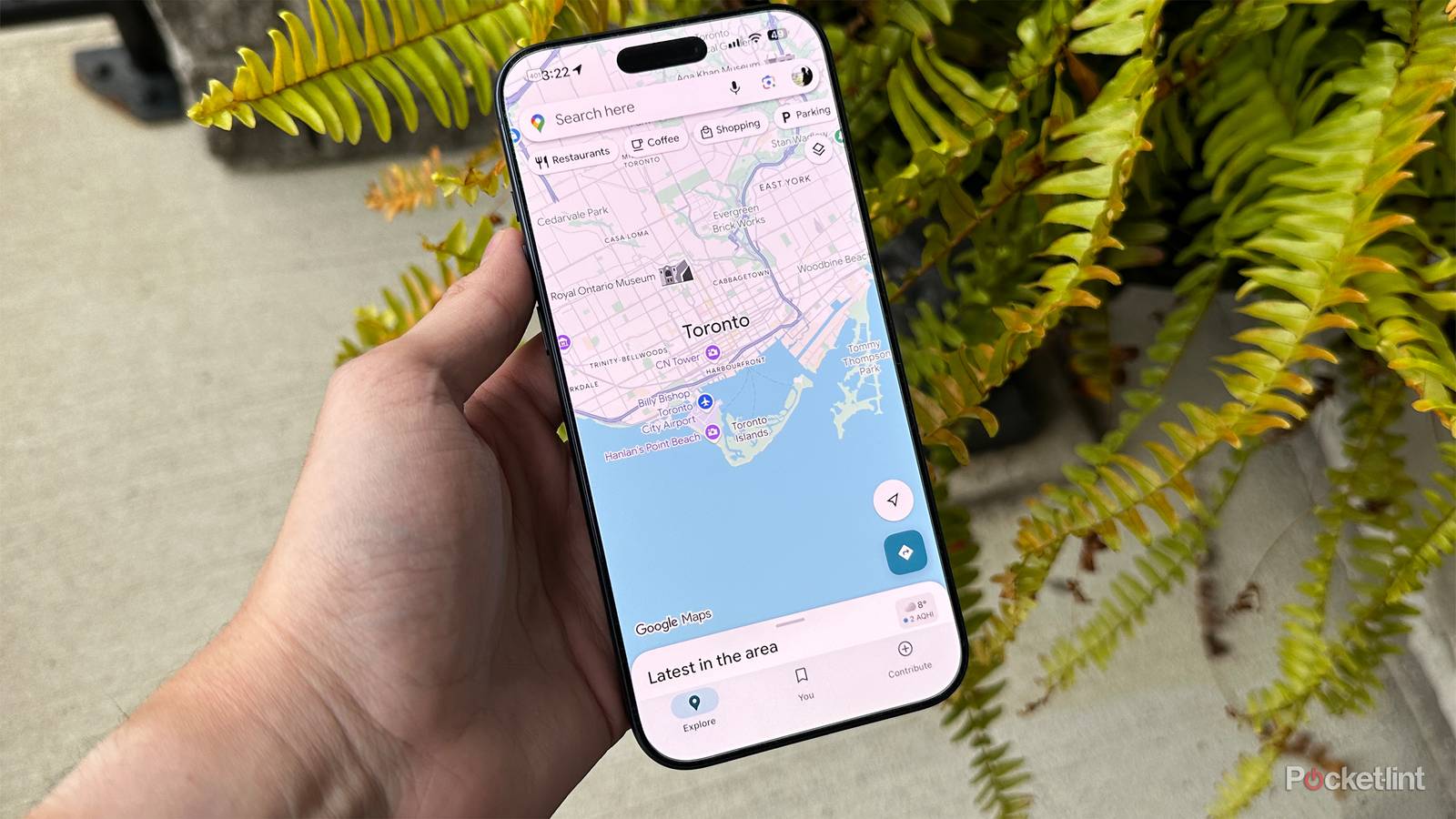
There are a number of iPhone and Android apps for which the goal, paradoxically, is to spend as little time interacting with them as possible, and nothing exemplifies that better than Google Maps. At most you might use it to plan a move or vacation. In most circumstances, though, the goal is just to get from A to B, and if you’re driving a car or riding an e-bike, interaction is not only difficult but dangerous. Just a few seconds can mean the difference between a boring trip and a life-changing crash.
Along those lines, there are some handy gestures and buttons you should be using. I should add that if you’re using CarPlay or Android Auto, some of these may not apply. It may depend not just on general frameworks, but which version of iOS or Android you’re using.
Swiping through the directions box
See what’s coming the turn after next

The greatest complaint I have with all the major navigation apps is that they’re so focused on the immediate upcoming turn, they forget to prepare you for anything after. Sure, Maps might tell you to use a particular lane to turn left — but it won’t tell you that the reason is that you need to make a right turn 10 seconds later, and you’ll have to wedge your way through a line of cars to do it.
One way of mitigating this is by swiping through the large directions box at the top of the screen. Mostly, of course, you’ll want to swipe left to see what’s coming next, but you can also swipe right if you want to see prior steps. Note that there’s no limit to how far forward or back you can go.
This is one of those gestures that’s guaranteed to work on your phone, CarPlay, and Android Auto. I wish Google made more of an effort to highlight it — there’s no indication in the UI that swiping is even possible.
Selecting an alternate route in a tap
Whenever things look dicey

Another pet peeve of mine is that for all of Google’s data collection and obsession with AI, Maps doesn’t necessarily keep you on the best route when you’re driving. Sometimes, it’ll even revert to another route without telling you — say, if you dare to turn right when you pull out of your driveway instead of left.
You’ve no doubt seen some of these alternate routes highlighted in gray, but what you might not know is that you can switch to one at any time, not just before you engage directions. All you need to do is tap on that gray line, or if that’s a little tricky, the line’s ETA label. I can vouch for this working in CarPlay, so it should work on every platform.
I’ve found this most useful when faced with unexpected traffic, or the opportunity to take a less complicated path. The reality is that Google doesn’t always do a good job of automatically re-routing you around jams, or recognizing when directions are a little convoluted for us humans. Ever been taken into the loading dock behind a store? Case in point.
Two-finger map rotation
New perspectives can help

To my knowledge, this one only works on consistently phones at the moment, which makes some sense — your dash display doesn’t necessarily have complex touch sensitivity. What you’re doing is putting two fingers onscreen, then spinning them clockwise or counter-clockwise to change the app’s camera angle. You can use this in tandem with the usual two-finger zoom gestures.
Most of the time, rotation isn’t especially helpful. But every so often, even a blue line and the directions box might leave you unclear as to where you’re supposed to turn, or what you’re looking at in terms of buildings or terrain. I’m expecting this to be a growing problem as Google pushes harder on 3D detail, which can sometimes obscure roads and building entrances despite UI tweaks meant to prevent that exact threat.
When you’re done, tap the Re-center button. Alternately, you can ask the likes of Gemini or Maps’ built-in voice options to “re-center” as well.
Building routes on the fly
Expect some limitations

If you’re like me, you usually just set one destination at a time, no matter how complex your plans for the day might be. There’s a very practical reason to do this: your phone’s memory. If you stop at a destination for more than a few minutes, and use other apps while you’re there, there’s a good chance Maps will be dropped from memory and forget the entire route you were on. Even a healthy amount of RAM won’t necessarily prevent this issue, though it does make it more likely that Maps will remain on standby.
Regardless, when you’re driving with CarPlay or Android Auto, you can add midpoints at anytime with the Add Stop button. You may need to tap the screen first to make the button appear. There’s a good chance you’ve used this option before — but if you haven’t, be aware that you’re normally expected to search by category, then select from a list of options by distance. You’ll want to pull over if you’re planning to search for a specific address rather than a business or other point of interest. Typing for more than a few seconds is risking an accident, assuming the app lets you do that at all.
Thankfully, voice control can fill in some gaps here. After tapping Add Stop, you should at some point see a microphone icon, which you can use to dictate search. Or you can start with voice control, asking the app to “add a stop,” say, or “find an EV charging station.” If there are multiple possibilities for your request, you’ll still have to select something onscreen.
If you’re navigating with your phone, you can actually add a destination by tapping it on the map, then, selecting Add stop. This can be dangerous in its own right though, since you’re not only distracted by scrolling, but no longer able to see where your vehicle is until you lock in changes or re-center. Ask a passenger for help if you can.
Reporting accidents, police, and other hazards
Do the world a favor

On a purely selfish, Randian level, there’s no reason to bother reporting anything in Maps. Google has access to its own traffic and emergency data, and if other people are reporting incidents, you’ll reap the benefits. This is one of those examples of group action contributing to overall welfare though, like voting. The more reports Google receives, the more likely traffic is to improve as people make different decisions. Besides, it can be satisfying to help other people avoid hazards that would ruin their day.
As of this writing, you can report the following things by tapping the triangular Report button:
- Crashes
- Slowdowns
- Traffic jams
- Mobile speed cameras
- Police
- Construction
- Lane closures
- Objects on roads
- Flooded roads
- Low visibility
- Unplowed roads
Your exact options will vary based on the country you’re in. Remember to be responsible with this tool, and quick as well. Since you can’t actually pinpoint a location while you’re driving, the app simply assigns one based on where you were when the report was submitted. There’s no sense reporting a speed camera half a mile after you’ve passed it.

- OS
-
iOS, Android
- Brand
-
Google
- Price
-
Free