


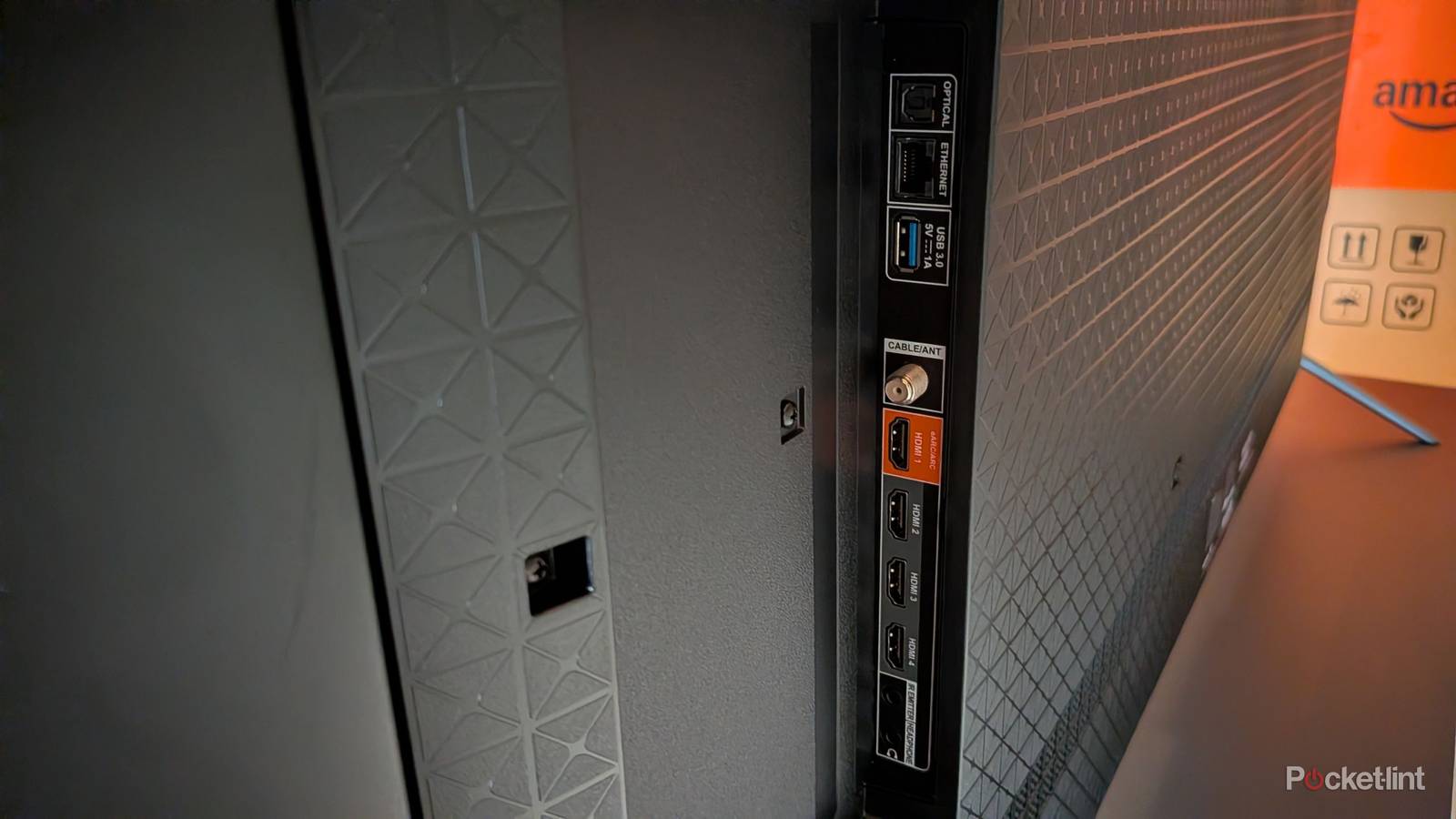
Your TV is packed with a bunch of valuable ports. I actually used my TV’s USB port for the first time recently, and I was blown away by what it was capable of. However, that’s a port that I’m not going to use very often. Something I use every single day is my HDMI port, and I actually use several of them. Although I have a receiver that handles most of my devices these days, I still use two of my HDMI ports. I have my receiver plugged into my eARC port, which is HDMI 3, and I have my Xbox Series X plugged into the HDMI 4 slot. Both of these are HDMI 2.1 ports, and the reason I do this is that I want to take advantage of the best that my TV has to offer.
My Sony Bravia X90J received VRR (variable refresh rate) as part of a software update, which was surprising because I knew this TV didn’t have it when I purchased it. However, just because your TV has VRR and 120 FPS support, it doesn’t mean it automatically has it on. I had to dig into my HDMI settings to turn this on, and you probably have to as well.
Your best HDMI settings are a few clicks away
Set it and forget it

For my Sony Bravia, there’s a setting called Enhanced format that I had to toggle on in order to get Dolby Vision and VRR. Yes, this is strange to be locked behind a setting like this, so make sure you look for a comparable setting on your TV. For Samsung, it’s called Input Signal Plus, for example. It’s not too difficult to track down as long as you properly dig through your settings. It’s annoying that it has a different name depending on the manufacturer, but it’s usually named some similar across each brand.
Some TVs might already have this setting turned on depending on its age, so you might have nothing to worry about. The reason why I brought it up as something to check is that it might not be turned on for each of your ports, or you might want to switch between them. Ideally, I could keep all my devices plugged into my receiver and just have my HDMI 3 port toggled as Enhanced. While that’s the case, it means I’m locked out of VRR and only locked into Dolby Vision. In most cases, that’s perfectly fine, since I watch movies far more than I play video games on this particular TV. However, when I want to play on my Xbox, I want to use VRR. This means I have to go into my HDMI settings and switch over from Dolby Vision to VRR. It’s annoying that I have to do that, so it’s easier to use two separate ports.
What I ended up doing was keeping HDMI 3 set to Dolby Vision and changing my HDMI 4 mode to VRR. Sure, this means I lose out on Dolby Vision for my Xbox, but I’d rather have VRR if I had to pick between the two. Sadly, I do have to pick between the two, so this is the situation that works best for me. I don’t like having to dig through my settings each time I play my Xbox, so this is what works best for me.
If you don’t have your Enhanced HDMI mode turned on, it doesn’t mean your picture won’t look good. By default, at least if you have a 4K TV worth its salt, you’ll have access to HDR10, and that provides a great-looking picture. While I believe Dolby Vision is an upgrade over that, the leap from regular SDR to HDR10 is a bigger leap than HDR10 to Dolby Vision. I would still implore people who pick up a high-end, or even a budget-friendly 4K TV, to go into their settings and see if there’s a switch that needs to be flipped. Once you get that all figured out, you still have to be aware of a few more things. Just because you have the enhanced HDMI port doesn’t mean you can take advantage of it right away.
The HDMI cable you’re using matters too
Pair the right cable with the right port

Your HDMI cable might be a simple cable, but it’s actually the key to your entire setup. Although the cables all look the same, the HDMI format has evolved over the past several decades. You need to use an HDMI 2.1 cable to take advantage of VRR. The good news here is that the cable that came with your Xbox or PlayStation is a 2.1 cable, so there’s nothing to be concerned about there. You can tell if you have a 2.1 cable by looking for the words Ultra High-Speed printed somewhere on it. I know that sounds counter-intuitive, and you shouldn’t have to read anything to find out what your cable is, but that’s how it is.
It’s a bit of a blessing and a curse that HDMI is fully backwards and forwards compatible in the way that it is. I love that I can use my new HDMI 2.1 cable with my Xbox 360. It doesn’t give my 360 access to new features like VRR, but it just works. However, you shouldn’t use your Xbox 360-era HDMI cable with your Xbox Series X because you’re going to seriously hold back your console’s performance by doing that. You will still see an image displayed, and you’ll hear audio, but you won’t be getting access to 120 FPS or VRR with it. That might not matter a whole lot if you don’t game, but it’s a problem if you do.
While HDMI 2.1 comes with a lot of bells and whistles, a lot of them go to waste on current devices. My 4K Blu-ray player doesn’t benefit from a 2.1 cable whatsoever, and that’s a bit of a shame, especially with HDMI 2.2 right around the corner. It feels like we still haven’t maximized what 2.1 has to offer, and we’re already looking at a new format coming out. That’s no fault of the format, but it does feel like we’re locked into a constant state of catching up to the technology. I guess I’d rather have that than have current devices being held back by a cable. A better question to ask is how much more performance do we need from modern cables? It seems like the 4K resolution is what we’ll be sticking with for the foreseeable future, so we’re sort of already at a point where we don’t need any more performance. Gaming is going to continue pushing the boundaries, but I’m not sure our 4K Blu-ray players or Apple TV 4Ks of the world are going to keep pace.


